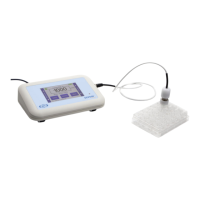
EVOM™ Manual
World Precision Instruments 1
QUICK START FOR TAKING MEASUREMENT
1. Power on the EVOM™ Manual using the power switch on the rear panel.
2. To congure your data le storage settings, hold the
Store
button on the main
screen for 2 seconds.
• Select the preferred storage mode,
USB Save
or
APP Save
. See "Storing Data"
on page 15.
• If a lename other than the default (plate1) is required, choose whether you
will use a prex and auto-indexing or a unique le name. To use a prex and
auto-indexing, activate the
Auto Index
radio button. Then, press
Store Prex
to
enter a le name. To use a unique le name, deactivate the
Auto Index
radio
button. Then, select
File Name
to enter a new name.
3. Prepare the storage location you selected above, either USB or PC using the
appropriate method:
• If you selected
USB Save
, you need to insert the USB ash drive into the USB
port on the side of the EVOM™ Manual. See "Storing Data on the USB Flash
Drive" on page 17.
• If you selected
APP Save
, need to make sure the EVOM™ Manual is properly
connected to the computer using the USB cable included and verify that the
Companion Application is running. See "Storing Data on a Connected PC" on
page 19.
4. Congure your plate settings, including the number of wells, the mode (resistance
or voltage), the mode units, and blank handling, and perform any electrode
preparation.
• For taking resistance measurements, refer to "Resistance Conguration
Procedure" on page 27
• For taking voltage measurements refer to "Voltage Conguration Procedure"
on page 28.
5. Whether you are taking resistance or voltage measurements, the data acquisition
procedure is identical. To begin measuring with well A1, do one of the following:
• Press the foot switch or touch the
Store
button on the main screen. A
measurement of the rst well is taken, and the data storage advances to the
next well in your sequence. Tap the
Store
button again to measure the next
well in your dened sequence.
NOTE: When required, you may use the
Previous Well
area on the left side of
the screen to return to the last well and re-measure or the
Next Well
area on
the right side of the screen to skip a well. Then press the
Store
button or the
foot switch to take the measurement of that cell.
• Press the Preview button to see a graphical display of the plate. The green
cell indicates the cell to be sampled, and the yellow cell indicates the next
well in the sequence. Press the foot switch to take a measurement and
advance to the next well.


 To Next Page