XP0100 Enterprise IP Phone Using the Advanced Phone Functions
Xorcom Ltd. 38 www.xorcom.com
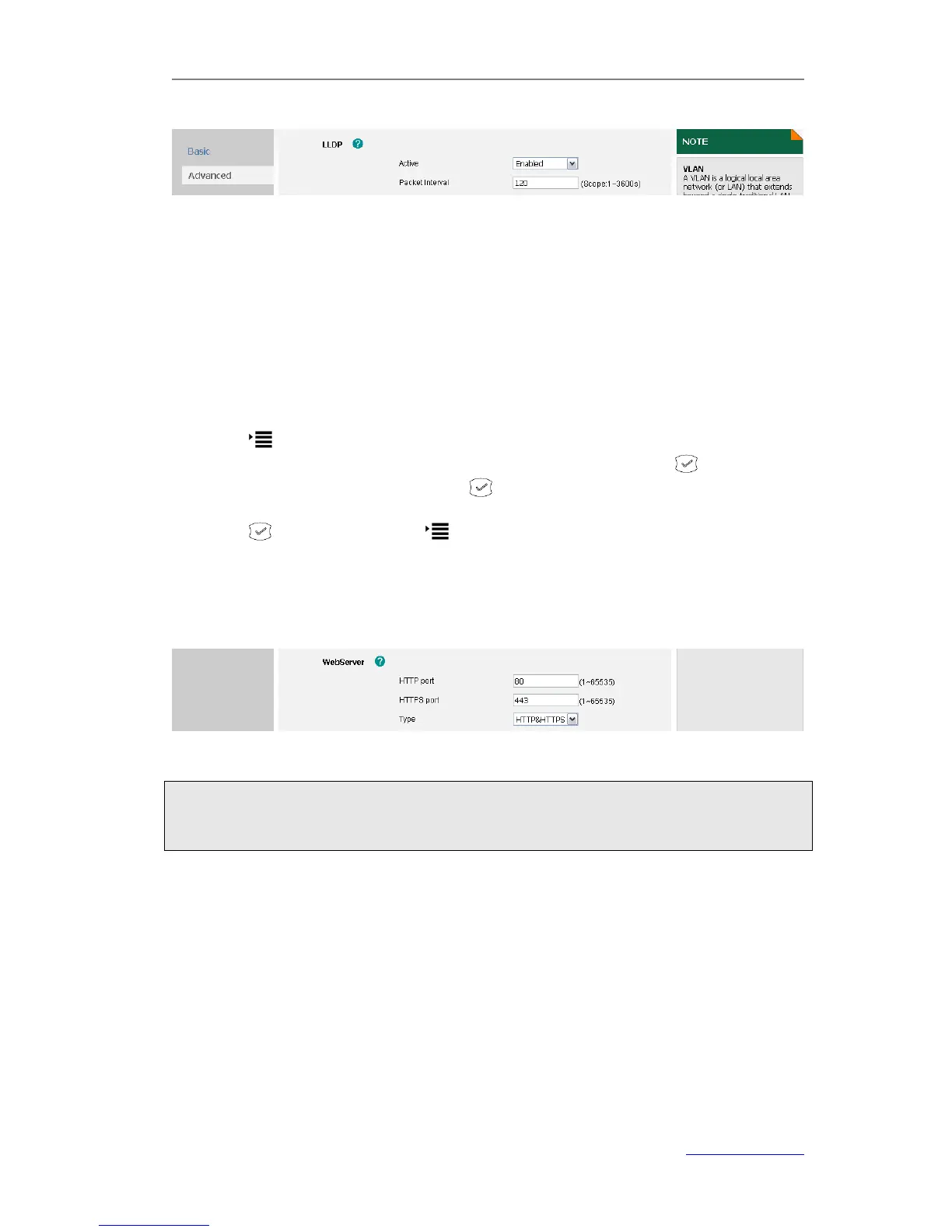
2) Scroll to LLDP field, and then select Enabled from the pull-down list of Active.
3) Enter the corresponding packet interval in the Packet Interval field.
4) Click Confirm to save the change
HTTPS
This IP phone can support HTTPS (Hypertext Transfer Protocol over Secure Socket
Layer). Adding SSL layer under HTTP, in short, it is a security version of HTTP. Users can
set this transmission mode via web page.
To configure HTTPS settings via phone user interface:
1) Press ->Settings->Advanced.
2) Enter the password required, scroll to Network and then press .
3) Scroll to Web Type and then press .
4) Press Left/Right navigation key to select the transmission mode.
5) Press save the change or to cancel.
To configure HTTPS settings via web user interface:
1) Click on Network->Advanced
2) Scroll to WebServer field, and then select the desired transmission mode from the
pull-down list of Type.
3) Click Confirm to save the change.
Maintenance Tasks
Administrator Mode
The phone allows two modes to configure the phone:
User Mode
Administrator Mode
Administrator mode grants unlimited access to the phone configuration on both Web
and Phone interface. User Mode cannot set the following options: Advance settings of



 To Next Page