CL Editor Owner’s Manual
42
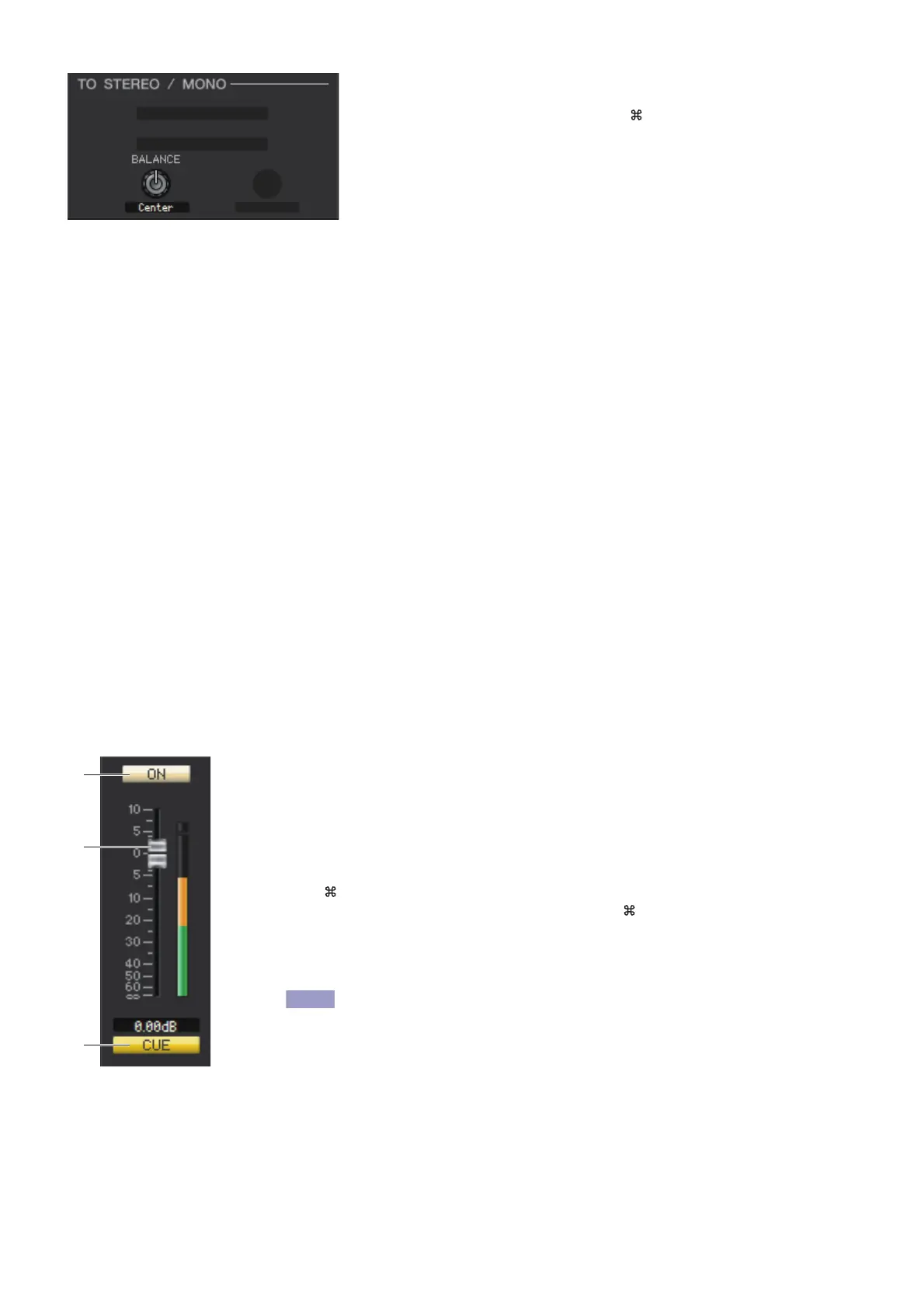
❏ BALANCE
This is shown only if the selected MATRIX bus is being used as stereo. It
adjusts the left/right volume balance of the stereo signal. You can set this to the
center value by holding down the <Ctrl>(< >) key of your computer key-
board and clicking this knob.
❏ EQ (Equalizer)
This is the same as for the equalizer of a MIX channel (➥ p.39.)
❏ DYNAMICS1
Except for the fact that the available types are COMPRESSOR, EXPANDER, COMPAND H and COMPAND S, and that
you can select more than one signal as the key-in signal, this is the same as the dynamics for input channels (➥ p.30.)
❏ INSERT
Except for the fact that the insert ports that can be selected are different, this is the same as for the insert settings of an
input channel (➥ p.34.)
❏ RECALL SAFE/MUTE SAFE
These are the same as the RECALL SAFE/MUTE SAFE of a MIX channel (➥ p.40.)
❏ MUTE GROUP
These are the same as the MUTE GROUP of a MIX channel (➥ p.40.)
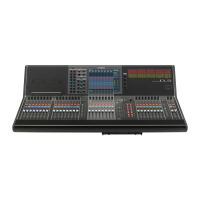
❏ Fader
1 ON
This switches the MATRIX channel on/off.
2 Fader
This adjusts the output level of the MATRIX channel. A meter indicating the signal level is
shown at the right of the fader, and the current value is shown in the numerical box imme-
diately below. You can set this to the minimum value (–∞ dB) by holding down the
<Ctrl>(< >) key of your computer keyboard and clicking the fader knob, or set it to the
nominal value (0.00 dB) by holding down the <Ctrl>(< >) key and <Shift> key and click-
ing the fader knob.
3 CUE
This button cue-monitors the signal of the MATRIX channel.
If the Channel Select/Sends On Fader checkbox in the System Setup dia-
log box is not checked, the [CUE] button will be hidden in the screen.


 To Next Page