WATCH FACE
WATCH FACE WIDGETS
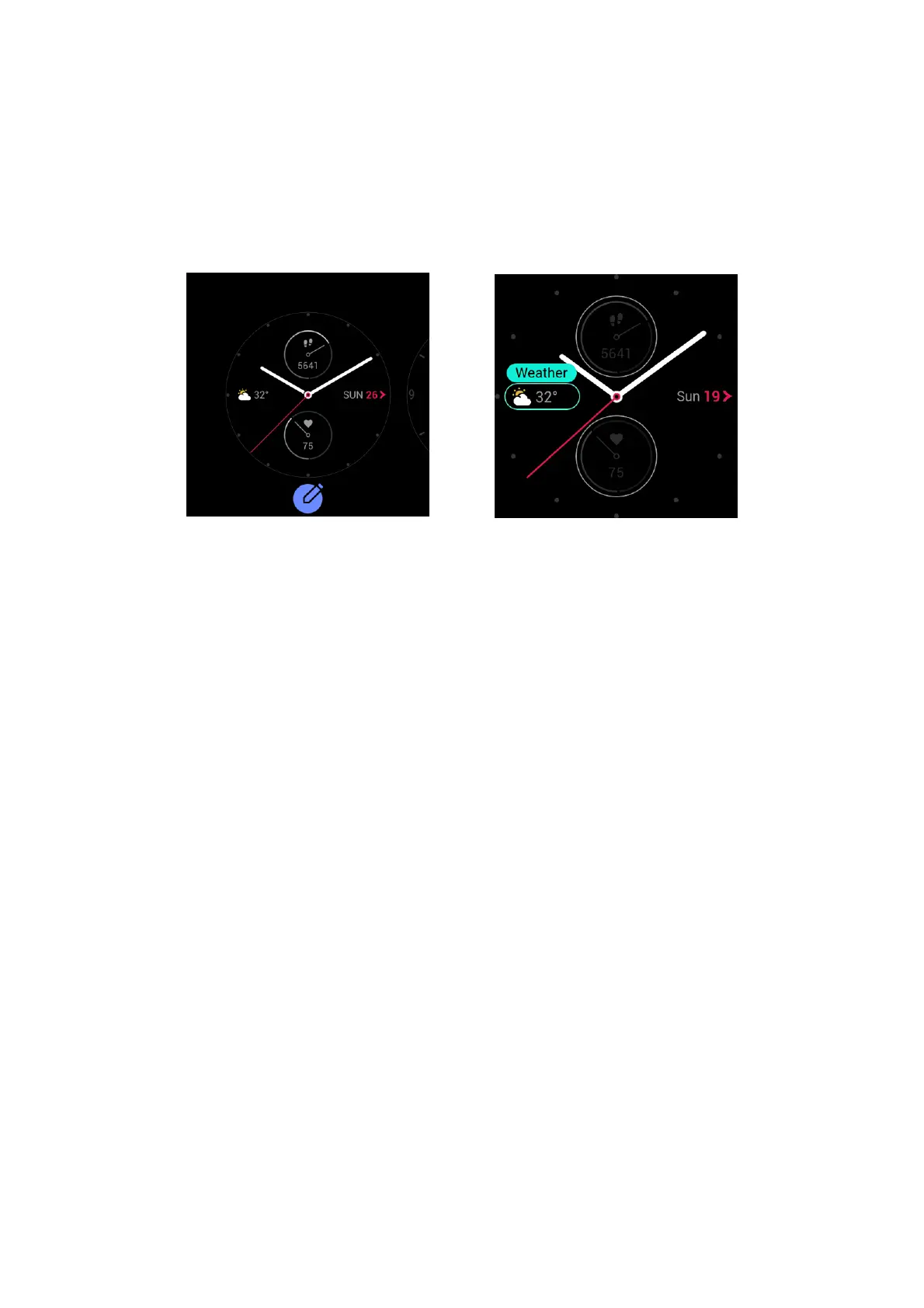
Some watch faces support watch face widgets, allowing you to view such information as steps,
calories, and weather. You can tap a widget to open the corresponding app. You can also edit a
watch face widget as needed.
Edit a watch face widget as follows:
1. Wake the watch, and tap and hold on the watch face to go to the watch face selection screen.
2. Swipe left and right to preview the available watch faces on the watch. The Edit button
appears in the lower part of any watch face if it supports widgets. Tap Edit to go to the widget
edit screen.
3. Select the widget you want to edit, and tap the widget or swipe up and down on the screen to
replace the widget.
4. After you finish editing, press the side button to apply the new watch face.
ALWAYS ON DISPLAY
After this feature is enabled, the watch in the standby state still displays some information on the
watch face instead of completely turning off the screen. This seriously reduces the battery life.
Set the Always On Display as follows:
1. After you wake the watch, press the side button on the watch face to go to the app list, and
choose Settings > Always On Display.
2. Select a watch face style and enable or disable Always On Display.


 To Next Page