How to configure in the Android system:
Keep the watch connected to the phone. Open the Zepp app, choose Profile > My Device > Zepp E
> Incoming call > Incoming call alerts, and tap the "Go to Settings" prompt on the top. When the
dialog box for call permission authorization appears, grant call permissions to the Zepp app. If
the prompt does not appear, call permissions have been granted to the Zepp app.
Note:
To use this feature in the Android system, add the Zepp app to the phone's background whitelist
or auto-start list to keep the Zepp app always running in the background. If the background
process is cleared by the phone, the watch is disconnected from the Zepp app, making it unable
to receive incoming call alerts.
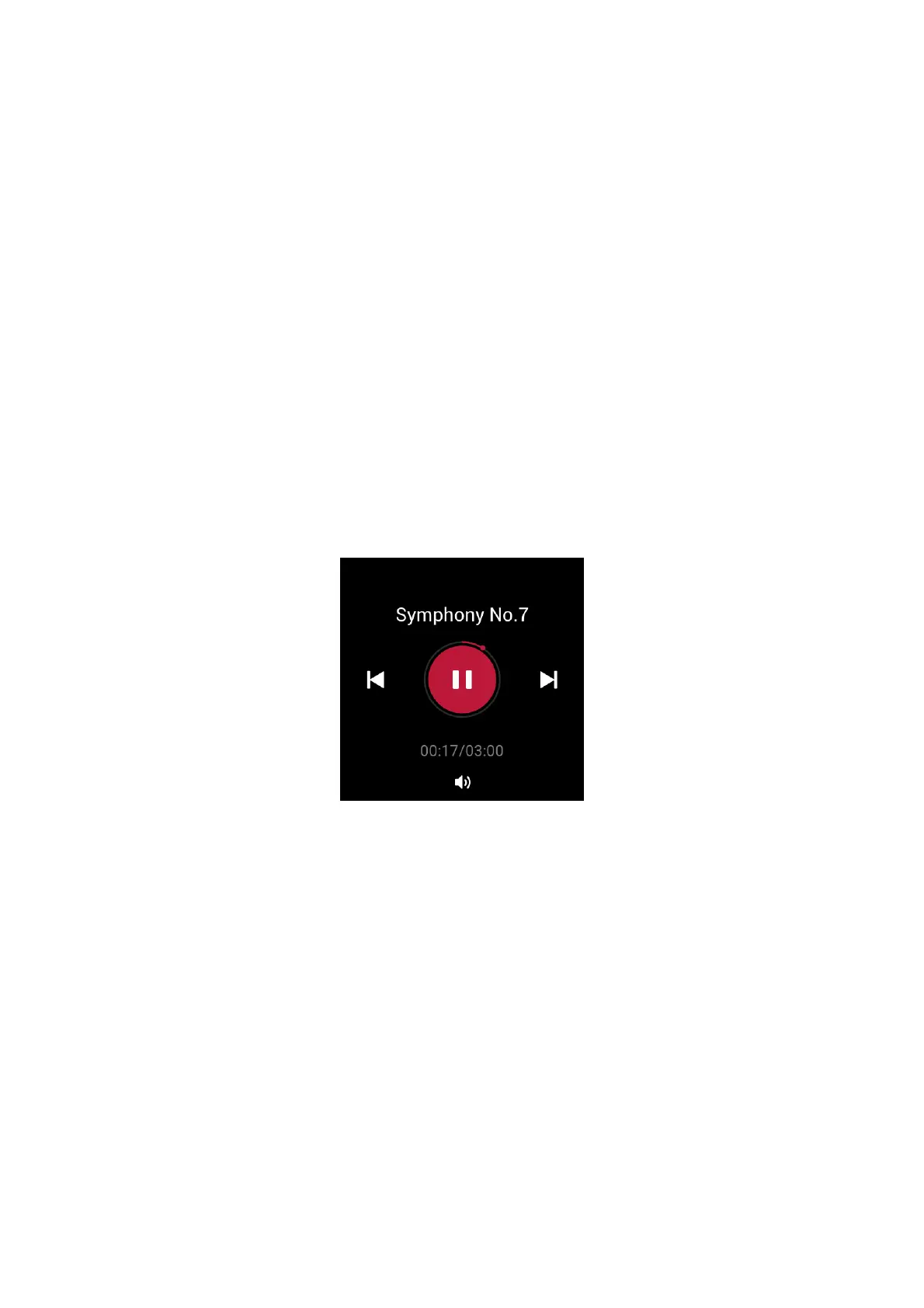
CONTROLLING THE PHONE'S MUSIC PLAYER
Keep the watch connected to the phone. When the phone is playing music, you can use the
watch's music app to control the phone's music player. For example, you can pause the song
being played, adjust the volume, or switch to the previous or next song.
How to configure in the Android system:
Keep the watch connected to the phone. Open the Zepp app, choose Profile > My Device > Zepp E
> App alerts, and tap the "Can't access notifications" prompt on the top. When the screen for
notification permission settings appears, grant the notification read permission to the Zepp app.
If the prompt does not appear, the notification read permission has already been granted to the
Zepp app.
Note:
To use this feature in the Android system, add the Zepp app to the phone's background whitelist
or auto-start list to keep the Zepp app always running in the background. If the background
process is cleared by the phone, the watch is disconnected from the Zepp app, making it unable
to control the phone's music player.


 To Next Page