Installation and Operating Instructions V03 39
3. Start the web browser and type in ‘http://160.190.0.1’. The internal website will
open.Select a router in the [Wireless] area. The Password/Security Key dialog
box will pop up.
4. Enter the password of the router (Figure B). If the WiFi device is connected to
the router successfully, the status indicator on the wireless page will display
the icon (Figure C).
5. Please change to a secure WiFi password to ensure highest security and
prevent unauthorized access, refer to manual for the process of password
change (you can download the manual from Zeversolar home page
www.zeversolar.com).
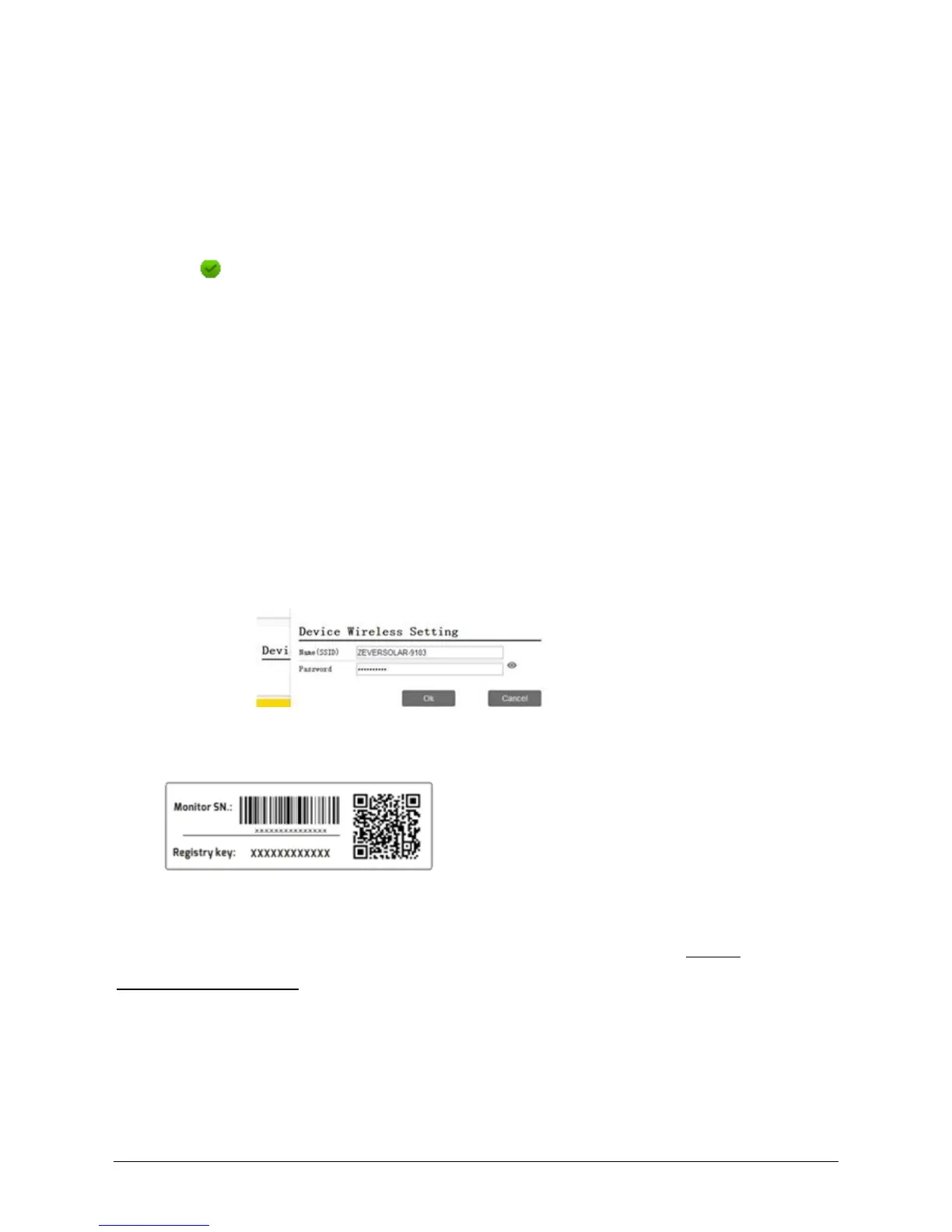
6. This page shows the WiFi SSID and password information, you can change the
SSID and WiFi password accordingly (default password is ‘zeversolar’). To
ensure highest security of your system, please change the default password
‚zeversolar‘ and keep the new password confidential. If you do not change to a
secure password, you expose your system to a risk of unauthorized access by
persons who know the default password and are within the reach of the WiFi
network.
7. Monitor SN and Registry Key is printed on the labels which is attached on
inverter side and warranty card
More operating information for ComBox:
In order to achieve remote monitoring reliably, please visit website ( http://
www.zeversolar.com ) and download the detailed information, you can also find how
to use ZeverCloud in it.



 To Next Page