Changing project names
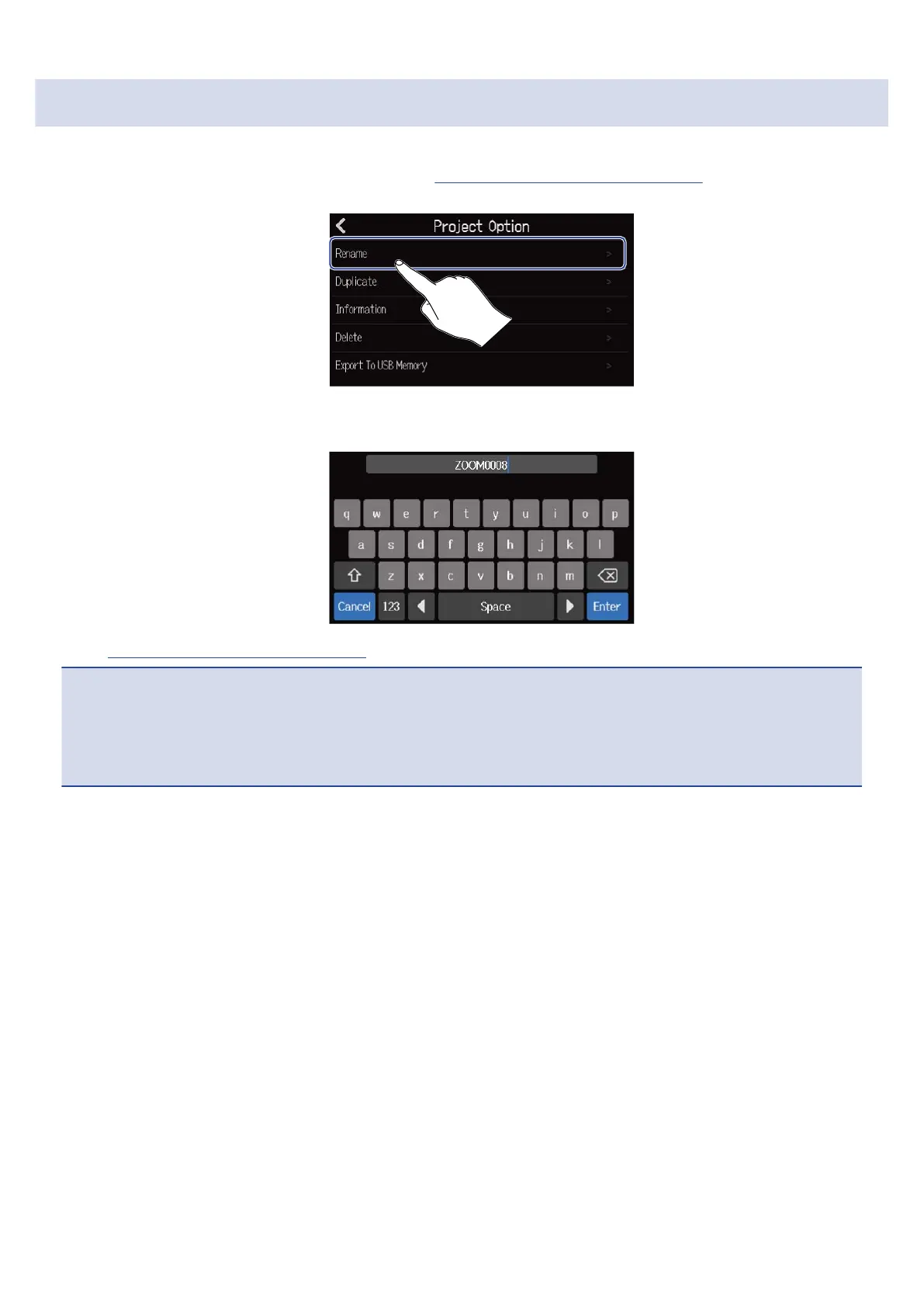
1. Tap “Rename” in the Project Option Menu (→ Opening the Project Option Menu) of the project that
you want to rename.
2. Change the project name.
See Character Input Screen overview for how to input characters.
NOTE:
• An error message will appear if the same name already exists after changing a project name. If this
happens, change the project name.
• Project names can be a maximum of 50 characters, including their extensions.
3. When “Done” appears, tap “Close”.
129



 To Next Page