247Security Inc. | 4400 North Point Parkway, Suite # 158, Alpharetta, GA 30022, USA | 1-866-693-7492 | www.247securityinc.com
ZEUS mDVR
USERS MANUAL
40
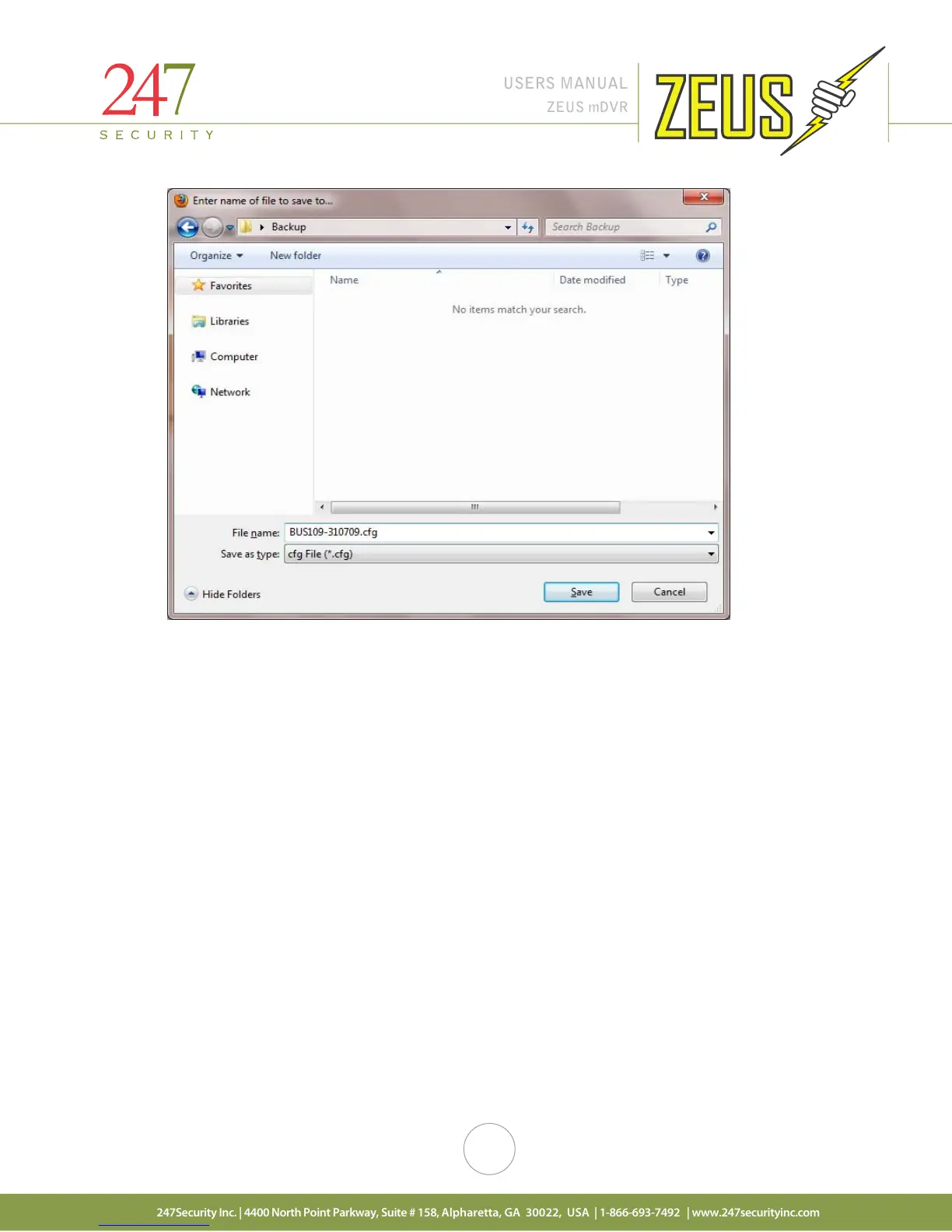
Select a folder location of your choice and click the “Save” button. A file named “mvdr.cfg” will be
saved the chosen location. You can then rename this file to whatever you want to better identify which DVR it
came from. For example, you can rename the file to incorporate the vehicle name and the date it was
configured like the following: “BUS109-310709.cfg”.
4.13.2 UPLOAD CONFIGURATION
This option allows you to select a backup configuration file and upload it to the DVR. This feature will
overwrite all the current settings with the settings from the configuration file. The only value you may need to
change is the “DVR Server name” under the System tab because it was just overwritten with “DVR Server
name” from the configuration file. Note: All previous video data on the DVR will be lost if you apply uploading
with DVR Name is changed.
Note: Download and Upload Configuration feature is not compatible between different versions of
firmware; this feature should only be used when deploying multiple DVRs with same hardware and software.
Installer would configure the first DVR and then download the configuration to his computer, when installing
the subsequent DVRs, installer merely has to upload the previously save configuration and change the DVR
name.
Click the “Browse” button to open the “File Upload” window and select the configuration file you wish
to upload. Click “Open” when the configuration file is selected


 To Next Page