247Security Inc. | 4400 North Point Parkway, Suite # 158, Alpharetta, GA 30022, USA | 1-866-693-7492 | www.247securityinc.com
ZEUS mDVR
USERS MANUAL
51
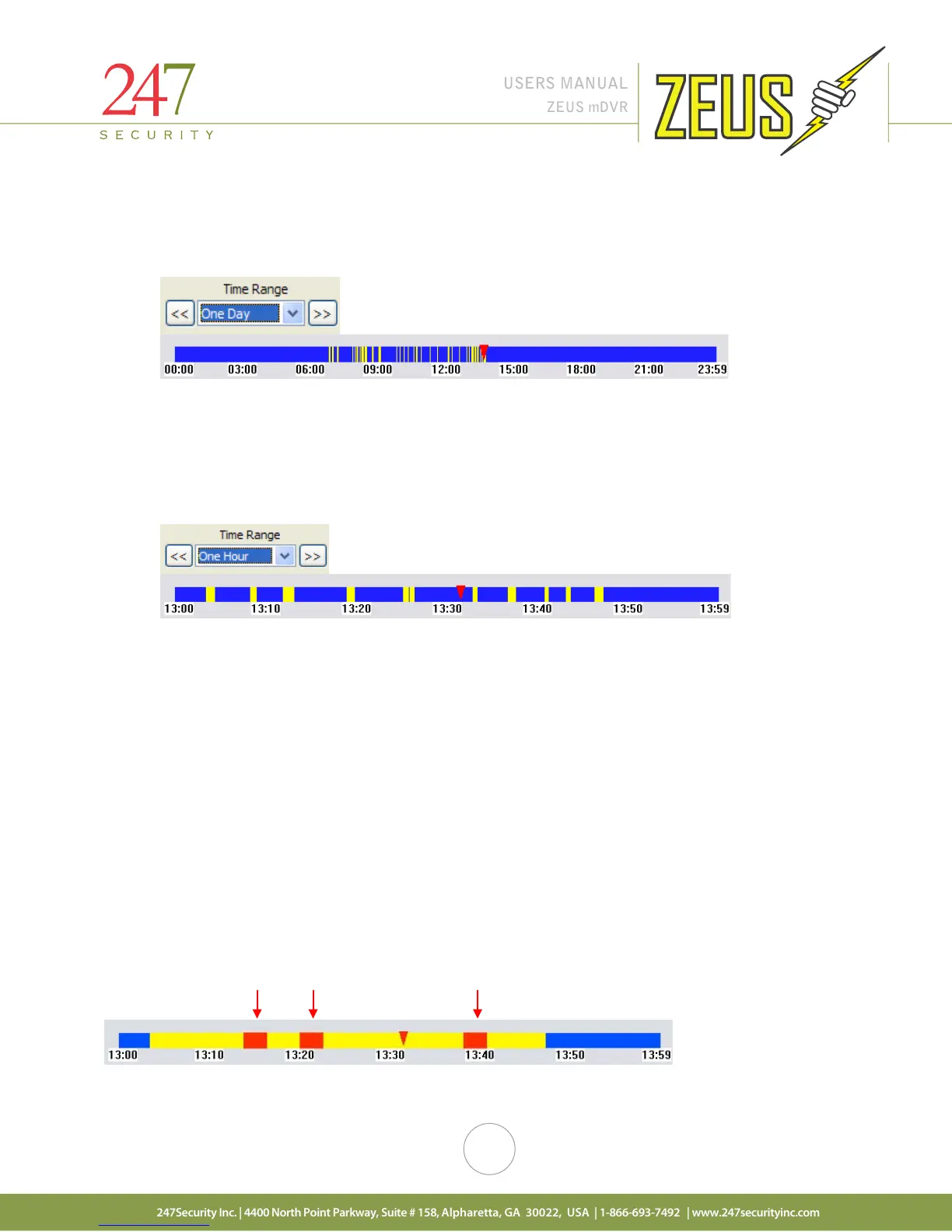
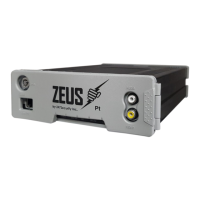
There are two modes that you can view the recorded video on the timeline bar:
1. One Day - Timeline bar can be set to “One Day” which allows user to select any video between
00:00 and 24:00
2. One Hour - Timeline bar can be set to “One Hour” which allows user to select any video in 1 hour
increments. You can also select 15 minute increment.
The timeline bar is used to display the available video in the time mode selected above. The different colors
on the bar represent the different types of video. See below for description of the colors used in the timeline
bar:
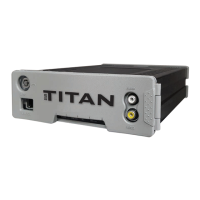
Yellow: Recorded video searchable by moving bar along the time line or using the playback controls
below the timeline bar.
Red: Locked recorded video that was marked by either the event marker or triggered by a sensor
during the recording process.
Blue: No video recorded
5.9 SEARCH VIDEO BY EVENT
Using the timeline bar, you can search for events that were marked by the event marker or triggered by a
sensor. These video events are indentified by red color in the timeline bar. In the example below, there are 3
marked events between 13:00 and 13:59. The greater the Pre-Lock / Post-Lock values the greater the red bars
on the timeline bar.


 To Next Page