247Security Inc. | 4400 North Point Parkway, Suite # 158, Alpharetta, GA 30022, USA | 1-866-693-7492 | www.247securityinc.com
ZEUS mDVR
USERS MANUAL
42
4.13.3 UPDATE FIRMWARE & MCU FIRMWARE
This feature will allow the user to update the firmware and MCU firmware of the ZEUS system if
needed. Firmware updates may contain new features and improvements, the update process should only be
done by a qualified technician. If the update process is not done correctly, your DVR may fail to start properly
and must be returned to your dealer for repair. Follow the following steps to successfully update your ZEUS
system firmware.
1. Hard Drive Removal
a. If DVR is running, turn the key lock to off position and wait until DVR powers off
b. Open the door (Note: Leave it open during upgrading process)
c. Insert Force Power on Cable into GPIO2 port then Remove hard drive
d. Turn the key lock to ON position and wait until DVR boots up. DVR has finished booting when
both Ignition LED (green) and Power LED (green) are on solid.
2. Connect to DVR and Save Current Configuration
a. Connect cross-over network cable between DVR and your computer
b. Verify your computer LAN IP address is 192.168.1.55
c. Launch Internet Explorer
d. Type http://192.168.1.100/ to access DVR setup
e. You should now be at the login page
f. Type “admin” as the User Name and “admin” as the password
g. Go through each page and manually record on paper all the settings, it is very important to
record the correct DVR Server Name.
3. Upgrading MCU (1 to 2 minutes)
a. Go to the TOOLs Tab in the setup page
b. Insert Force Power-on plug into the “GPIO2” port on the rear of the system
c. Browse for latest MCU file (example: ZEUSDVRV2-A0.09.hex)
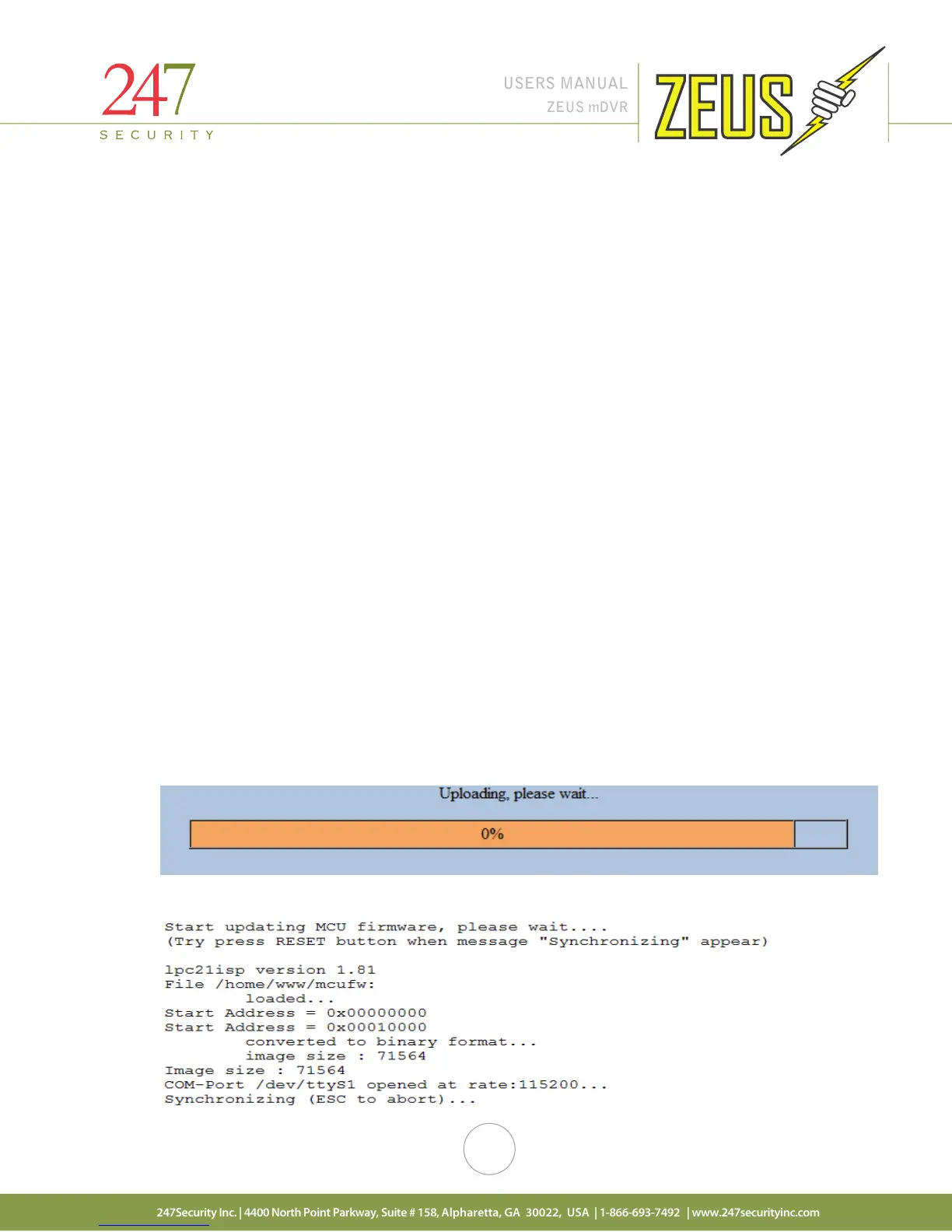
d. Update MCU then system shows popup:
e. After popup is closed then follow instruction on screen. When seeing “Synchronizing ..” text
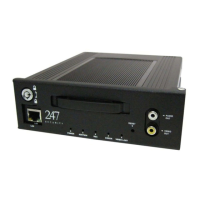
then press “RESET” button on front panel of device immediately:


 To Next Page