247Security Inc. | 4400 North Point Parkway, Suite # 158, Alpharetta, GA 30022, USA | 1-866-693-7492 | www.247securityinc.com
ZEUS mDVR
USERS MANUAL
43
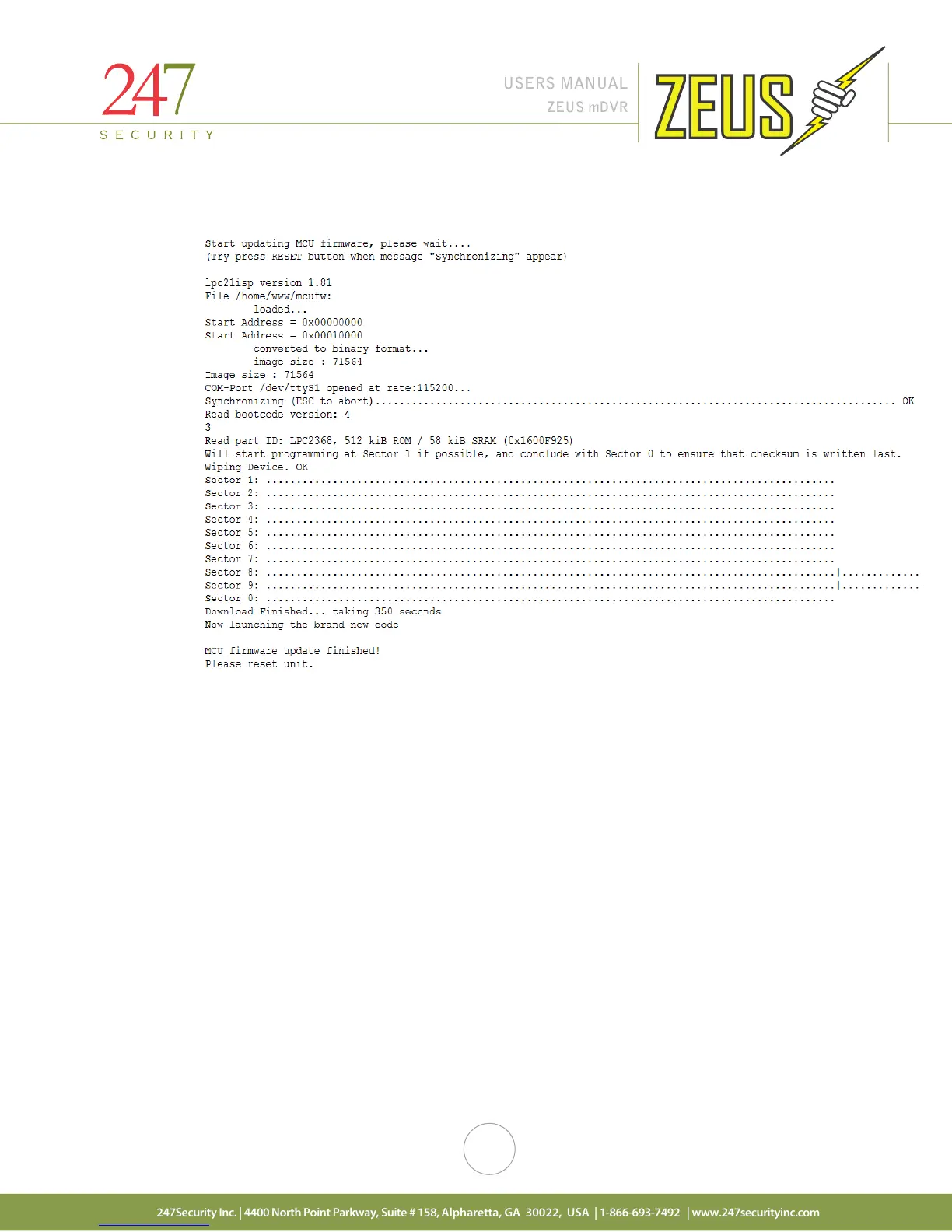
f. After about 6 minutes then system adds more messages as below:
g. Remove Force Power-on plug and wait for about 60 seconds until DVR restarts
h. Click “Close” to close the Internet Explorer page
i. Launch Internet Explorer
j. Type http://192.168.1.100/ to access DVR setup
k. Verify the new MCU version on the status page
Note: On some versions of Internet Explorer the cache must be cleared in order to view the mcu
update prompt. Use “Internet Options” and choose the option to delete all browsing history
including; history, temp files, cookies and web form information, before doing the MCU update.
4. Upgrading Firmware (5 minutes)
a. The Force Power-on plug into the “GPIO2” port in the back of the system and after DVR boot-
up, both ignition LED (green) and Power LED (green) should be on solid. (This is optional step)
b. Launch Internet Explorer
c. Type http://192.168.1.100/ to access DVR setup
d. Browse for the latest Firmware (currently HOST_DEP_ZEUS.1.0.12.0731.13 FW). Make sure
the firmware update file has the HOST_DEP at the beginning because this firmware will set DVR to
factory default settings.
e. Update Firmware
f. After about 10 seconds you should see the message “Updating firmware…DVR will reboot
itself please wait for 300 seconds” on browser
http://192.168.1.100/firmware.html , and the time will
be counting down to 0 seconds.


 To Next Page