Aprisa SRx User Manual 1.3.0
USB Boot Upgrade Method
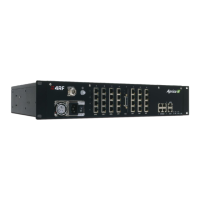
A single Aprisa SR radio can also be upgraded simply by plugging a USB flash drive containing the new
software into the USB A host port on the Aprisa SR front panel and power cycling the radio.
Upgrade Process
To upgrade the Aprisa SR radio software:
1. Unzip the software release files in to the root directory of a USB flash drive.
2. Check that the SuperVisor USB Boot Upgrade setting is set to ‘Load and Activate’ (see ‘Software >
Setup’ on page 180).
3. Power off the Aprisa SR and insert the USB flash drive into the host port .
4. Power on the Aprisa SR.
5. The software upgrade process is complete when the OK LED flashes green. This can take about 2
minutes.
The software will have loaded in to the radio Software Pack location.
6. Remove the USB flash drive from the host port .
7. Power cycle the Aprisa SR.
Login to the radio being upgraded and go to SuperVisor ‘Software > Manager’ on page 184.
The version of the uploaded software will be displayed in the Software Pack ‘Version’ field.
If the upgrade process did not start, the Aprisa SR could already be operating on the version of software
on the USB flash drive. This will be indicated by flashing OK LED and then the OK, MODE and AUX will light
steady green.


 To Next Page