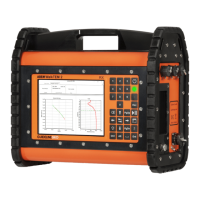
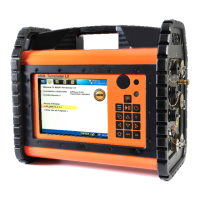
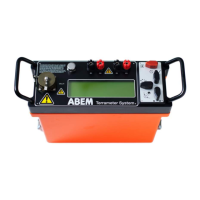
ABEM Terraloc Pro 2
65
• Opening the Header Info dialog
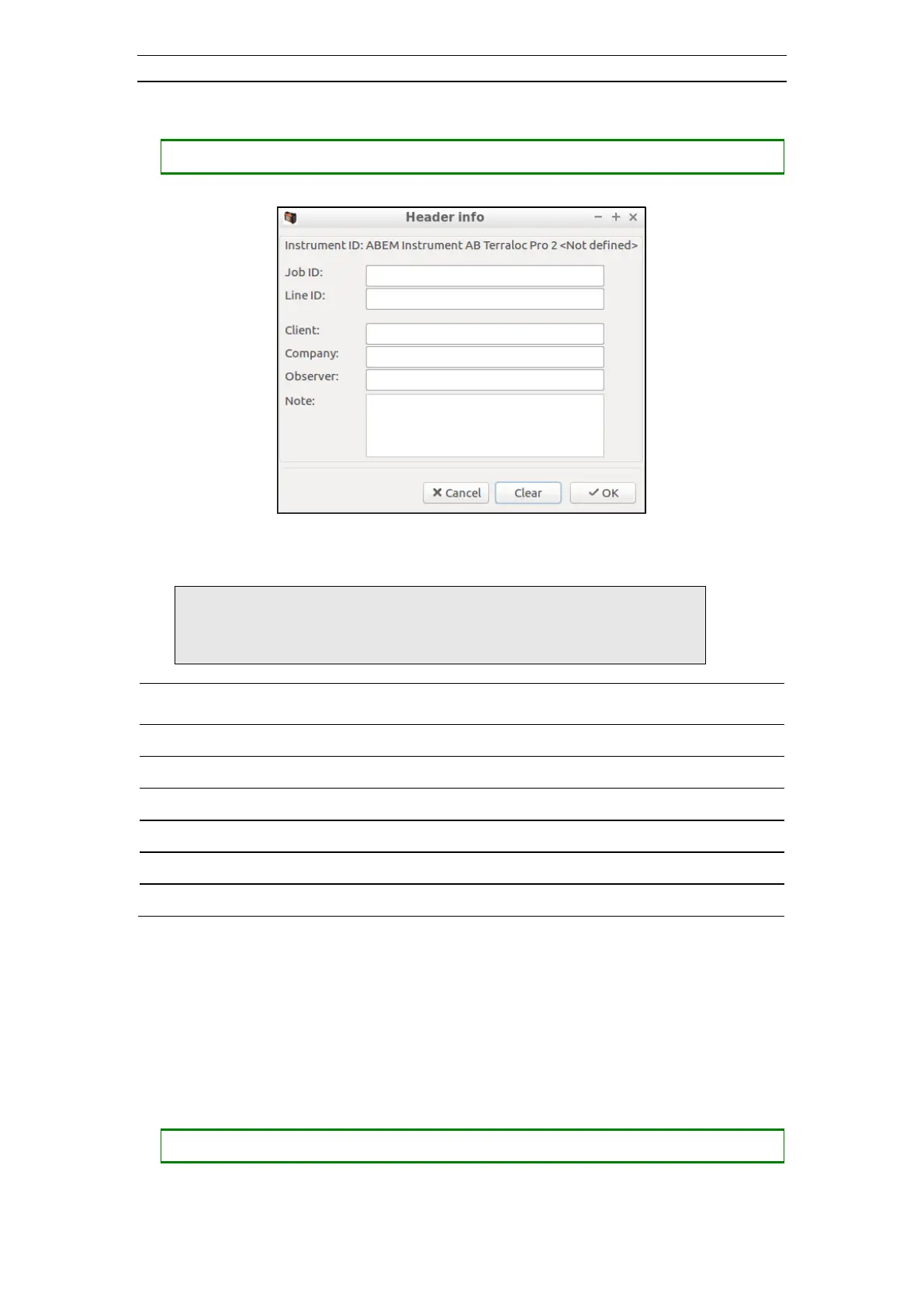
― Press <7> to open the Header Info dialog
Figure 56 The Header Info Dialog
Note! Remember that an external USB-keyboard is needed
to be able to write letters. Therefore it can be practical
to fill in the header info before going out in field
- A text string identifying the job
- A text string identifying the seismic line
- A text string naming the client of the job
- A text string naming the company of the client
- A text string naming the observer(s)
- A free form text string
4.6.13 The View Options Dialog
The View Options dialog handles settings for how data is viewed in SeisTW (Figure
57). The dialog is divided into six sections. The View Mode setting decides which one
of the Normalize, AGC, Enhanced and Hyperbolic sections that is available for setting
up. The Frequency Analysis section affects how the Frequency View (4.4.5) will present
the frequency data.
• Opening the View Options dialog


 To Next Page