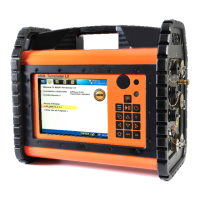
ABEM Terrameter LS
87
• Start the measuring procedure, which will start with the electrode contact test
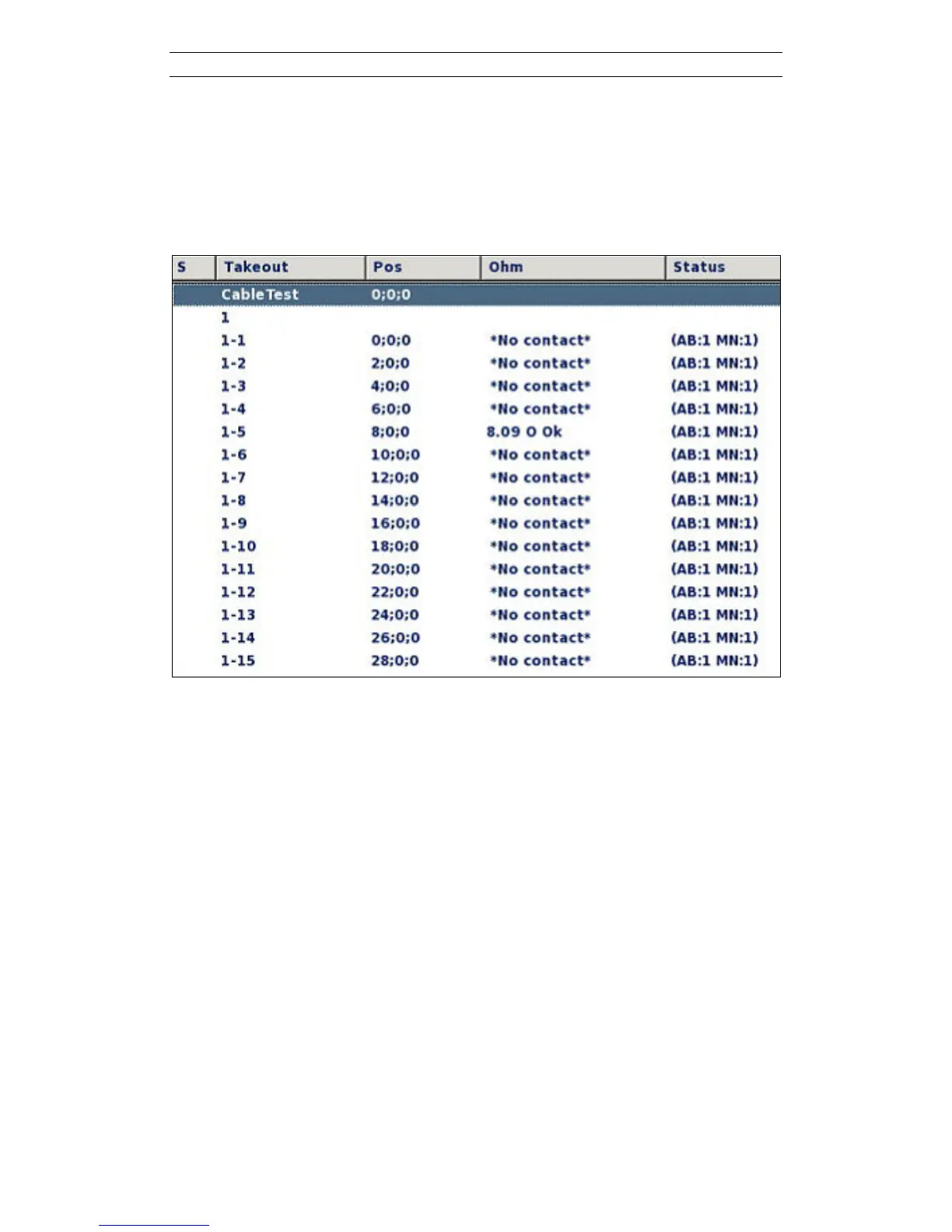
• Navigate to the “Measure/Electrodes” View to check the result of the test. If the
cable is Ok there should not be contact for any of the electrodes on the cable(s),
that is the text in the Ohm column should read ‘*No contact*’ for all electrodes. If
there is any connection (see Figure 104) there is a problem with the cable.
Figure 104.The Electrodes view showing the result for a faulty cable
9.4 Remote Diagnostics
The Terrameter LS can be connected to ABEM for remote diagnostics over a VPN
(Virtual Private Network). To connect the instrument to a VPN you need a standard
Ethernet based TCP/IP LAN (Local Area Network) that is connected to the Internet.
The instrument is connected to the LAN with a RJ-45 cable. Connect the instrument
to the network before it is switched on.
If the LAN has a DHCP service, the instrument will acquire an IP number and most
likely the other required network settings from the DHCP server when the network
service starts. Note that the DHCP server must allow unregistered MAC addresses. If
it does not, the instrument’s MAC address must be registered in it. Please contact your
local network administrator if this is necessary. To find the instrument’s MAC, see the
“Instrument/Network” View.
Restrictions: The LAN router or firewall must not block outgoing traffic on port 1194,
and must allow incoming traffic that is initiated from inside the LAN to be returned to
the instrument. Further, if the LAN is using NAT, it must not use the private IP
network 10.17.23.x since the VPN will be using it. Most office LANs will meet these
specifications.


 To Next Page