ABEM Terrameter LS
15
3.4 The Option Menus
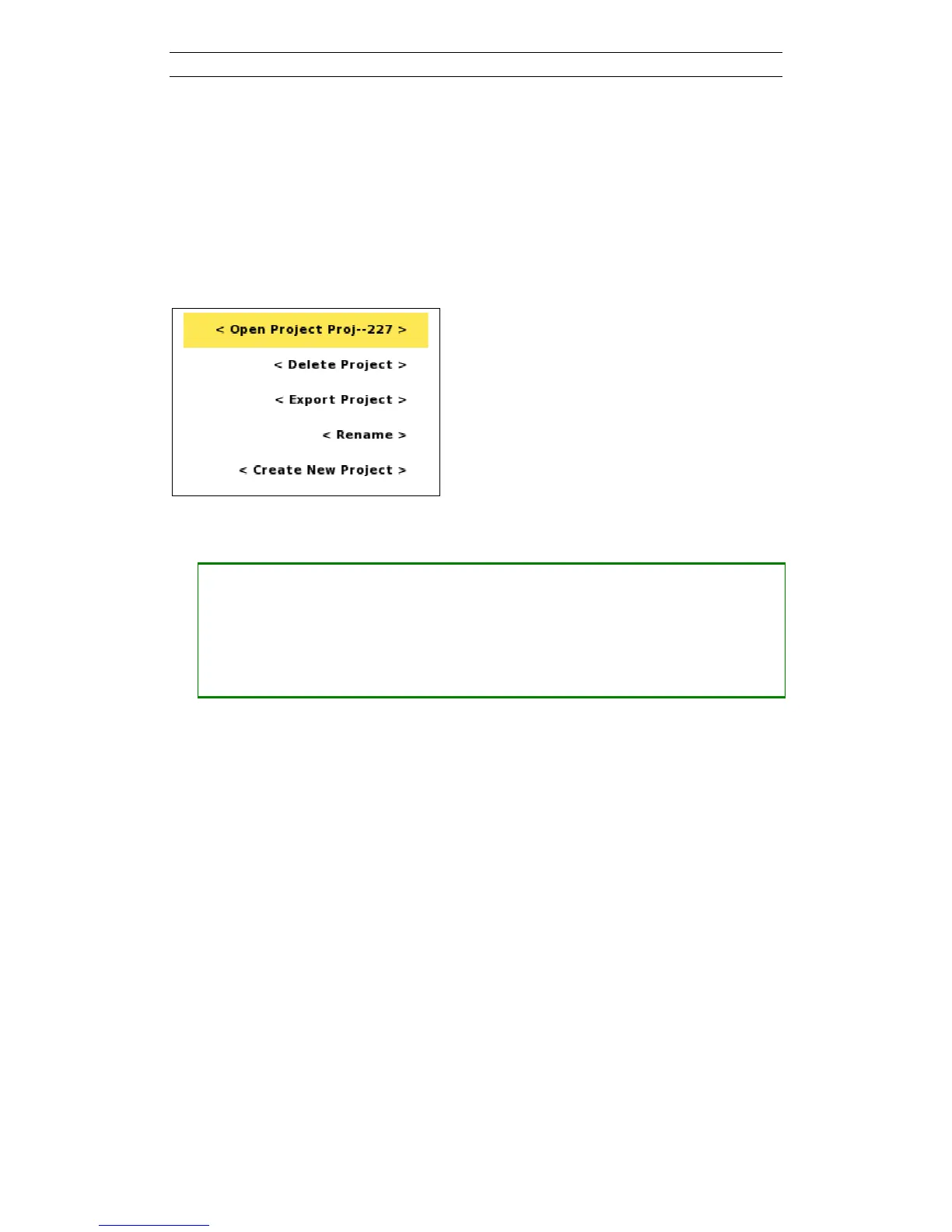
Figure 11 shows an example of an option menu. Option menus are available in four
Views:
- “Projects/Project List”
- “Projects/Task List”
- “Projects/Task Templates”
- “Measure/Progress”
Figure 11. Option menu example
• Opening and using an option menu
― Pressing <Options> will in most cases show a pop-up option menu
― Press <Up> or <Down> to highlight a menu item
Some menu items might be disabled and these cannot be highlighted
― Press <Ok> to perform the action of the highlighted menu item
The content of the option menu will differ depending on what type of line that is
highlighted when the <Options> button is pressed. It functions similar to a right-click
context menu on a desktop PC.
3.5 Changing Texts and Values
There are mainly three different ways to change values.
- Choosing from a fixed set of values (see 3.5.1)
- Editing texts (for instance names) using a keyboard emulator (see 3.5.2)
- Editing numerical values using a keypad emulator (see 3.5.2)
3.5.1 Fixed Set of Values
A left and right pointed arrowhead will surround the value when there is a fixed set of
values to choose from (Figure 13).


 To Next Page