67
Calendar
In the calendar, you can directly select the day for the recording to be searched.
Click on "Custom Search" to open a new window with criteria and filters to better
narrow down your search.
By entering a name and clicking on the "Save" button, the search settings can be
saved. These can be called up and executed in the menu on the left.
Camera command
Playback control
Then click on the timeline to start / continue playback at the desired time. Recordings
are indicated by coloured bars in the timeline. The colour coding is as follows:
Time Selection of a predefined or self-defined time period
File type Select whether to search for videos or images
Marking If markers have been created, the name of the marker can be
searched for here
File status Selection of whether the file is "locked" or "unlocked
Event type Select whether to search for a specific event type. E.G.: Motion
detection
Identification
no. &
region/country
If a compatible number plate camera is used, a specific number
plate can be searched for here
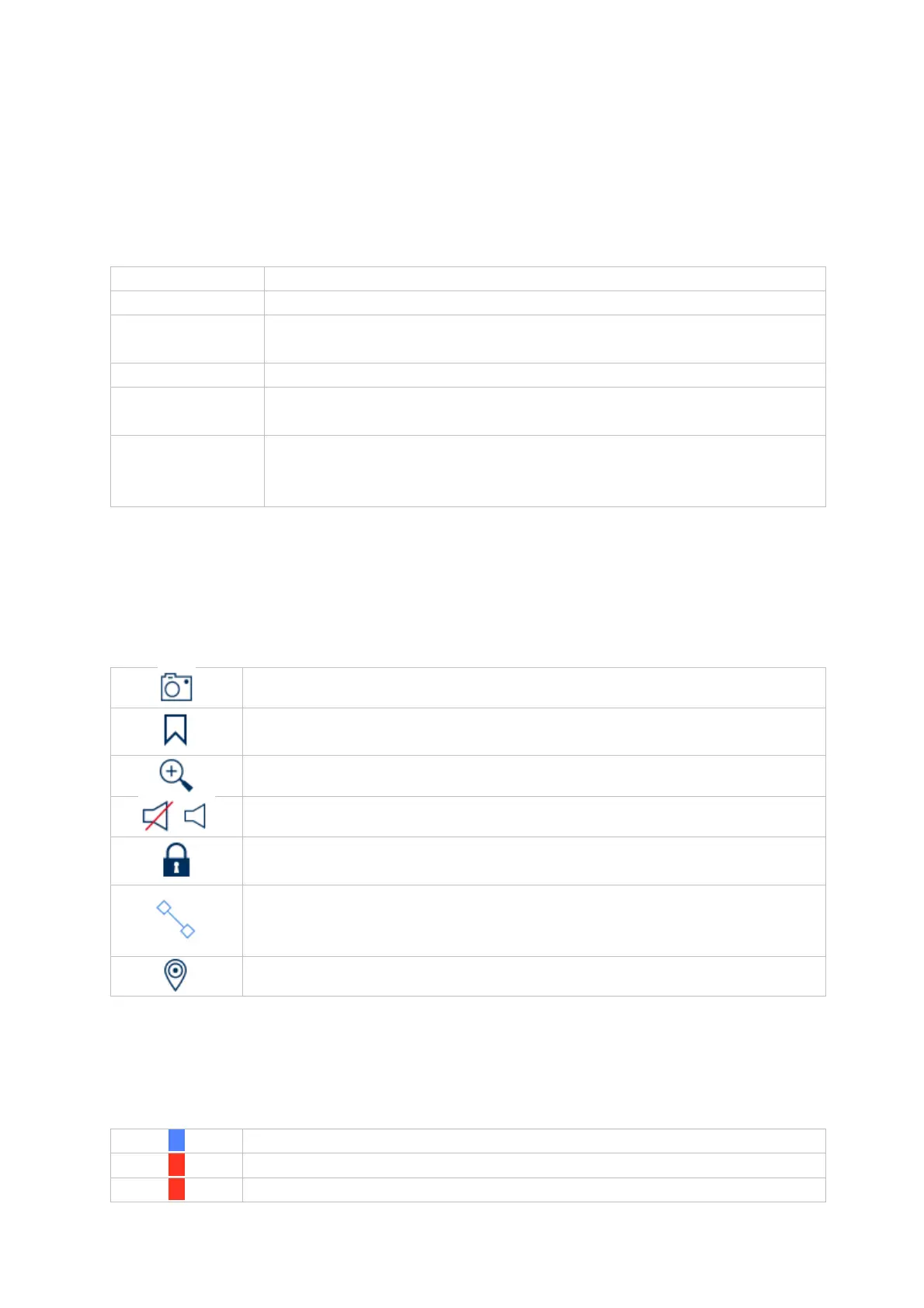
Creates an instant image
Creates a marker of the current playback position. Markers can be
called up and played back directly via the playback type "Marker".
Opens the digital zoom
Switches audio on / off
The recording file of the current playback position is locked. A
locked file is not overwritten by the ring buffer.
Opens the Smart Search. To be able to use the Smart Search, the
respective event type must be activated. (Motion detection, Tripwire,
Intrusion detection)
Opens a menu for changing views when using fisheye cameras.
Continuous recording
Event recording (motion, alarm input, VCA)
Smart Search (Depending on the filter)


 To Next Page