Setup wizard
81
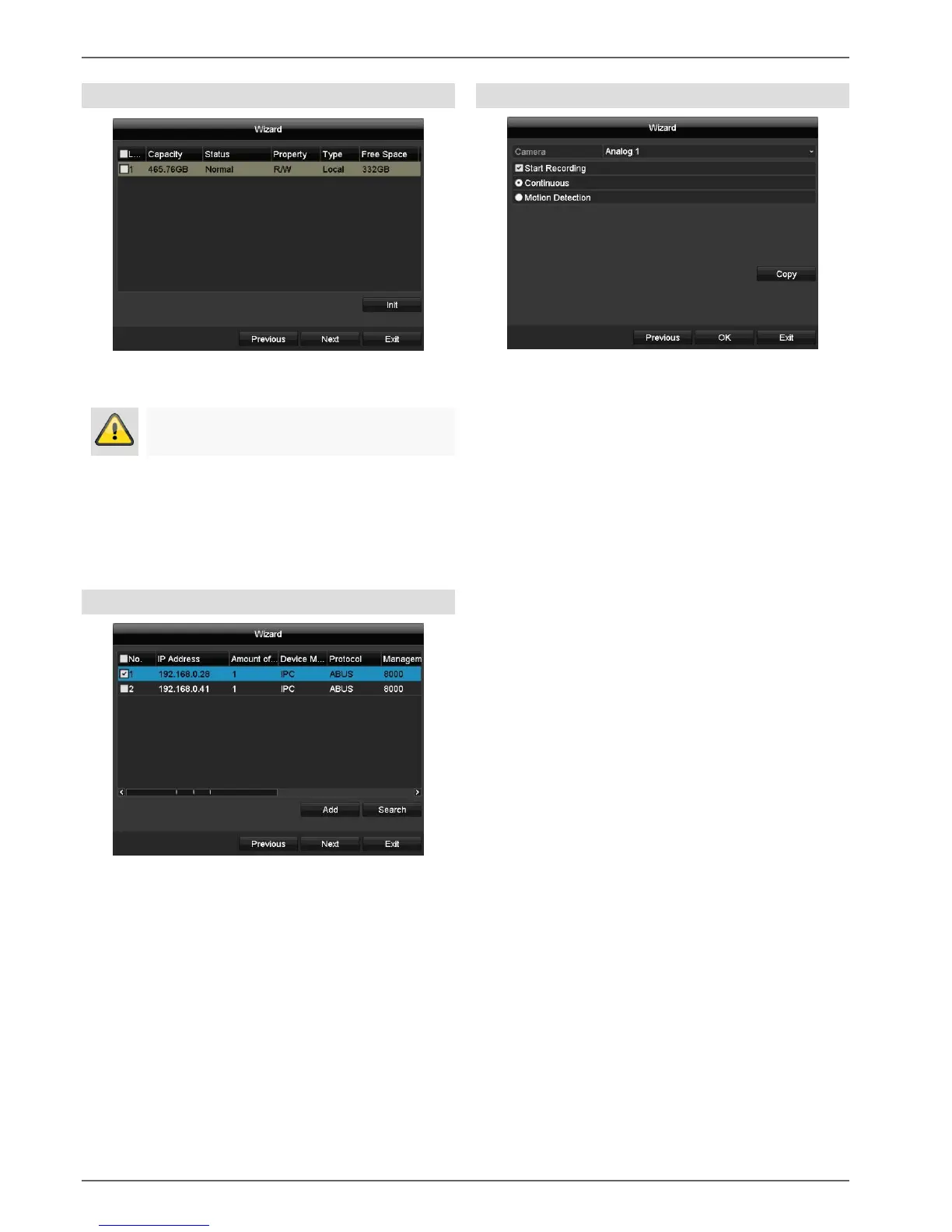
Hard disk drive management
1. To set up a hard disk drive, enable the 'checkbox'
with a left click and then click on Init.
2. Click on OK to acknowledge the security prompt.
The hard disk drive is set up for use. Progress is
shown on the status bar.
3. Finish the setting by selecting OK and then click on
Next.
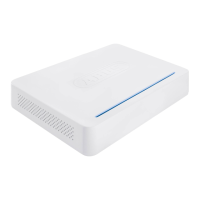
Setting up network cameras
1. To set up network cameras, click on Search.
2. An overview of all detected network cameras will
then appear.
3. Activate the "checkbox" with a left-click to select the
network camera and then click on Add.
4. No more than one IP camera can be added.
5. Click on Next.
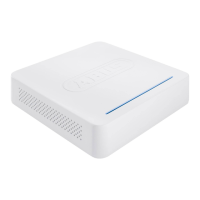
Camera recording
1. Select a "camera" from which to record.
2. Enable the check box "Start recording".
3. Select the recording type. It is possible to select
between "Continuous" and "Movement detection".
4. Press Copy to apply the setting to other cameras.
Select the cameras that appear in the new screen.
Enable the appropriate checkbox with a mouse click.
5. Complete the setting and the setup wizard with OK.


 To Next Page