Recording
106
Recording
Schedule
Open the main menu and click on Record. The following
configuration is available for data recording.
Configuration of video stream
recording from connected
cameras. Continuous data
streams are saved on the
recorder.
Record tab
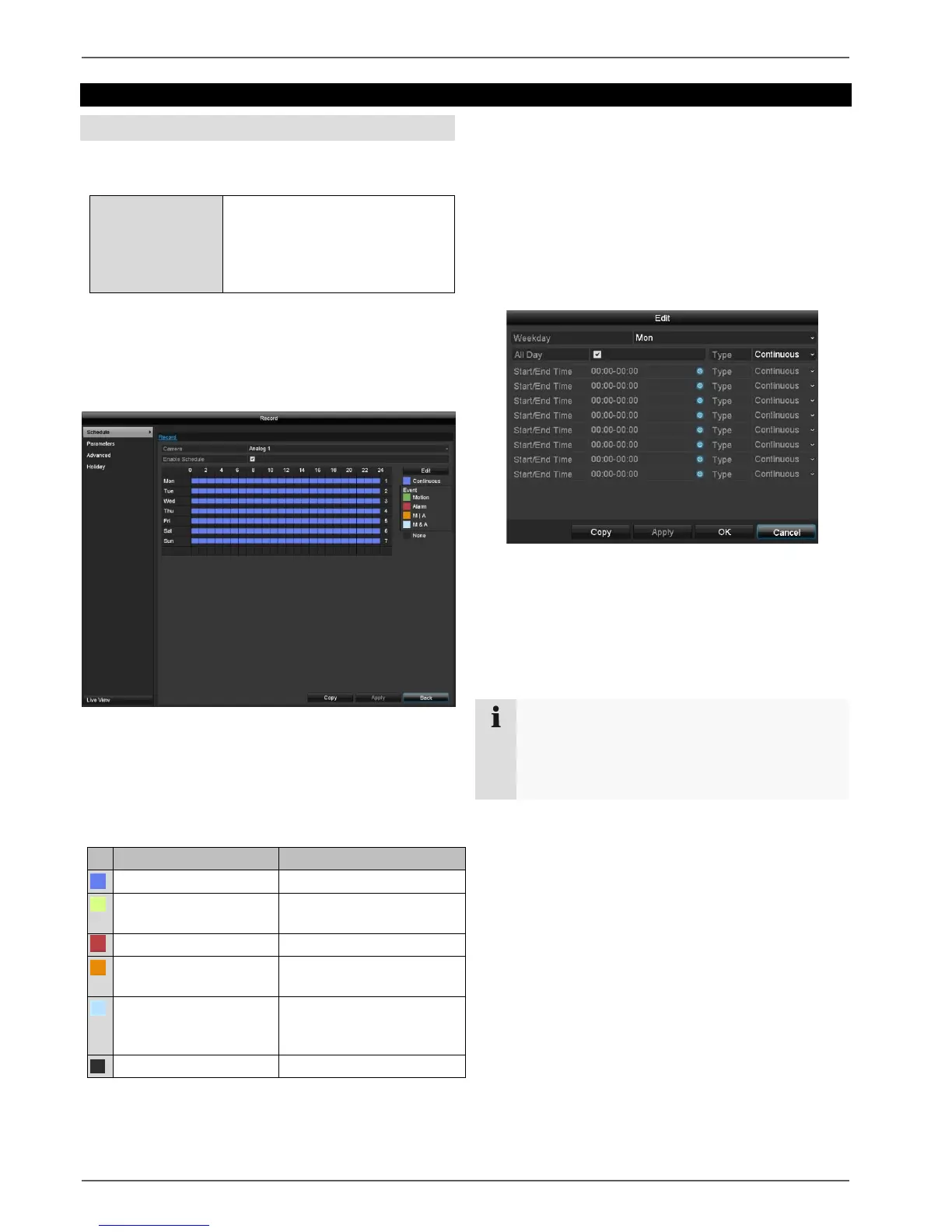
The schedule is used to specify the recording times and
triggers (recording type) for the cameras.
On the on-screen display, the hours for each day are
listed from left to right, and the days are listed from top to
bottom. On the right of the display, the colour key can be
seen so, in the time schedule set up, the recording
periods are displayed in the schedule in a different colour
depending on the 'trigger' (recording type) in question.
Motion detection of the
camera
Camera motion detection
or alarm input
Camera motion detection
and alarm input
simultaneous.
Select the camera and tick the Enable Schedule
box.
Click on a trigger and use your mouse to highlight
the time period within the schedule.
Alternatively, click on Edit to configure the type and
duration of the schedule down to the minute.
1. In the drop-down menu for "Schedule", select the day
to be set.
2. Activate/deactivate "All Day". If "All Day" is activated,
you cannot enter specific times as the setting now
applies to the whole day.
3. If you wish to enter specific time settings, deactivate
"All Day".
4. Specify the recording type in the drop-down menu for
"Type":
Normal
Motion
Alarm
Motion or alarm
Motion and alarm
If you want recording to run from 11:00 to 07:00,
you need to set up two time zones:
1. 11:00–24:00
2. 00:00–07:00


 To Next Page