Network
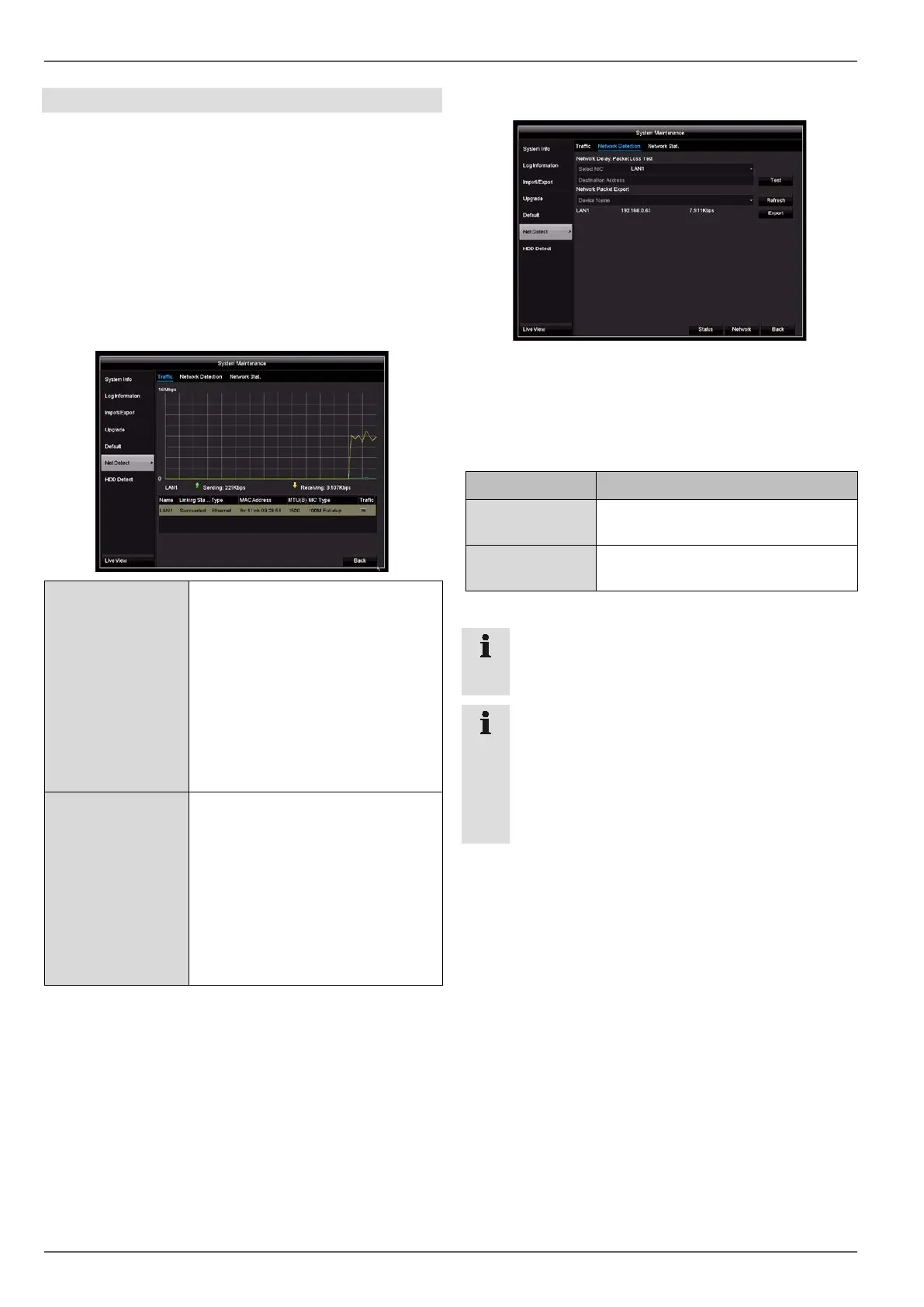
Information regarding the network traffic and network in-
terfaces is shown here.
Traffic tab
The network graphs can be used to measure continuous
traffic on the recorder. The amount of data sent and re-
ceived is shown in graph form.
Depending on the network settings, the status and infor-
mation for one or two network connections is shown in
the field underneath the graph.
Sending Displays the amount of data (in
Mbit/s) currently being sent out by
the recorder. The value increases
as more users access video
streams from the recorder over the
network (web, app, PC application
and network storage).
Once the recorder limit value has
been reached or exceeded, it will
no longer be possible for all re-
quested streams to be displayed.
Receiving Displays the amount of data (in
Mbit/s) currently being received by
the recorder. The value increases
as more IP cameras
and as the bitrate of the camera
stream is set to be higher.
Once the recorder limit value has
been reached or exceeded, the re-
corder will switch off camera chan-
nels.
Network Detection tab
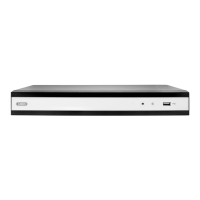
Under “Network Test”, you can check the connection to
another device, such as a computer (‘pinging’). Enter the
network address of the device to be checked (e.g.
192.168.0.25) and click on Test.
Information on two parameters will appear:
Parameter Setting
Average
delay
The time the pinged device needs to
reply
Packet loss
rate:
Displays the percentage of packets
that were not transmitted
Note
If the packet loss rate is high, we recommend that
the “Network Test” is repeated.
Note
If the packet loss rate is still high, you should
check that the network cables are correct and not
damaged.
The higher the packet loss rate, the poorer the
connection between the pinged device and the re-
corder.
Under “Network Packet Export”, you can export the set-
tings of the individual connections or, depending on the
setting,
the connection.
1. For “Device Name”, select a storage medium to save
the settings to.
2. Click on Export.
3. After the progress display finishes and initialisation is
successful, an information window will appear. Close
it by clicking on OK.
• Click on Status to display the status of the Ethernet
connections (connected/not connected).
• Click on Network to change your network settings.
52


 To Next Page