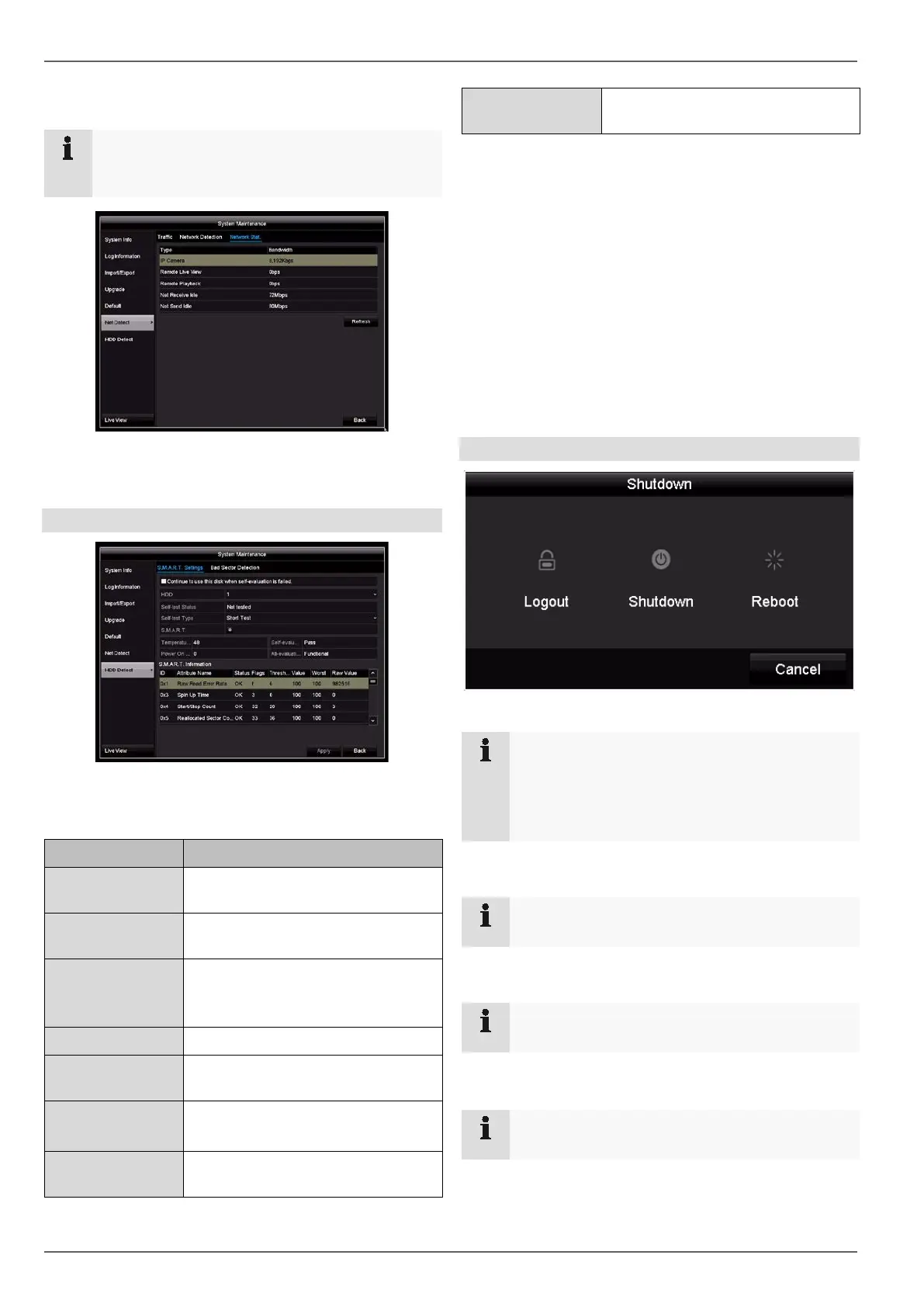
Network Stat. tab
Note
This view allows for the analysis of network and
performance problems with the recorder.
The bandwidth used by the device is displayed under this
tab.
You can refresh the data by clicking on Refresh.
HDD Detect
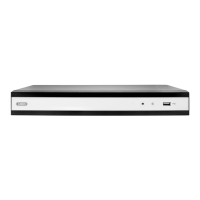
Click on the “S.M.A.R.T.” submenu.
This submenu gives you the option to check your hard
disk drive for errors.
Parameter Setting
HDD Selection of the hard disk drive to be
processed
Self-test Status Shows the status of the current self-
test
Self-test Type Select the type of self-test
Short Test/Expanded Test/Convey-
ance Test
S.M.A.R.T Click on the icon to start the self-test
Temperature (°C) Displays the hard disk drive temper-
ature
Power On
(days)
Displays the operating days of the
hard disk drive
Self-evaluation Shows the status of the self-evalua-
tion
Complete evalua-
tion
Shows the status of the evaluation
Confirm the settings by clicking on Apply and exit the
menu by clicking on OK.
Checking the hard disk drive status
You can check the status of each hard disk drive in the
“System Maintenance” menu. The S.M.A.R.T (Self-Moni-
toring, Analysis and Reporting Technology) information is
stored in the log data.
• Open the log file and search by infor-
mation/S.M.A.R.T. Hard disk drive. Setting up the
hard disk drive alarms
• You can specify which alarms will inform you of hard
disk drive errors.
To do this, open “Exception” in the “Settings” menu.
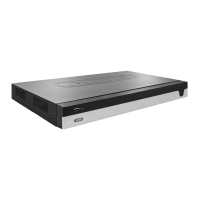
Shutdown
Note
• Select Lock to lock the operating menu.
• Select Shutdown to switch the device off.
• Select Reboot
to reboot the system (switch off
and back on).
Display
Note
See description on page10.
Settings: Recording
Note
See description on page43.
Settings: Network
Note
See description on page29.
53


 To Next Page