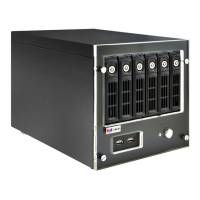
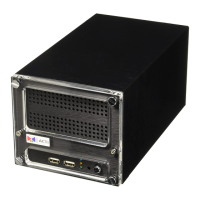
GNR-3000 System Administrator’s Manual
92
Set the Schedule
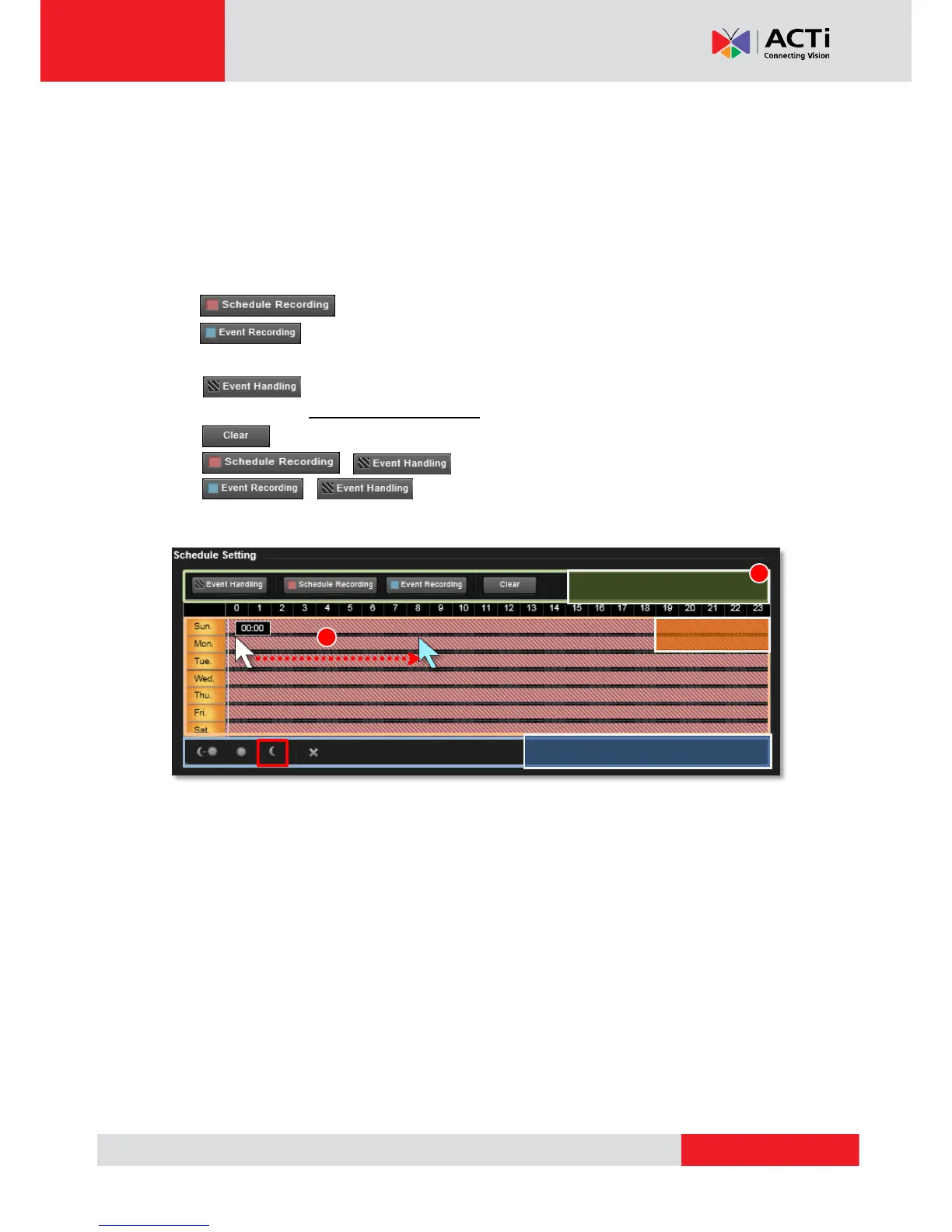
Here you can configure camera’s recording schedule on 7 days / 24 hours basis. The schedule
is split into segments of 20-minute-length. By default, once a device is added to the system, its
schedule is automatically set to full time schedule recording and event handling. You should
configure it according to your system plan.
Go to Setup-Schedule tab, on Schedule Setting panel:
1. Select the recording mode from “Recording Mode Bar”
:Continuous recording that channel
: Records a period of the detected motion event. Please make sure you
have configured the motion settings on Setup page Device tab beforehand.
:Event handling is activated.
(Please refer to How to Edit an Event Rule on page 98 for Event Rules settings)
: Clear the setting
+ : Continuous recording + event handling
+ : Event recording + event handling
2. Click and drag over the “Time Track” to set time period.


 To Next Page