For the very latest specifications visit www.aeroflex.com
The first icon ( ) gives the user an indication of the percentage use
of the processor. The more horizontal bars, the higher the
percentage of use. If the icon is flashing, then the processor is at
100%. Consider changing the meters that are present on the
screen, if the icon is flashing.
The third icon indicates to the user when the parameters on the
screen have been permanently saved to flash memory. This is a very
important icon to pay attention, because if you exit the screen with
the icon , then the parameters on the screen will not be
permanently saved and will therefore not be there when you return
to this screen. The icon should look like before you press the
“Return” softkey or the “Setup” softkey.
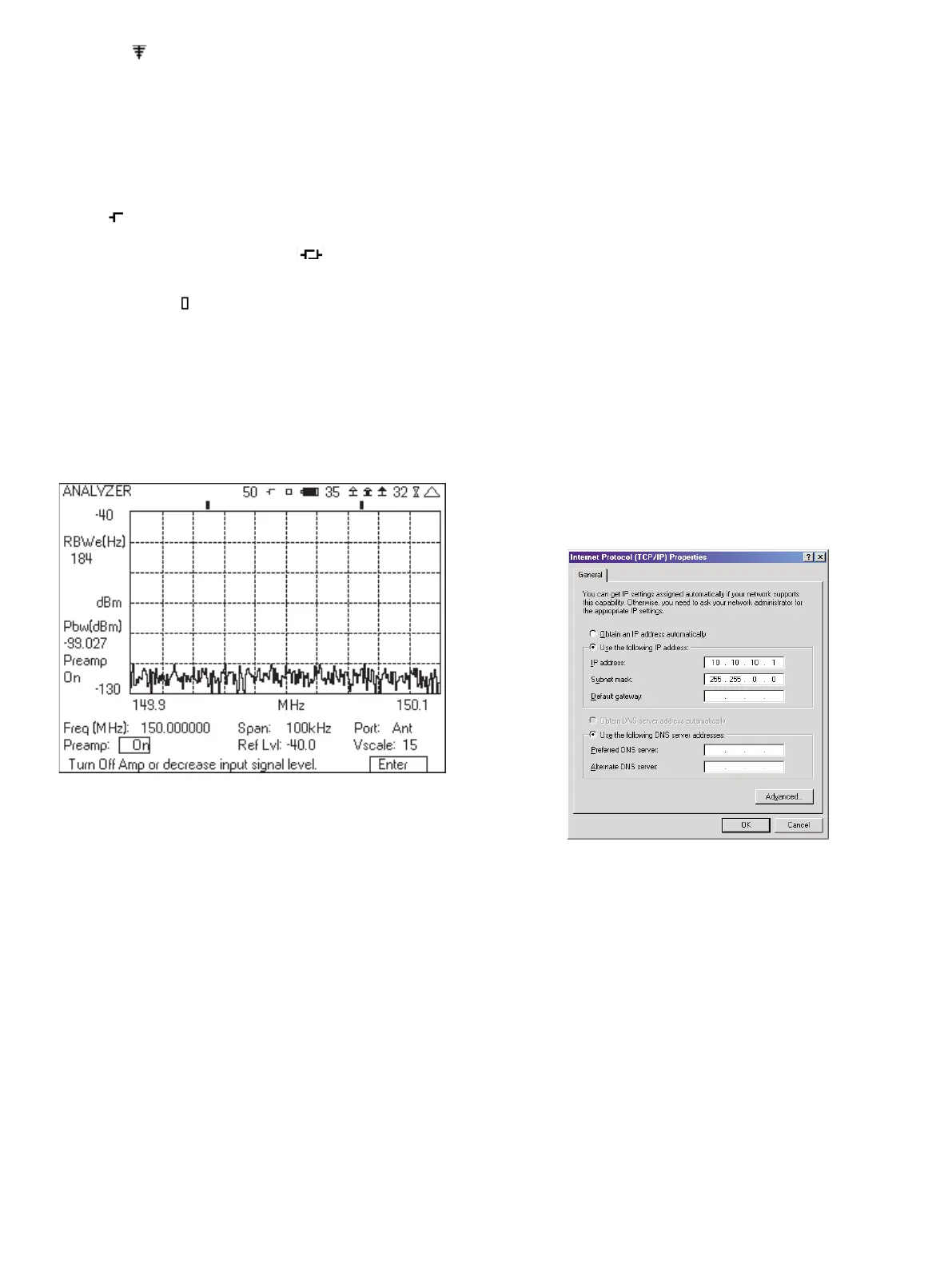
The eleventh icon ( ) is an indication of the front end being
overdriven (not the same as a port overload). This indication will only
appear in the Analyzer and Tracking Generator screen. An indication
will appear at the bottom of the screen, telling you to “Turn Off Amp
or decrease input signal level” (See Figure 37). “Turn Off Amp” refers
to the preamp. You should first press the “Enter” softkey and then
turn off the preamp or reduce the signal level. You can also solve
the input overload by increasing the Ref Lvl, as this will change the
input attenuation of the 3500A.
Figure 37 - Analyzer screen showing input overload condition
9.2 Controlling the Frequency Range of the Frequency
find Operation
The 3500A includes a find function as part of the receiver
frequency setup. This includes the DUPLEX TEST, TRANSMITTER
TEST, and ANALYZER screens. When edit mode is entered on the
receiver frequency field, the middle softkey changes to “Find”. When
you press the “Find” softkey, the 3500A scans through the channels
and finds the one with the strongest signal. It is important to know
that you control the start and stop frequencies, as well as the
channel spacing. If the frequency find operation is not working, it
may be because the start, stop and channel spacing is not setup
correctly. The location of this setup is in the HW CONFIG screen,
which is accessed from the Util menu. This screen includes four
parameters that control the operation of the Find function.
1. Threshold – This field sets the threshold used for the Frequency
Find. Levels must be above this threshold or they are ignored.
2. Ch Spacing – The frequency find function does not measure the
signal strength of every frequency but steps through the
frequencies by channels, using the channel spacing given by this
parameter.
3. Start Freq – The frequency find function starts searching at the
frequency given by this parameter.
4. Stop Freq – The frequency find function ends the search at the
frequency given by this parameter.
9.3 Copying Screen Saves Using the Ethernet Port
Screens that are saved can be easily and quickly copied from the
3500A to your PC using the Ethernet connection. Setting up this
operation is simple to do.
1. From the Util menu, go to the Remote screen of the 3500A.
a. Identify the IP address.
b. Make sure that Ethernet is selected for remote operation.
2. Enter a fixed IP address for your Ethernet connection into your
PC.
a. The first two numbers of the IP address must match the
first two numbers of the 3500A.
b. The fourth number of the IP address must be different than
the 3500A.
3. Enter 255.255.0.0 as the Subnet mask.
Figure 38 - IP Properties screen with fixed IP address
4. Connect an Ethernet cable from the 3500A to the PC.
5. Open an internet browser window (i.e. Internet Explorer or
Firefox).
6. Enter the IP address of the 3500A into the address bar.
19



 To Next Page