CHAPTER 7
34 35
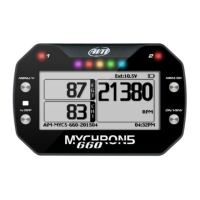
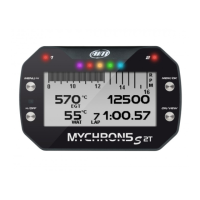
MYCHRON5
Once the WiFi authentication with the device has been established, users can interact
with the device by clicking on it.
In this scenario, both your MyChron5 and PC join an existing WiFi network (WLAN).
This scenario is ideal for a race team with multiple drivers and crewmembers and it
is desired to communicate with one or more AiM devices using the same PC network.
Note again that each MyChron5 can have a unique password, which is in addition to
the network password, thus adding an additional layer of privacy and security.
Race Studio 3 will display any and all MyChron5 devices connected to the same
network as the PC. Connected devices can be seen under the Connected Devices
header, just as if they were connected via USB: simply click on your device in the left
pane under Connected Devices. Go to the WiFi configuration tab and set the mode
to Existing Network.
Then, enter the network password and the device password, should you choose to
add one, in the appropriate fields.
To commit the network settings to your device, click the Transmit and Restart button
on this same tab. Your device will restart and join the network you specified.
Connect your PC to the same network, and you will see your device under Connected
Devices, just as when connected via USB.
If the AiM device is connected to your PC using a WLAN, it is possible to have two
different passwords: the device password, which was already described, and the
network password.
Please note that only passwords following the WPA2-PSK code are admitted.
7.3 Joining Your MyChron5 to an Existing
Network
MANUALE IMPAGINATO.qxp_Layout 1 25/11/15 16:04 Pagina 39


 To Next Page