13
4.2.3. Automatic Operation
auto
Automatic operation is started using a timer, night time
cooling, sensors, external contacts or an analogue BMS
system.
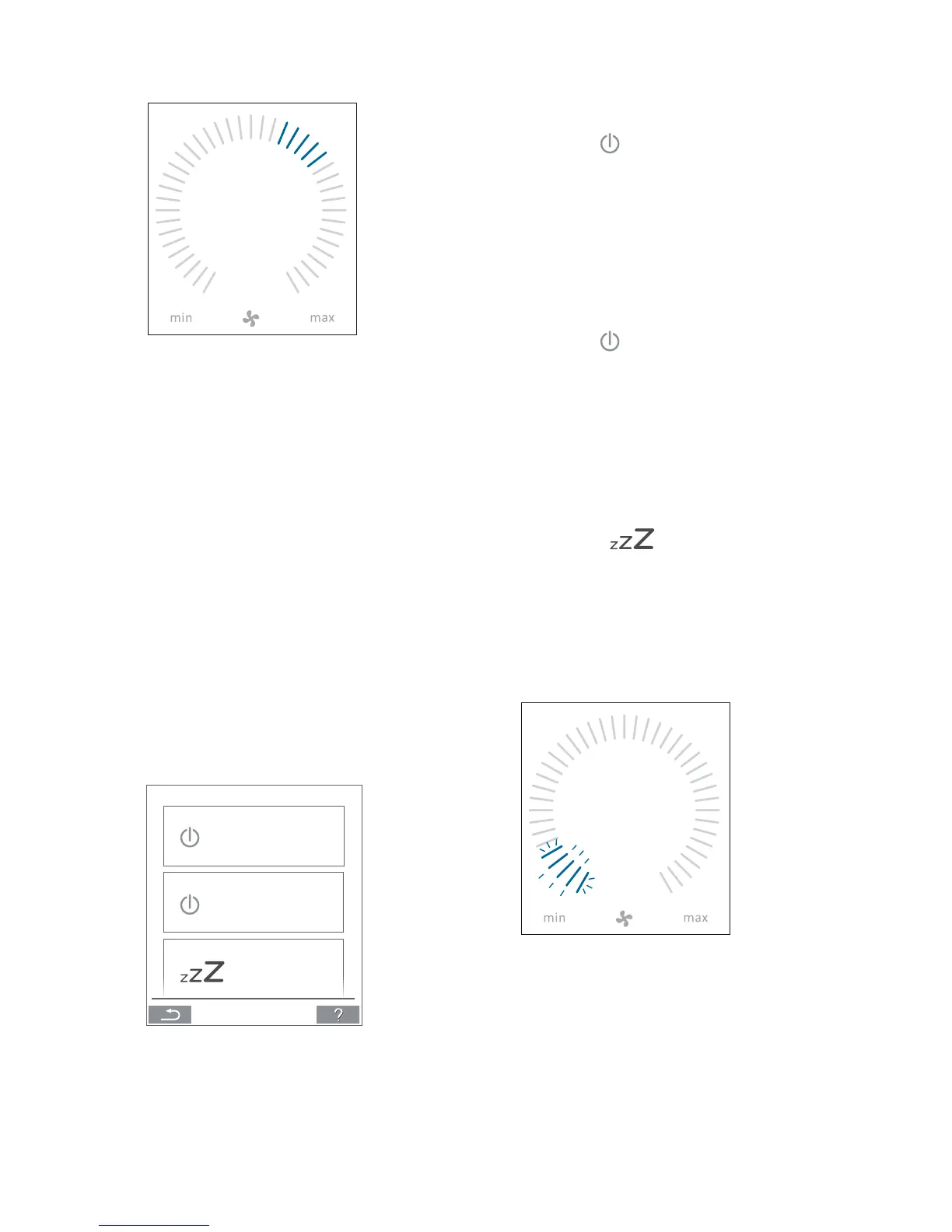
The current air ow and text “auto” are shown on the control
panel with a blue light above the fan symbol.
Read also “Control functions” on page 24.
Air ow can be over- or underridden manually. Automatic
operation is cancelled and the text “auto” will disappear.
4.2.4. Operating Menu
Start the operating menu by pressing the function but-
ton (pos. 2 under ”Control Elements” on page 11). Press a
menu point to open the menu or activate/cancel a function.
Depending on the menu, related function elds will also be
changed. These can include text elds such as “Conrm”,
“Switch o”, “Cancel” or elds with symbols. Pop-up texts
can also appear for certain menus.
For group operation, see ”Airlinq BMS” on page 21.
4.2.4.1. Start and Standby
Start or restart automatic operation.
Press menu eld “
AUTO”.
>> The unit will start according to its programming if
a start signal is active, or automatic operation will be
reactivated after manual override. The current air ow
will show with 5 blue stripes. Text “auto” will show with
blue light.
Start operation manually.
Press menu eld “
START”.
>> The unit will start with standard air ow and standard
inlet air temperature (see page 19). Text “auto” will
show with blue light. After 4 hours (time can be adjusted
to 0, 1, 2, ... 255 hours using a PC with Airlinq Service
Tool loaded) the unit will return to automatic operation.
Standby.
Press menu eld “
STANDBY”, if the unit is in
operation.
>> The unit will stop for 1 hour (time can be adjusted
to 0, 1, 2, ... 255 hours using a PC with Airlinq Service
Tool loaded) and then start at the next start signal.
Otherwise, the unit can be started earlier by using the
operating menu. The air ow indicator will ash slowly
alongside minimum.
AUTO
START
STANDBY



 To Next Page