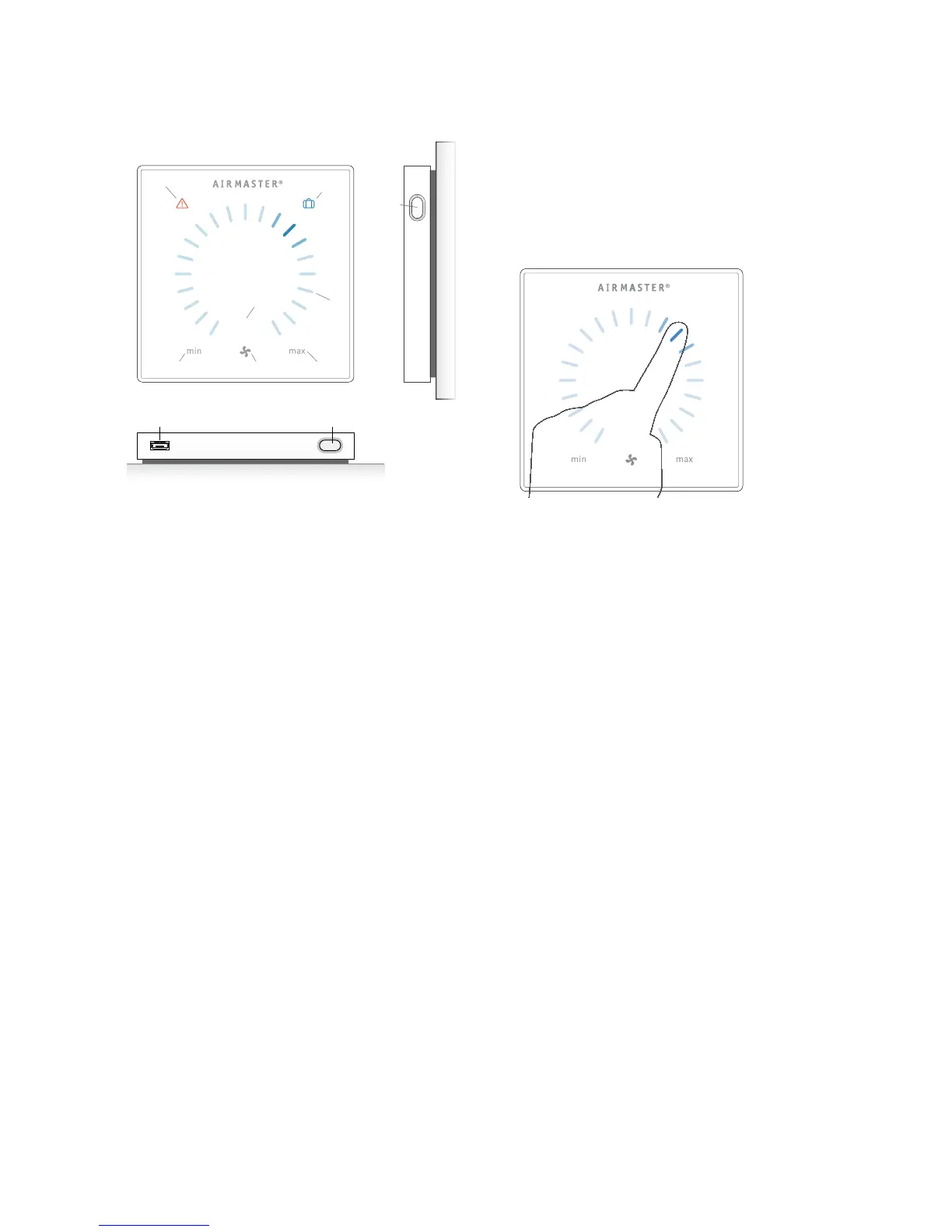
6
1
98
10
5
7
3
6
2
4
auto
3. Airlinq Viva (White Control
Panel)
3.1. Control Elements
1. Air ow setting (blue light) using a touch sensitive
control area, see page 8.
2.
Function button (manual start, manual stop, manual
temporary stop), see page 7.
3. USB mini-B port. To set or programme the air han-
dling unit, a PC is connected with “Airlinq User Tool”
or “Airlinq Service Tool” loaded. Download “Airlinq
User Tool” and “Airlinq Service Tool” at:
www.airlinq.eu
4.
Symbol “auto” for automatic operation (blue),
see page 7.
5. Holiday mode button, see page 9.
6. Symbol for holiday mode (blue), see page 9.
7.
Symbol for warnings (amber) and alarms (red),
see page 9.
8. Text “min” for minimal air ow.
9. Fan symbol.
10. Text “max” for maximum air ow.
3.2. Operation
3.2.1. Automatic Operating Lock
The control panel is tted with an automatic operating lock
to prevent accidental air ow setting, e.g. during cleaning.
The lock activates automatically after 30 seconds of no
operation.
Cancel automatic operating lock:
auto
Press for 1 second on the current air ow.
>> The automatic operating lock will cancel when the
air ow display is marked up to the current setting by
blue stripes.
3.2.2. Child Lock
The child lock prevents all operation. Operation of func-
tions with the child lock active will trigger 2 ashes of all
blue stripes on the air ow display (Pos. 1 under ”Control
Elements” on page 6).
Activate/cancel child lock:
Press “Function button” and “Holiday mode button”
simultaneously for 4 seconds (Pos. 2. and 5. under ”Control
Elements” on page 6).
>> All blue stripes on the air ow display will ash twice.
>> If operation is attempted with the child lock on,
all blue stripes on the air ow display will ash twice.



 To Next Page