BRIDGE LIVE Video I/O and Streaming Appliance v1.12 17 www.aja.com
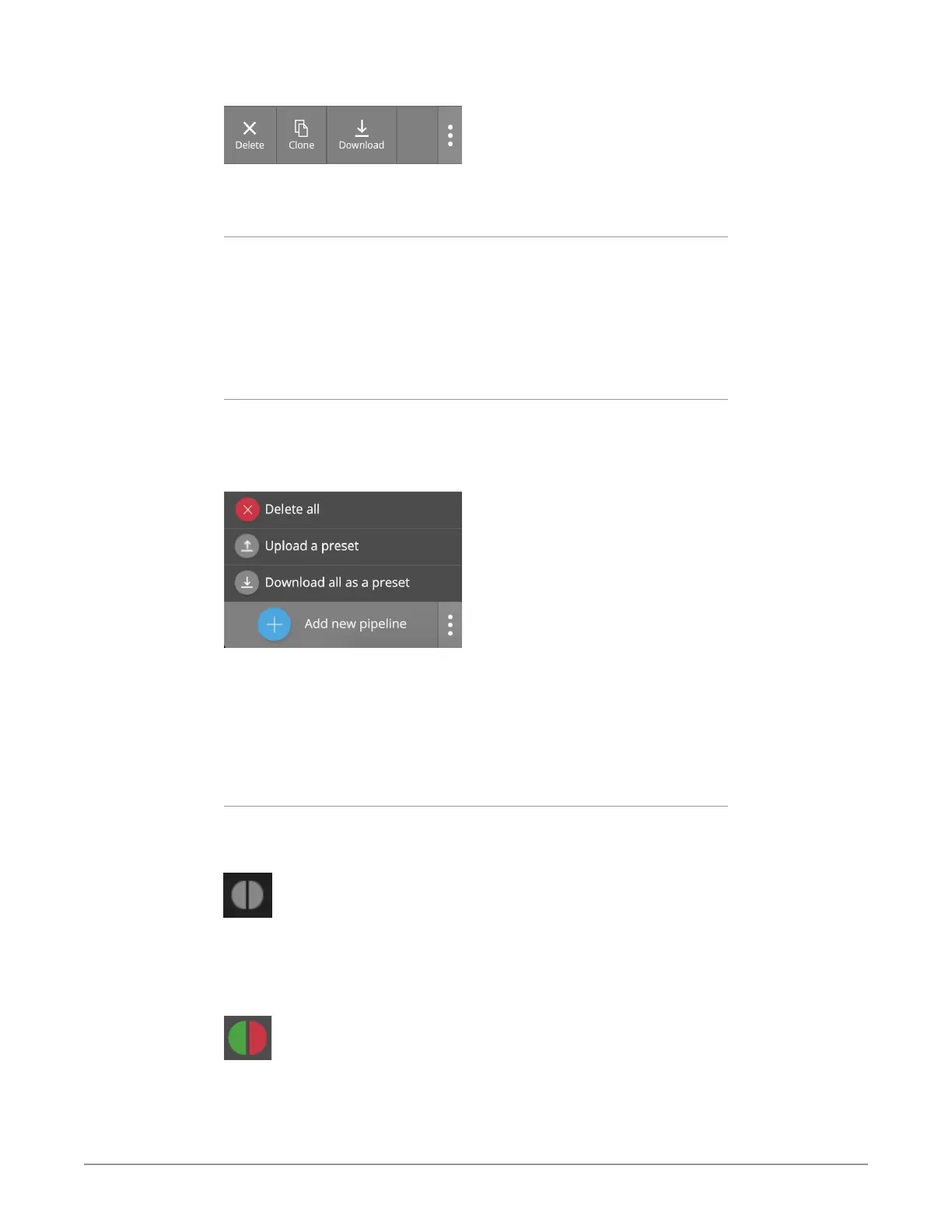
Figure 7. Pipeline Delete, Clone, Download Buttons
Use these buttons for deleting, cloning or downloading pipelines.
Output Streams and Licenses
Beneath the name of the Pipeline is an indication of the number of output
streams associated with the Pipeline. For every stream, there is also information
on license status. Streams need to be licensed in order to run. For H.265, H.264
and H.262, BRIDGE LIVE will come with perpetual licenses.
Select a Pipeline to display the list of configured output streams for that particular
input.
Backing Up Pipelines
Once you have created all the pipelines you need, you can create a backup of
them. From the lower left corner, click the column of three vertical dots next to
"Add new pipeline" to open the Pipelines Management pop-up menu.
Figure 8. Pipelines Management Menu
Select "Download all as a preset." All of your pipeline configuration settings will
download as a "pipelines.json" file.
You can upload this file in the future to upload your pipeline preset using the
"Upload a preset" menu.
Additionally, you can delete all pipelines by selecting the "Delete all" menu.
Meaning of Colors
Both sides Grey -
No pipeline has been created (new system or all pipelines deleted)
The Pipeline has been stopped
Right side Grey -
The output is not configured
Red - There is an error causing the Pipeline not to work correctly (left side (input),
right side (output)).


 To Next Page