REMOTE ACCESS
Advanced Settings
NOTE: Some changes will result in the camera rebooting. If it does, re-launch the App when you see the green
Status indicator light.
Continued on the Next Page
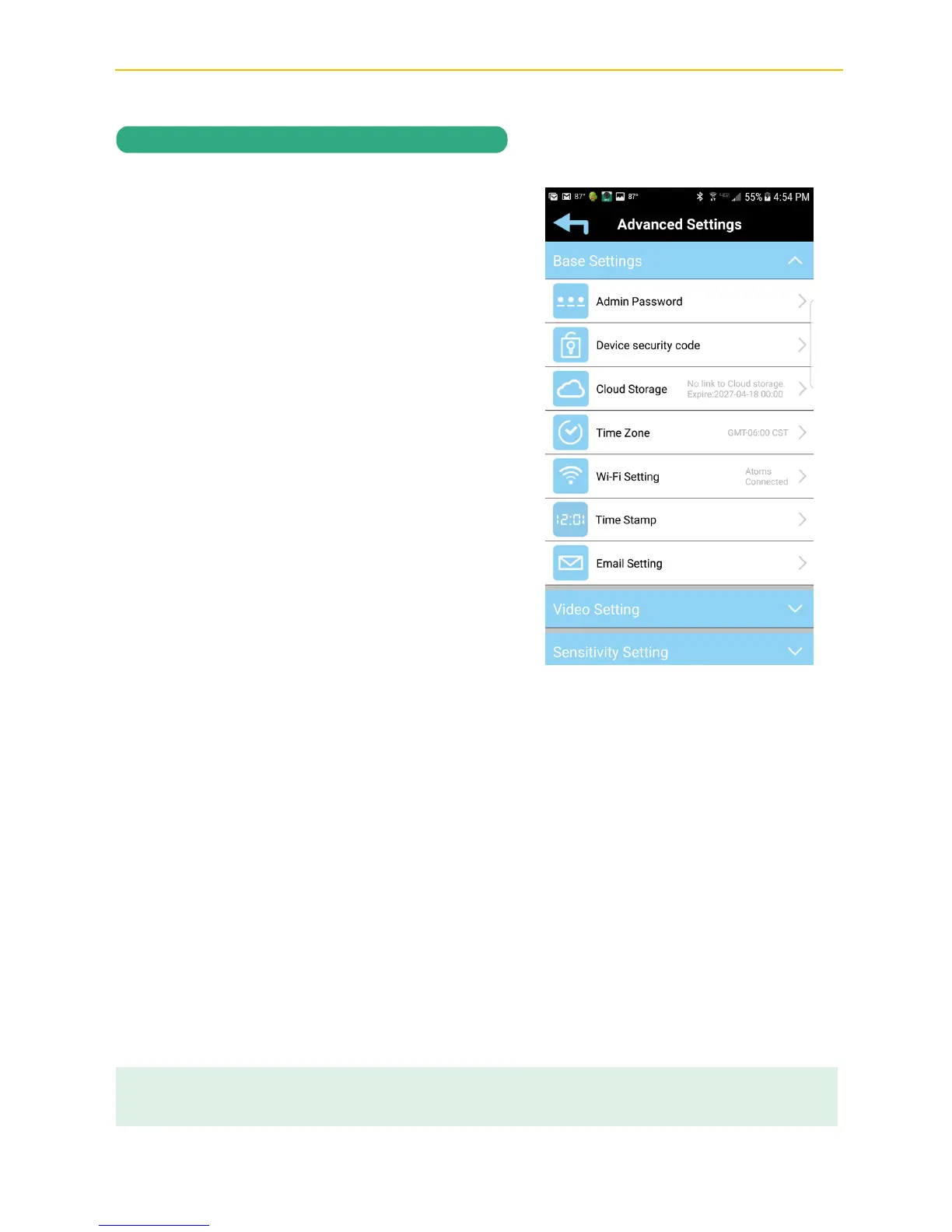
Tap on Base Settings and the Base setting
options will appear. Perform the following
on this screen:
ADMIN PASSWORD: Tap to change the
Admin Password from the default 123456.
Admin Password is used to get into this screen.
DEVICE SECURITY CODE: Tap to change
the Security Code which is used to access the
camera.
CLOUD SETTING: Any cloud storage criteria
will appear here (i.e. Google Drive). Tap to
change/set the cloud storage information.
Videos recorded onto the SD card will also be
transferred to the cloud storage. See page 49
to Setup a Cloud Account.
TIME ZONE: Tap to change/set the Time
Zone where the camera is located.
WI-FI SETTING: The Wi-Fi setting allows you
to choose the home network and setup the
Wi-Fi environment. When you tap WI-FI Setting, the system automatically scans the nearby
network and shows the available Wi-Fi routers in the list. Choose the Wi-Fi router connected to
the home network and enter the Wi-Fi router password if necessary. Due to security concerns,
it is suggested to use the WPA/WPA2/WPA2-PSK protocol for Wi-Fi network.
TIME STAMP: Tap to set the position and color of the time stamp.
EMAIL SETTING: Tap to enable the Email Alert as well as set your email.


 To Next Page