33The full instruction manual can be found on the CD which accompanied the DVR.
How To - Con gure Your Router Using UPnP
Not all routers support UPnP. If the port status remains
inactive after enabling UPnP you will need to do manual port
forwarding. To con gure your router manually, please refer
to the MegaHero instruction manual found on the CD which
accompanied the DVR.
Every MegaHero comes with the ‘Autoport’ feature which
will automatically set up port forwarding for you in
compatible routers, saving you time and energy
(
providing
your router supports UPnP
)
.
If port forwarding is not con gured you can’t remotely
access the DVR as the router’s ports used by the Hero will
be blocked.
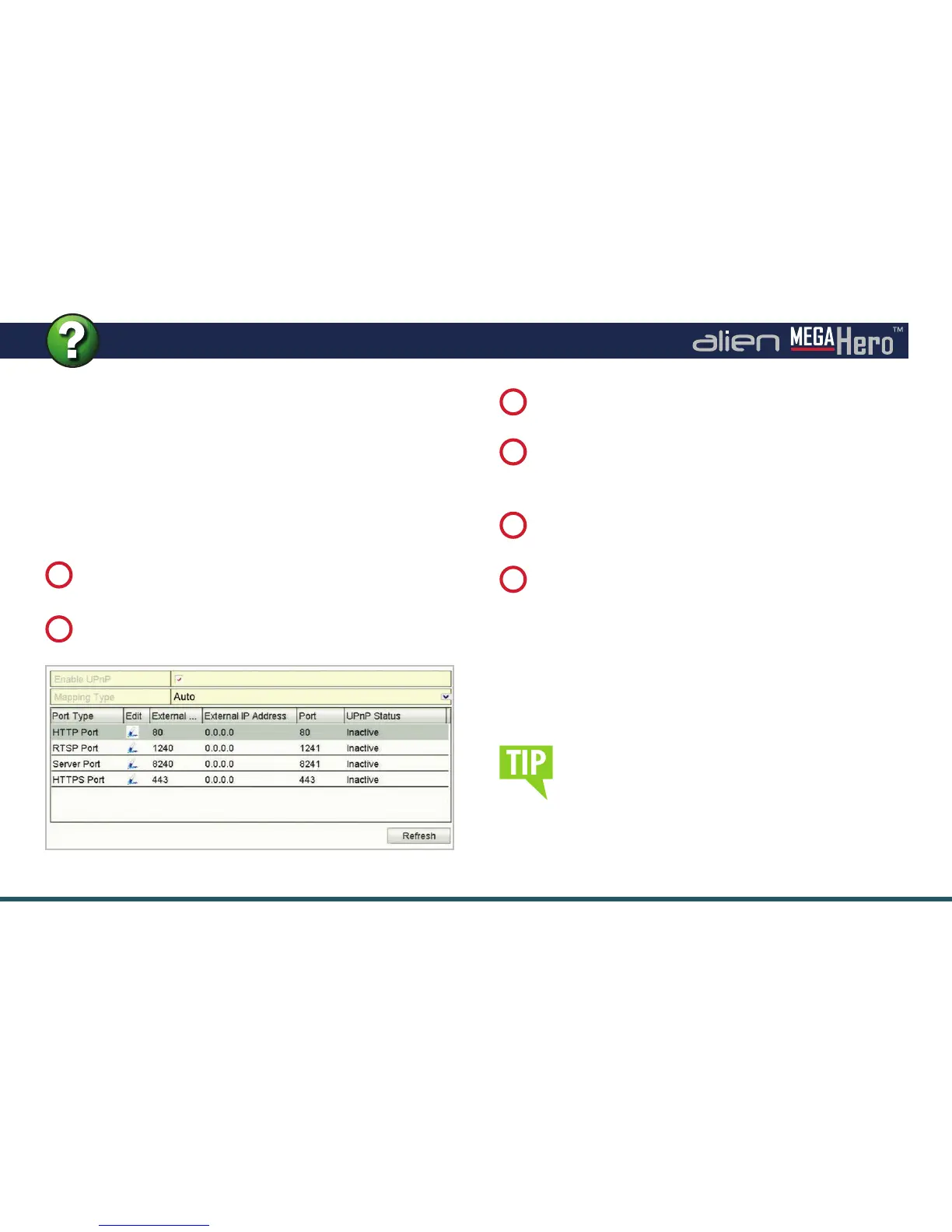
Set the Mapping Type to ‘Auto’. When you select Auto,
the mapping ports can be automatically assigned by
the router.
4
You can click ‘Refresh’ to get the latest status of the
port mapping.
5
Click the ‘Apply’ button to save the settings.
6
On the main menu of the DVR select ‘Set Up’ then click
the ‘Network’ tab.
1
Select the ‘NAT’ tab to enter the UPnP interface.
2
Check the ‘Enable UPnP’ checkbox to enable UPnP.
3
It is vital that you set up port forwarding before
attempting to set up AlienDDNS or remote
monitoring.


 To Next Page