Drivers & Utilities
RAID Mode Configuration 4 - 9
4
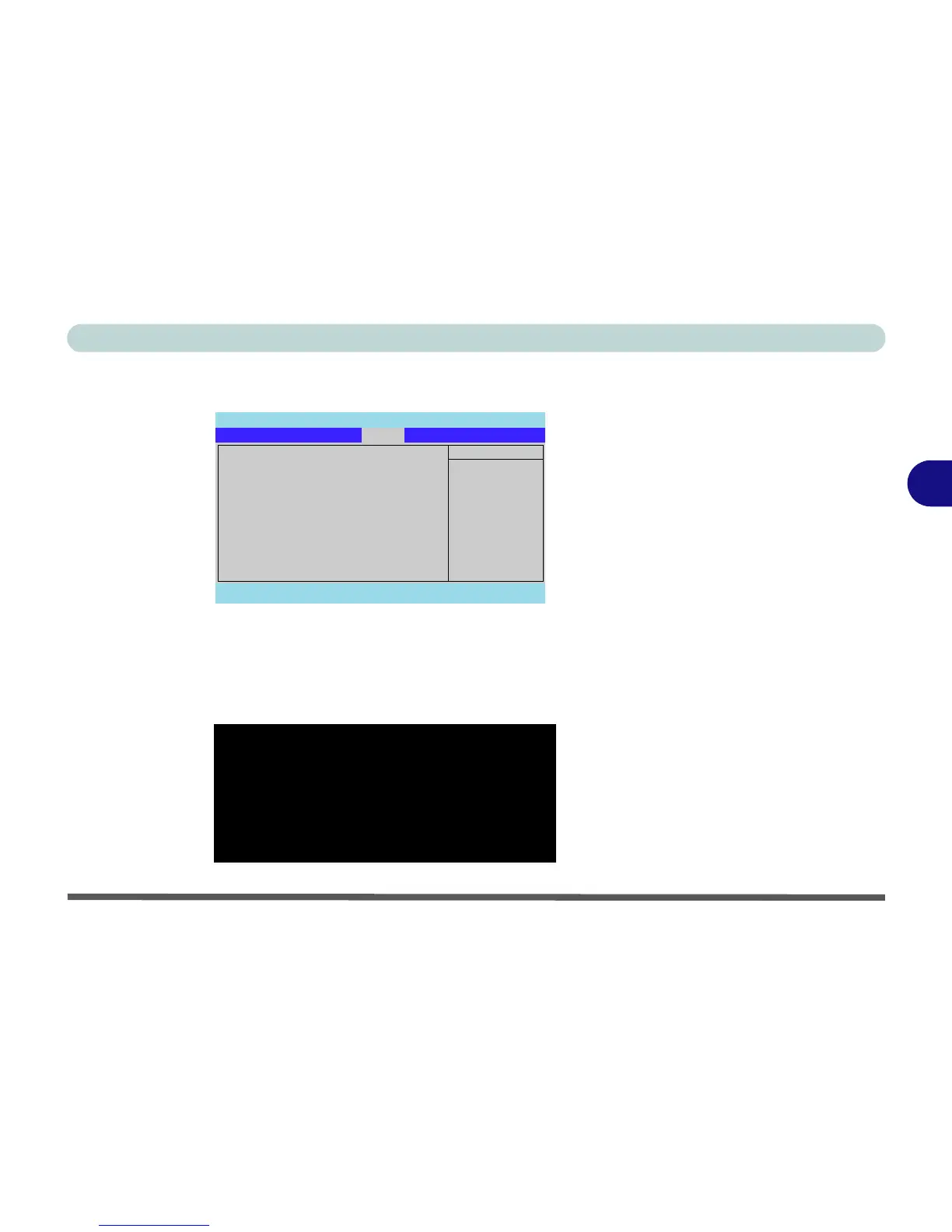
7. Select the CD-ROM/DVD-ROM as the first device in the "Boot priority order" by pressing the <Shift>
and <+> keys to move the CD-ROM/DVD-ROM to the top of the order.
8. Insert the Microsoft Windows OS CD into the CD/DVD drive.
9. Make sure that the computer is connected to the AC power source, and press F10 to save the changes,
and exit the BIOS.
10. As the computer boots up you will see the screen below if no disk array is defined (press the Ctrl + F key
combination to enter the utility).
PhoenixBIOS Setup Utility
Main Advanced Security Exit
F1 Help Select Item -/+ Change Values F9 Setup Defaults
Esc Exit Select Menu Enter Select Sub-Menu F10 Save and Exit
Item Specific Help
Keys used to view or
configure devices:
Up and Down arrows
select a device.
<+> and <-> moves the
device up or down.
<f> and <r> specifies
the device fixed or
removable.
<x> exclude or include
the device to boot.
<Shift + 1> enables or
disables a device.
<1 - 4> Loads default
boot sequence.
Boot priority order:
1: IDE 0: TOSHIBA DVD-ROM SD-C2612-
2: USB FDC Y-E DATA USB-FDU-(USB)
3: PCI SCSI: FT TX Ary 1
4: IDE 1:
5:
6:
7:
8:
Excluded from boot order:
: USB HDD
: USB CDROM
Boot
Figure 4 - 6
BIOS Boot Menu
FastTrak 378(tm) BIOS Version 1.00.1.35
(C) 2002-2005 Promise Technology, Inc. All rights reserved.
No Array is defined ...........................
Press <Ctrl-F> to enter FastBuild (tm) Utility or
Press <ESC> to continue booting......
Figure 4 - 7
FastTrak BIOS
(No Array Defined)



 To Next Page