Steps
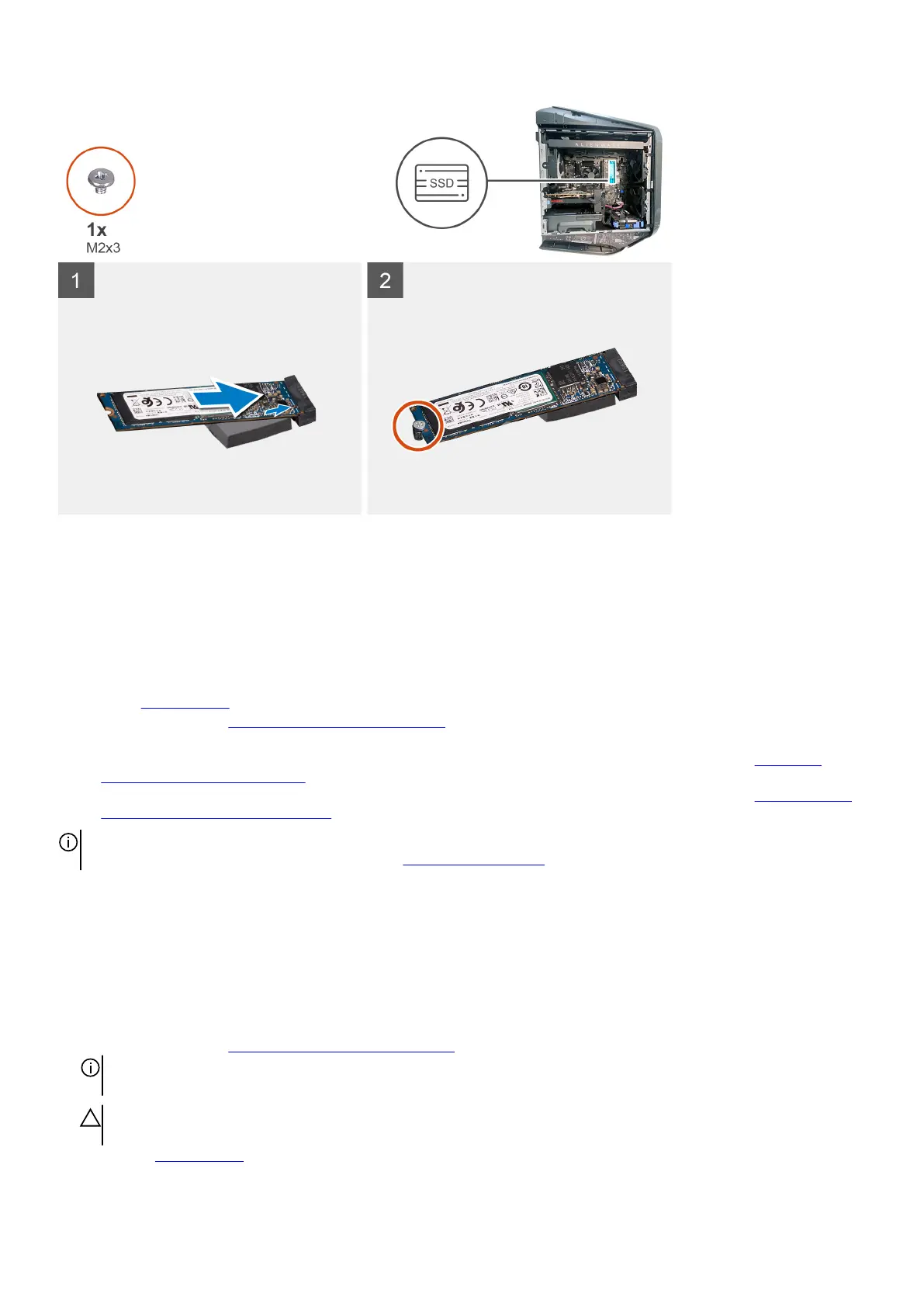
1. Align the notch on the 2280 solid-state drive with the tab on the SSD slot two on the system board.
2. Insert the 2280 solid-state drive at a 45-degree angle into the system board.
3. Press the other end of the 2280 solid-state drive down and replace the screw (M2x3) that secures the 2280 solid-state drive to
the system board.
Next steps
1. Install the
left-side cover.
2. Follow the procedure in After working inside your computer.
3. Verify if the storage device is installed correctly (optional):
a. If you are replacing a storage device which does not have the operating system installed, follow the steps in
Identifying
storage device in device manager.
b. If you are replacing a storage device which does not have the operating system installed, follow the steps in Identifying your
storage device in system setup (BIOS).
NOTE: To install the operating system on to your storage device, see Reinstall Windows to the Dell factory image using
recovery media in the Knowledge Base Resource at www.dell.com/support.
Processor fan and heat-sink assembly
Removing the processor fan and heat-sink assembly
Prerequisites
1. Follow the procedure in Before working inside your computer.
NOTE: The heat sink may become hot during normal operation. Allow sufficient time for the heat sink to cool before you
touch it.
CAUTION: For maximum cooling of the processor, do not touch the heat transfer areas on the heat sink. The oils in your
skin can reduce the heat transfer capability of the thermal grease.
2. Remove the left-side cover.
54











 To Next Page