COPYR IG H T
200 9-2010
ALL O.CO M
-
VISIT
US
ONLIN E
AT
W W W. ALLO.C O M
13
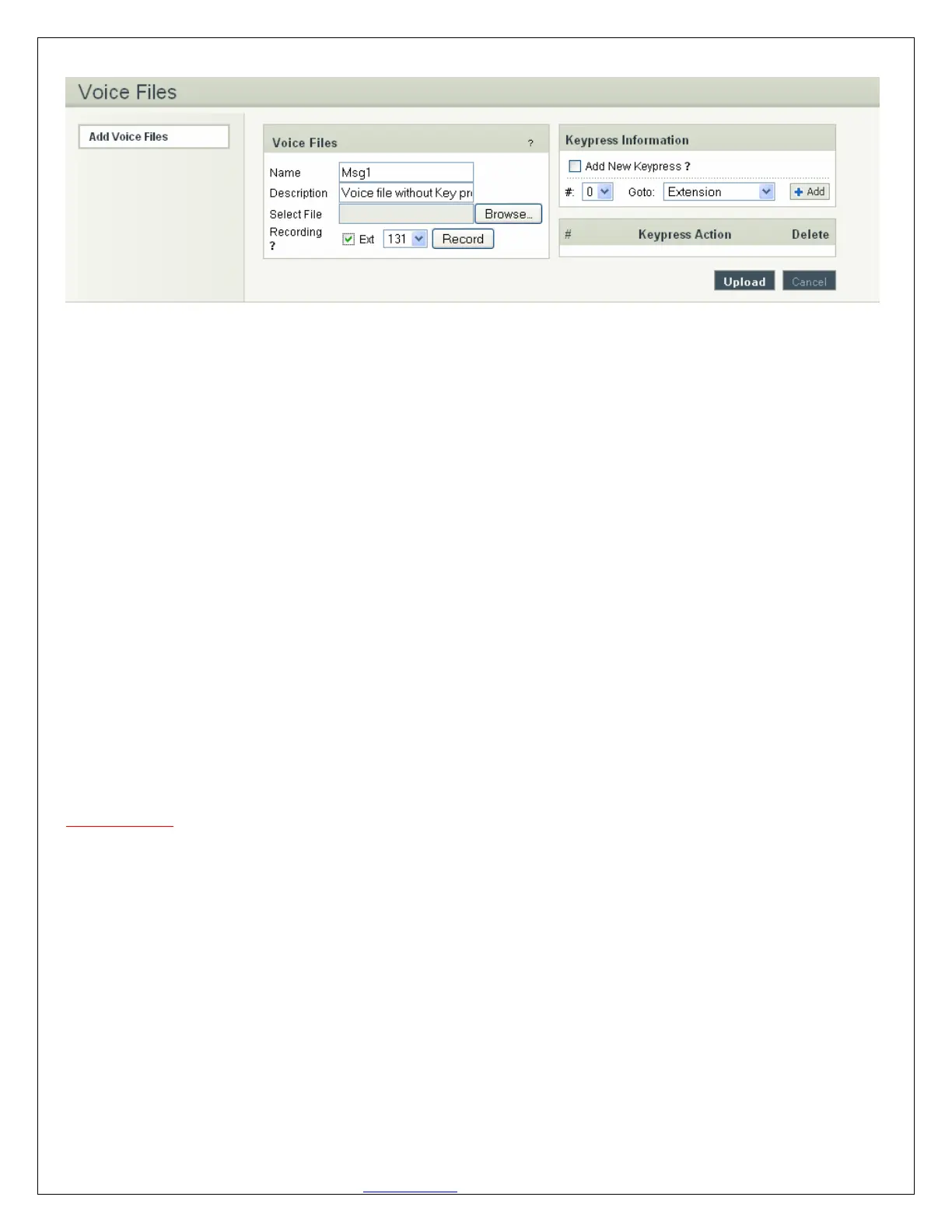
3.2.2 Recording Voice Files
Navigation: CREATE > Voice Files > Add Voice Files
Te record a Voice File from NANOPBX, check the Recording Option, and select the extension you wish you
use from the list, then press the Record button, it will ring the selected extension and allow you to record
your voice through this extension.
After answering the call a prompt will be played indicating you to start recording with beep sound Once
you have finished recording, press the # button on your telephone and once again it will prompt for
recording, record the same voice message again, once you have finished your recording then press the #
key. When done, you can leave it like that, or add Keypress Information (see Keypress section for more
info). When you are done, click Upload. The file will automatically be saved as a GSM file, and be stored
on the SD Card in your NanoPBX.
Repeat the above operation as many times as the number of messages to record.
For Example you can record the voice message as show in Example 1 of What are voice files section and
store it as Msg1. Example 2 of the same section and store it as Msg2.
Important Note:
• The extension which is used for recording should have G.711 u-law codec.
• To play the uploaded voice file from NanoPBX Quick Time player is required.
• Voice file name should be unique should not coincide with IVR / Queue / trunk name.
• Transcoding is not available in NanoPBX; our recommendation is to record voice files through
NanoPBX itself as twice.
3.2.3 Keypress Functions
Keypress options are available to the caller when a Voice File is played back through an IVR. Depending
what your voice File sounds like (see above example2) you can add any number of Keypress Actions by
first selecting a key number, and then the action (Example in the screen shot key press 5 goto
Extension). Then Press the +Add button to continue, then in the keypress action select the extension


 To Next Page