COPYR IG H T
200 9-2010
ALL O.CO M
-
VISIT
US
ONLIN E
AT
W W W. ALLO.C O M
16
the IVR file plays for 3 times before taking further action.
Select step as 4 and type as GoTo & click on Add button
Select the option where the call has to go if the user does not press any keys. In the above example the
call will be routed to the extension number 131
Select step as 5 and type as Hangup and click on add button
While creating the IVR by selecting “Allow extension dialing” you can dial any extension till the IVR
completes.
This completes the IVR. Click on Create IVR and then press APPLY CHANGES tab, to save this IVR.
3.3.2 IVR Schedules
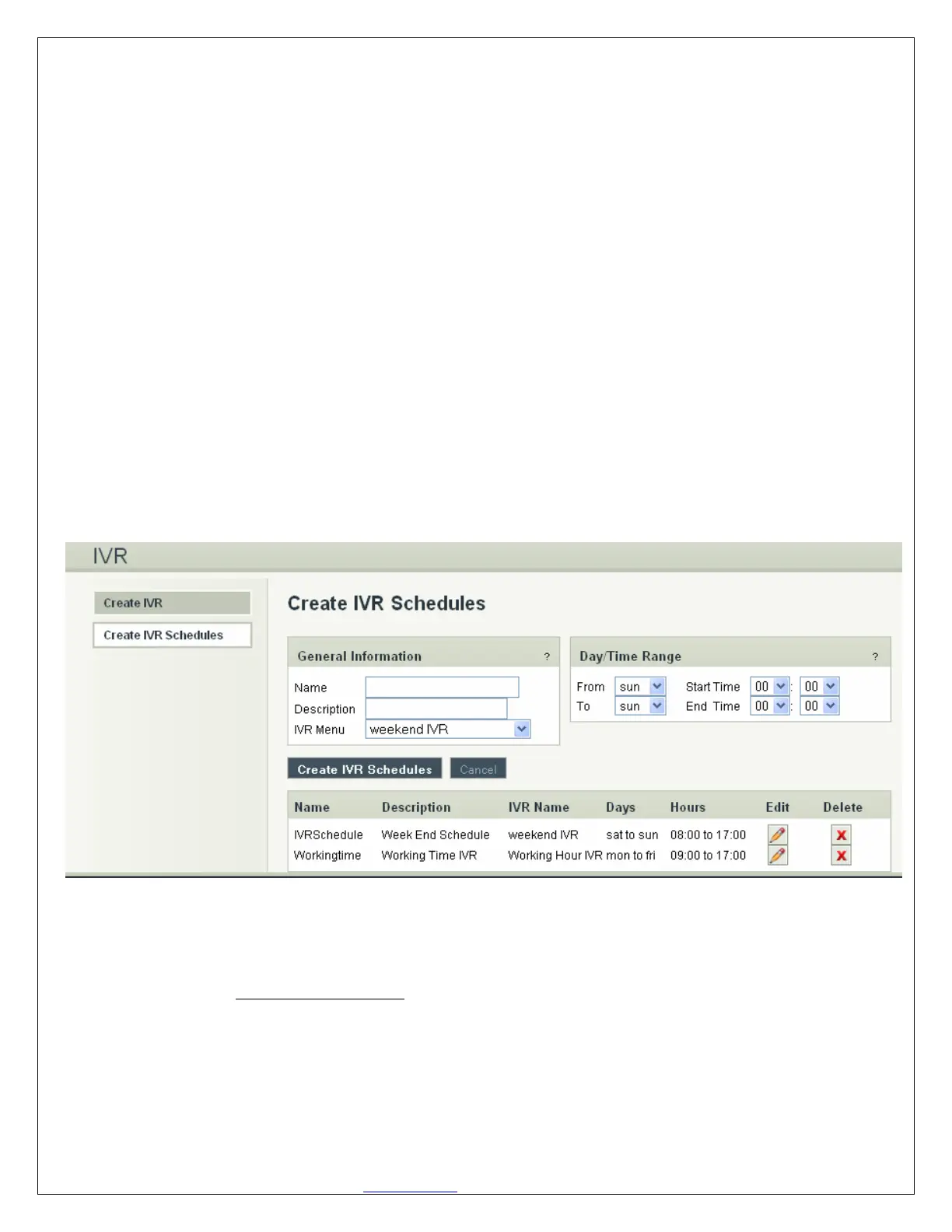
Navigation: CREATE > IVR > Create IVR Schedules: This is where you setup IVR Schedules, or
manage existing ones
What is an IVR Schedule?
An IVR Schedule allows an IVR to be played at a specific time. You can create multiple schedules, and
play different IVR’s based on specific times (i.e.: Morning and Evening schedules).
To create an IVR Schedule, fill in the required details such as Name, Description, IVR Menu selection,
and then Day / Time Range details. You can also see a list of existing schedules, and can edit / delete
them.
When done, click the Create IVR Schedules button.
Create IVR Schedules Details
1. Name: The name of the schedule
2. Description: A short description of the schedule
3. IVR Menu: The IVR to be played.
4. Day / Time Range: The days and start/end time to play the selected IVR



 To Next Page