COPYR IG H T
200 9-2010
ALL O.CO M
-
VISIT
US
ONLIN E
AT
W W W. ALLO.C O M
7
2. Getting Started With the NanoPBX
2.1 Installation
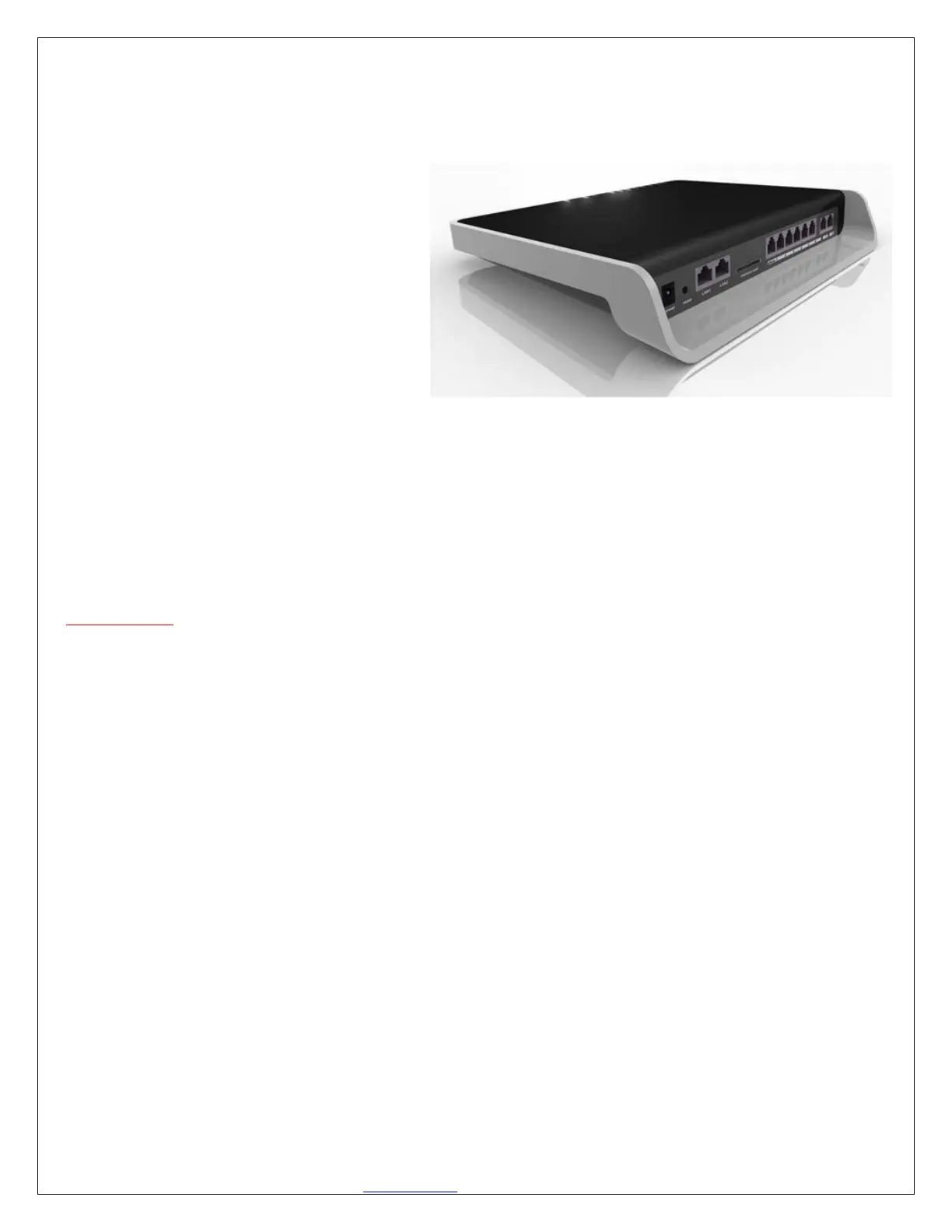
Step 1: Plug one end of the RJ45 Ethernet
cable into your Router
Step 2: Plug the other end of the RJ45
Ethernet cable into the WAN port of the
NanoPBX
Step 3: Plug the Power Adapter included
into an available power outlet
Step 4: Plug the other end of the Power
Adapter into the “DC-IN” port of the
NanoPBX
Step 5: The NanoPBX will power up, and automatically connect itself to your network via DHCP (which
you can later configure in the SETTINGS > Network Settings section)
Important Note:
• Wait until the POWER and all the six PHONE LED's turn orange and remain stable on the Front Panel
of your NanoPBX.
• Use Straight – through Ethernet cable to connect between the NanoPBX to Router/Switch/PC
Step 6: Configure your NanoPBX according to the instructions below
2.2 Accessing the GUI (Graphical User Interface)
Connect an Analog phone to the any of the FXS ports of the NanoPBX and dial “* *” to get the WAN IP
address of the NanoPBX. And then launch the web browser on the PC which is connected to the same
network to get GUI Login Screen.


 To Next Page