MTX-30F Push Installation & Operation Guide Page 11
Operation
Daily MTX-30F Push Use
The following "Daily Use" section assumes the MTX-30F Push Fingerprint terminal has been set
up with enrolled users and system options have been defined. Please see Enrolling Users on
page 13 and the other sections for enrollment details, etc.
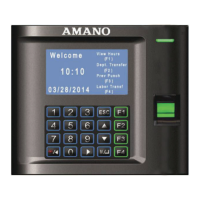
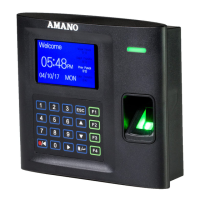
From the Welcome screen place your enrolled Finger in the sensor window.
Upon verification, the Green LED will momentarily stay on; the screen will briefly display your
User ID, Name and the confirmation "Verified" with the voice prompt "Thank you".
Note: The name, assignments, and current pay period information can be downloaded from Time
Guardian to the MTX-30F Push. An invalid finger entry will flash the error message, "FP Verify fail “.
The Red LED will momentarily stay on.
Punching with a Fingerprint (FP)
Punching with a Proximity Card
From the Welcome screen place your proximity card in front of the reader.
Upon verification, the Green LED will momentarily stay on; the screen will briefly display your
User ID, Name and the confirmation "Verified" with the voice prompt "Thank you“.
Note: The name, assignments, and current pay period information can be downloaded from Time
Guardian to the MTX-30F Push. An invalid finger entry will flash the error message, "FP Verify fail “.
The Red LED will momentarily stay on.
Punching with a Password (Pwd)
From the Welcome screen enter your User ID using the keypad and press OK to confirm.
Input your password and then press OK.
Note: An invalid password entry will flash the error message, "Error Pwd.", and the voice prompt,
"Incorrect password". The Red LED will stay on until the correct password is entered or the
password entry times out and the terminal returns to the Welcome screen. If the user does not have
a password they will be prompted to “Place Finger”.


 To Next Page