MTX-30F Push Installation & Operation Guide Page 14
User Management
How to Enroll a User
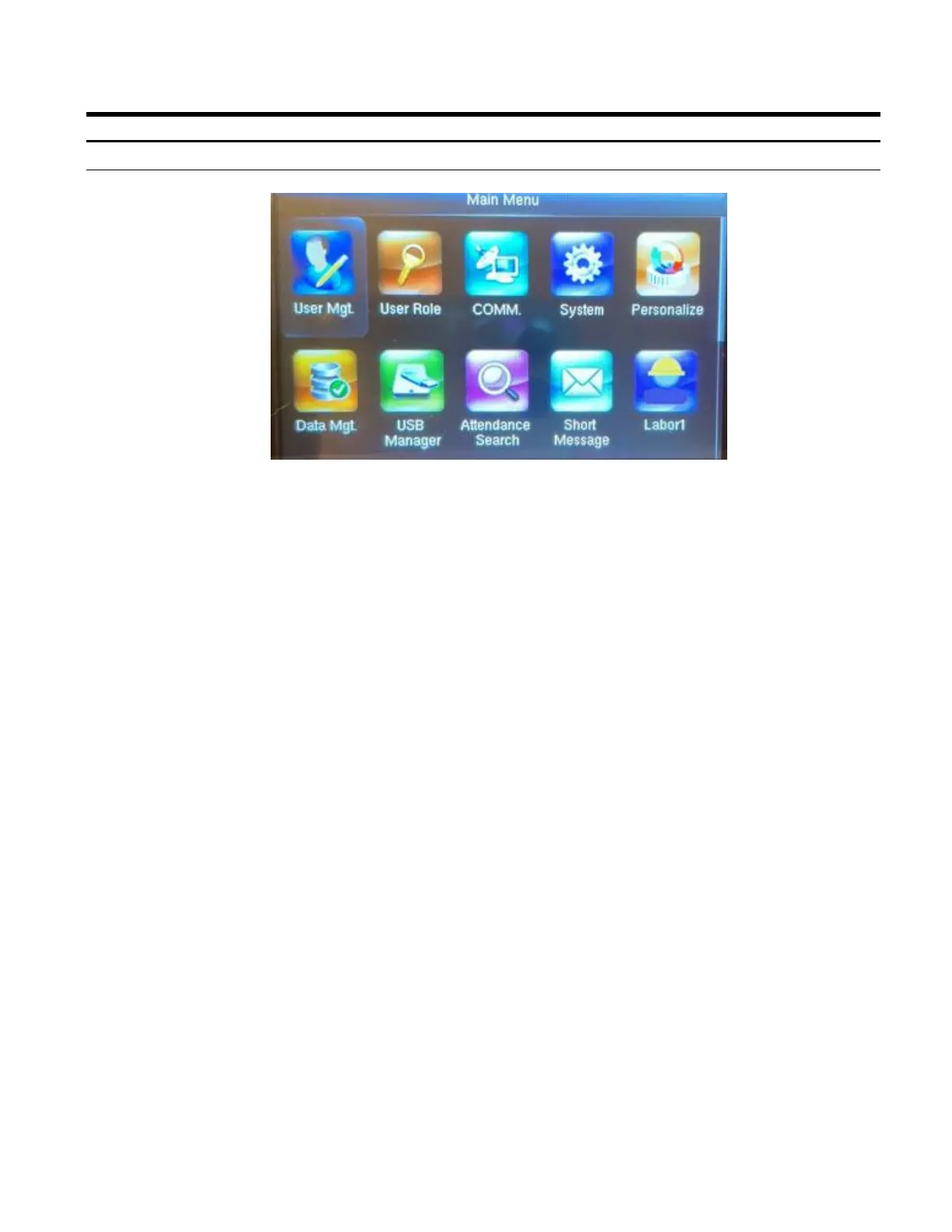
1. Press the Menu button to display the Main Menu.
2. Using the arrows highlight the User Mgt. icon and then press OK.
3. Select New User and press OK.
4. Enter User ID # using the keypad and then press the down arrow.
5. Scroll down until Verification Mode is highlighted then press OK.
6. Use the arrows to highlight “Fingerprint only” and then press OK.
7. Use the down arrow to highlight “Fingerprint” and then press OK.
8. Select the finger to be enrolled by using the arrows and then press OK.
9. Follow the on screen instructions from the terminal until your Finger has been verified. The
Terminal will show a green check mark to let you know this has been completed.
Confirmation of Finger Verification
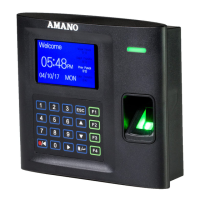
To confirm that you have successfully enrolled your Finger use the back arrow to revert back to
the Welcome screen using the ESC button.
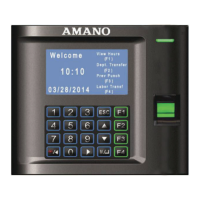
From the Welcome screen place your enrolled finger on the fingerprint scanner. Once the
verification is complete you will hear the terminal say “Thank You”.


 To Next Page