MEGAPOWER 168 / AD2088 OPERATION AND PROGRAMMING REFERENCE GUIDE (8200-0170-01, REV. A)
10 of 30
If you want to …
Press the following
keys…
Go to (hold) Pattern 1
31-F1
Go to (hold) Pattern 2
32-F1
Go to (hold) Pattern 3
33-F1
Controlling Tours
A tour is a dynamic sequence of camera views or
patterns, each of which appears on a selected
monitor screen for a specified dwell time. In
addition, each preset or pattern can have a pre-
programmed preset status, auxiliary status, and
connect next designation. The tour control buttons
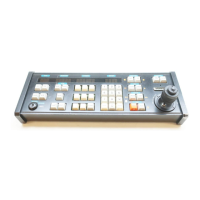
are located below the Monitor/VCR display.
Figure 8: Tour control keys
RUN
MONITOR
CR
LAST NEXT
Additionally, there are monitor or "scratch-pad"
tours, which are temporary tours programmed for
the operator's currently selected monitor.
Note: Verify that the keyswitch is in the Operate
position before performing these tasks.
Running System Tours
1. Select the monitor where the tour will run.
2. Use the numeric keypad to enter the system tour
number to be associated with the monitor under
control.
3. Press the RUN key, and then press the ACK key
within three seconds to run the designated
system tour.
Note: Tour direction can be changed while a tour is
in progress. To change the direction of a running
tour, press the NEXT or LAST key, depending on
which is appropriate in a given situation.
Holding Tours
A tour can be stopped and held on a single camera
entry by pressing the HOLD key. While a tour is on
hold, all keyboard control actions (pan, tilt, lens
adjustment, and auxiliary on/off functions) can be
performed on the held camera. You may also step
forward and backward through the cameras in the
tour by pressing NEXT or LAST.
Re-Starting Tours
• To re-start a held tour in the forward direction,
Press the RUN key.
• To re-start a tour in the reverse direction, press
the LAST key, followed by the RUN key.
Running Macros
A macro is a sequence of up to 21 keystrokes that is
executed by typing the macro’s numeric identifier
(up to four digits), and pressing the designated
macro key. A macro can be made up of all Monitor
mode inputs, all VCR mode inputs, or a combination
of both.
Eight macro keys are available. These are located
below the Camera display.
Figure 9: Macro keys
SLOTS
CAMERA
Industry-specific and general-purpose labels are
included with the keyboard. The labels shown in
Figure 9 are examples of those included for the
gaming industry.
Note: Verify that the keyswitch is in the Operate
position before performing this task.
To run a macro:
1. Use the numeric keypad to enter the macro
number.
2. Press the appropriate macro key.
Starts
Tou
Displays
previous
Pauses
Tour
Displays
subsequent
scene


 To Next Page
 Loading...