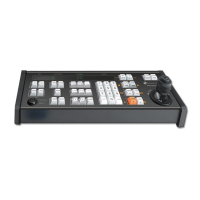
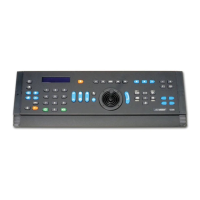
MEGAPOWER 168 / AD2088 OPERATION AND PROGRAMMING REFERENCE GUIDE (8200-0170-01, REV. A)
14 of 30
Pattern Programming for Older
SpeedDome Series Domes
If you have older SpeedDome series domes
installed at your facility, use the following procedure.
1. Select the camera that will be used for
programming the pattern.
2. Turn the keyswitch to the PROGRAM position.
3. Do one of the following:
Pattern Number Function Key Command
Pattern 1
121 F2
Pattern 2
122 F2
Pattern 3
123 F2
4. Using the joystick and lens keys, maneuver the
called camera to define the pattern.
5. Enter 120 and press the F2 key to end the
pattern definition.
6. Enter 130 and press the F2 key to save the
pattern to memory.
Programming Preset Scenes
Certain cameras with pan/tilt and motorized lens
capability can be programmed to immediately move
to specific pan, tilt, zoom, and focus positions when
called by a keyboard.
Note: The number of available presets depends
upon the PTZ or dome type. Refer to the PTZ or
dome documentation for additional information. The
maximum number of SensorNet or RS-422 dome
presets is limited to 72 because the presets are
stored in the AD168, not the dome.
To program a preset scene for later recall:
1. Select the camera where the preset will be
saved.
2. Turn the keyswitch to the PROGRAM position.
3. Using the joystick, move the camera to the
appropriate position. Make the necessary lens
adjustments.
4. Use the numeric keypad to enter the preset
number (1-72 depending upon PTZ/dome type).
5. Press the PRESET key.
Programming Monitor Tours
A monitor (“scratch pad") tour is a temporary
sequence of camera views programmed for the
monitor under keyboard control. A monitor tour can
contain up to 64 camera scenes sequenced in any
order. Each scene is shown for a specified duration
called the dwell time.
To program a monitor tour:
1. Select the monitor on which the tour will be
displayed.
2. Turn the keyswitch to the PROGRAM position.
3. Use the numeric keypad to enter 62. Press the
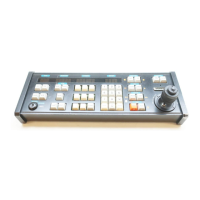
PROG key (located above the keyswitch) to
clear any previously programmed monitor tour.
4. Enter the first camera number to include in the
tour, and press the CAMERA key.
5. Enter the dwell time (1-60) on the numeric
keypad. Press the PROG key.
6. Repeat steps 4 and 5 until all the cameras in the
tour have been programmed. When finished,
continue with step 7.
7. Press either the HOLD key or the RUN key to
exit the monitor tour programming mode.
• The HOLD key leaves the tour on hold, and
displays the last camera scene selected.
• The RUN key switches the video to the first
camera in the tour and initiates the tour
sequence.
Monitor Tour Programming Options
When a tour is running, press the HOLD key to stop
the tour and hold the currently displayed camera.
While the tour is on hold, it can be re-programmed
in the following ways.
Adding a Camera to a Tour
1. Press the NEXT key until the desired camera
scene is displayed, then press the HOLD key.
2. Turn the keyswitch to the PROGRAM position.
3. Call the camera to be inserted in the tour.
4. Enter the desired dwell time (1-60).
5. Press the PROG key to set the dwell time.
6. Press the HOLD or RUN key to exit the tour
programming mode.


 To Next Page
 Loading...