Connecting the Basic Equipment
1-5
Attaching the Mouse
~
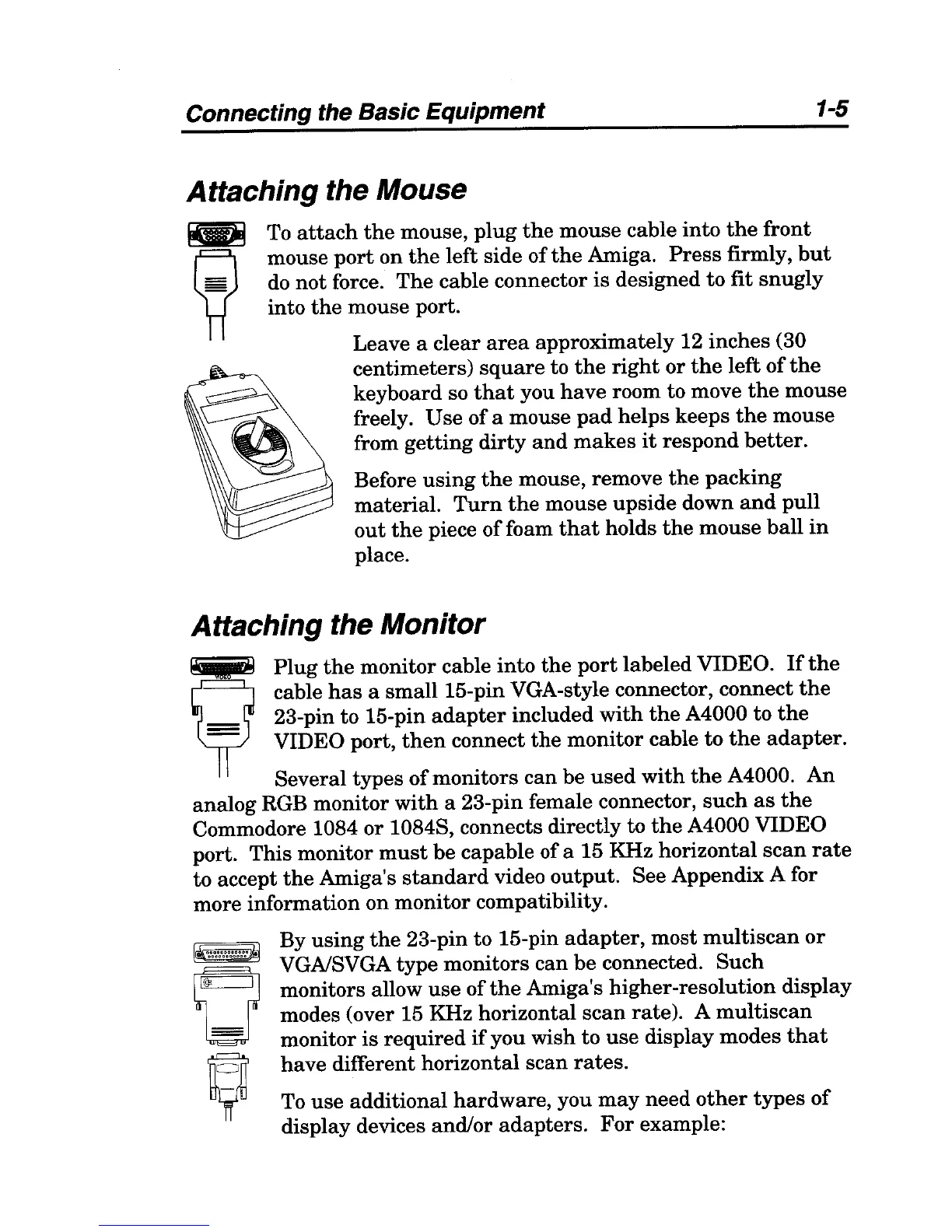
To
attach
the
mouse, plug
the
mouse cable into
the
front
mouse
port
on
the
left side
ofthe
Amiga.
Press
firmly,
but
do not force.
The
cable connector is designed
to
fit
snugly
into
the
mouse port.
Leave a clear
area
approximately 12 inches (30
centimeters)
square
to
the
right
or
the
left
of
the
keyboard so
that
you
have
room to move
the
mouse
freely. Use of a mouse
pad
helps
keeps
the
mouse
from
getting
dirty
and
makes
it
respond better.
Before
using
the
mouse, remove
the
packing
material.
Turn
the
mouse upside down
and
pull
out
the
piece
of
foam
that
holds
the
mouse ball
in
place.
Attaching the Monitor
~
Plug
the
monitor cable into
the
port
labeled VIDEO.
If
the
¥
cable
has
a small 15-pin VGA-style connector, connect
the
_ 23-pin to 15-pin
adapter
included
with
the
A4000 to
the
= VIDEO port,
then
connect
the
monitor cable
to
the
adapter.
Several types
of
monitors can be
used
with
the
A4000.
An
analog RGB monitor
with
a 23-pin female connector,
such
as
the
Commodore 1084 or 1084S, connects directly to
the
A4000 VIDEO
port. This monitor
must
be capable of a 15 KHz horizontal
scan
rate
to accept
the
Amiga's
standard
video output. See Appendix A for
more information on monitor compatibility.
By
using
the
23-pin to 15-pin
adapter,
most
multiscan
or
VGAlSVGA type monitors can
be
connected.
Such
monitors allow
use
of
the
Amiga's higher-resolution display
modes (over 15 KHz horizontal
scan
rate). A
multi
scan
monitor is required
if
you wish to
use
display modes
that
have different horizontal scan
rates.
To
use
additional hardware, you
may
need
other
types
of
display devices and/or
adapters.
For
example:



 To Next Page