Part
4:
Getting Started ....
Before
we
start
loading software and saving programs to disc, let's get familiar with
some of
the
keys on
the
computer. Those of you who
are
experienced
in
using
computers may skip
this
section.
With the computer switched on and
the
opening message on
the
screen, we're going to
find out
what
the
various keys
do
....
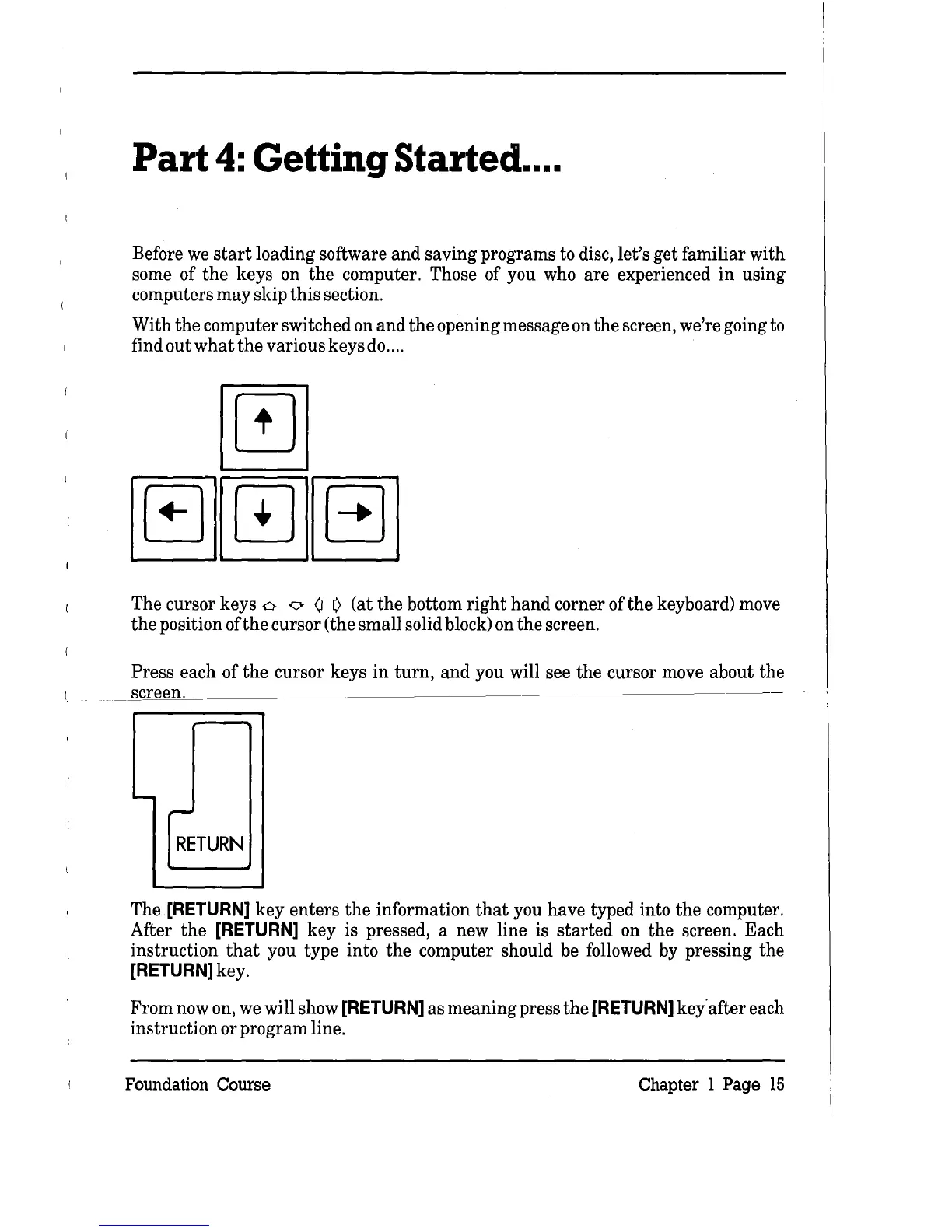
The cursor keys
0.
-0
Q
il
(at
the
bottom
right
hand
corner
ofthe
keyboard) move
the
position of
the
cursor (the small solid block) on
the
screen.
Press each of
the
cursor keys
in
turn,
and you will see
the
cursor move about the
..
__
.S.creen.
________
~
____
~
__
_
i.-
.--
RETURN
The
[RETURN]
key
enters
the
information
that
you have typed into the computer.
After
the
[RETURN]
key is pressed, a new line is
started
on the screen. Each
instruction
that
you type into the computer should be followed by pressing the
[RETURN]
key.
From now on,
we
will show
[RETURN]
as meaning press
the
[RETURN]
key· after each
instruction or program line.
Foundation Course
Chapter 1
Page
15


 To Next Page