E
E
D
D
I
I
T
T
I
I
N
N
G
G
M
M
E
E
S
S
S
S
A
A
G
G
E
E
26 | EDITING MESSAGE
TEXT
Non-Roman characters are not available to the system, please refer to
our PC editing software – MessagePRO, which allows you to input all
different text messages, save to SD card and then input to U2.
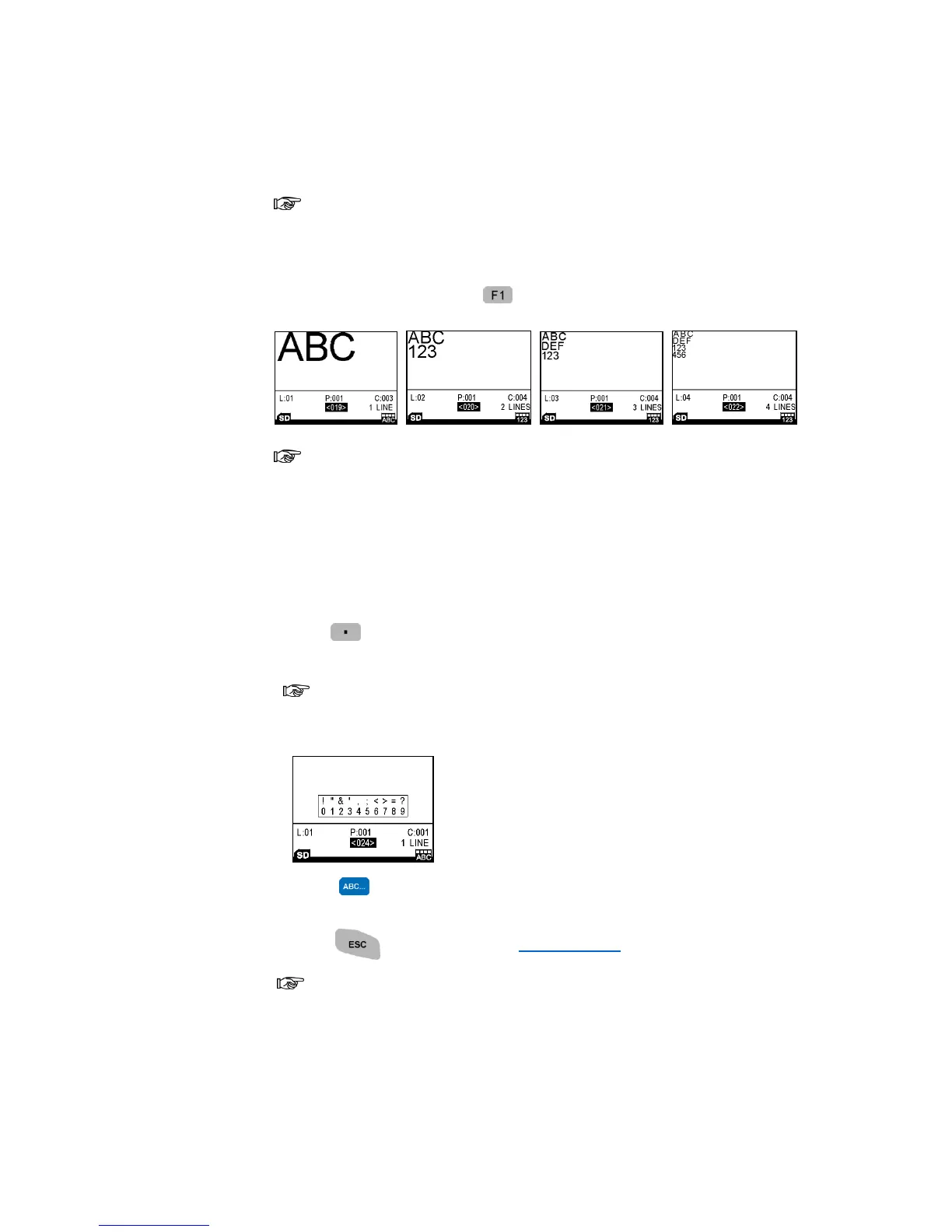
1. Under Editing Mode, press to choose 1, 2, 3 or 4 lines.
Multi-lines do not support barcodes. Other than barcode, objects are
restricted to the designated line, unable to cross different lines. In order to
generate a message with various objects combined in any form, please go for
free-line mode, which is only available in MessagePRO.
2. Select the system font height. (Heights: 2.7mm, 3.6mm, 5.5mm, 8mm,
10mm, 12.7mm)
3. Press SYMBOLS and select SYMBOL or EURO CHAR.
4. Press the corresponding number to choose the symbol.
When you select different fonts, type of symbol changed accordingly.
Some system font does not support European Accented Characters.
5. Press once or twice to select capital letter or numeric number.
6. Input the text content you wished.
7. Press to save & exit (See Save Message) .
Default system only offer Upper case font.
TIME
Add production date to a message.


 To Next Page