E
E
D
D
I
I
T
T
I
I
N
N
G
G
M
M
E
E
S
S
S
S
A
A
G
G
E
E
28 | EDITING MESSAGE
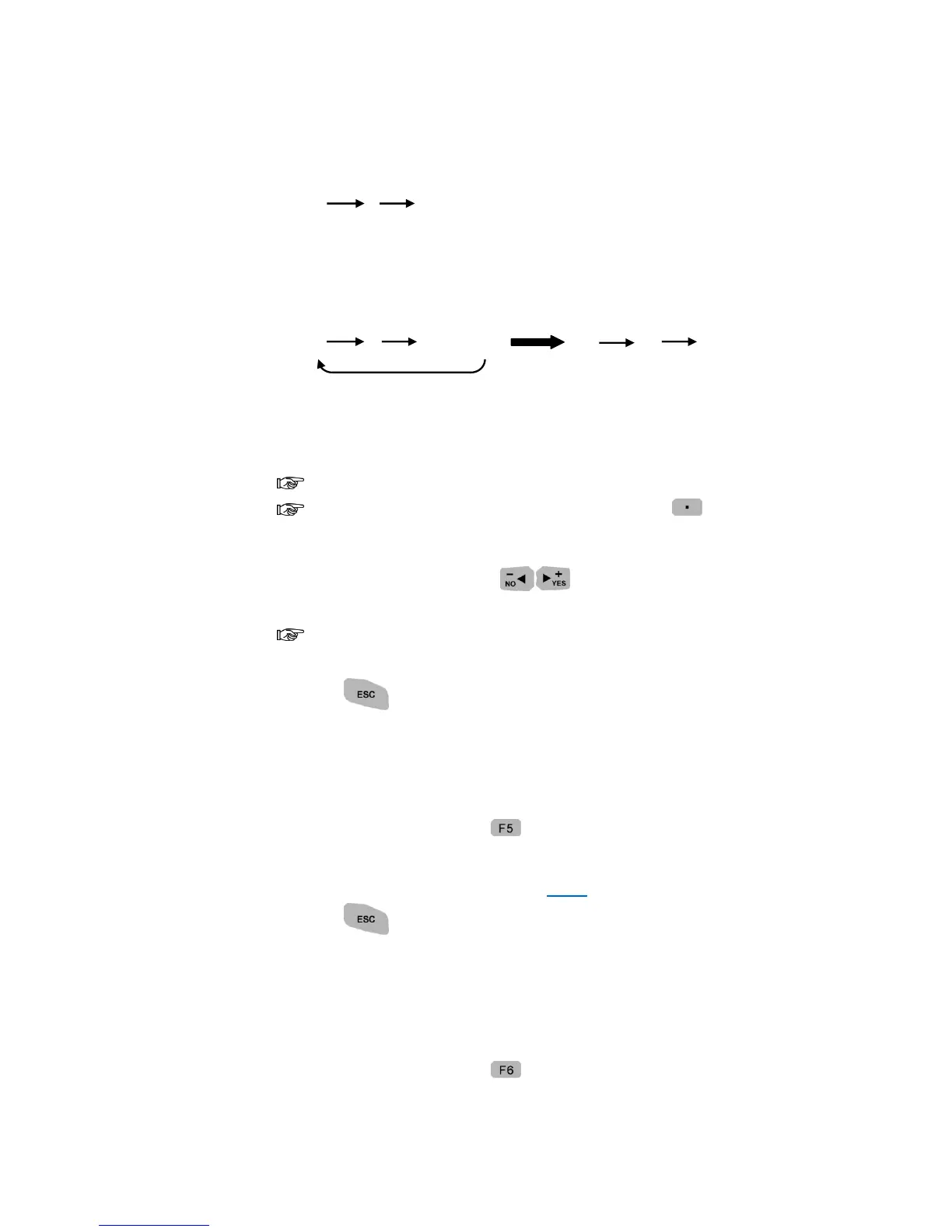
For example:
①Single counter (Max: 9999, Min: 1, Current: 1, Step: 1)
1 2 3…… 9999
②Box (Max: 9999, Min: 1, Current: 1, Step: 2)
Lot (Max: 9999, Min: 1, Current: 10, Step: 5)
Box: Lot:
1 3 5…… 9999 10 15 20 ……
3. Move to MAX and MIN, and input their value.
4. Move to Step, and input a value.
To Count-Up: Input a positive step value.
To Count-Down: Input a negative step value. (Press to obtain minus
(-) sign)
5. Move to ALARM, and press to switch ON/OFF. (Available when
COUNTER ALARM is ON.)
When counter exceeding the maximum value during printing, the
system will switch to PRINT OFF automatically.
6. Press to return to the Editing Mode.
SHIFT
Create shift for different operator and their starting work time.
1. Under Editing Mode, press and choose CREATE SHIFT to add a shift to
the message.
2. Select SHIFT SETUP to setup. (See SHIFT)
3. Press to return to the Editing Mode.
LOGO
Download the Logo from PC to SD card via MessagePro software!
1. Under Editing Mode, press to add a LOGO to the message.



 To Next Page