Recording 65
NOTICE
Erase totally removes all data and data can't be recovered. Make sure to copy all data from the drive
before erasing.
Do not remove power or switch off the camera while erase is in progress.
Do not remove the recording media from the recording module while erase is in progress.
16.1.2 Remaining Recording Capacity and Media Information
The remaining recording time of the inserted drive at current FPS and codec combination, in real time is
displayed on the HOME screen as well as in the status info of EVF/Monitor and the SDI outputs. When
drive capacity is less than 2 minutes, capacity values start flashing.
Additional drive information can be found in the Media Info screen.
► Select MENU > Info > Media Info.
NOTICE
A maximum of 400 clips can be recorded on a drive. When the maximum of 400 clips is reached, the
card will be declared as full and further recording onto the card is not possible.
16.2 Starting Recording via REC button
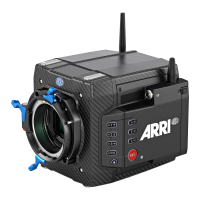
The REC button is located on the left side of the camera, the MVF-2 features another REC button. The
camera status LED next to the REC button reflects the camera's status. Recording can only be started
with a valid Compact Drive inserted. Starting recording returns the MVF-2 user interface to the home
screen and disables the menu access as well as the HOME screen buttons FPS, SHUTTER and TC.
Other Ways to Start Recording
The camera offers various other ways to start recording:
Through the LBUS connector, using ARRI Master Grips or the Operator Control Unit OCU-1
Through the built-in white radio, using Wireless Compact Unit WCU-4 or Single Axis Unit SXU-1
Through WiFi/LAN, using the web remote or applications communicating via CAP (Camera Access
Protocol)
Through the EXT connector, using the General Purpose I/O Box or a Remote Switch RS-4
Through the RS connector, using Remote Switch RS-4
A user button assigned with Record Start/Stop
16.3 Recording Format
The selection of the recording format is a crucial decision which needs to be discussed with the
production company and post production. While lower bit rate formats offer longer recording times,
they might introduce compression artifacts that can limit creative choices. Always test the full workflow
pipeline with the preferred recording format before shooting.
MXF (Material eXchange Format)
Both ARRIRAW and Apple ProRes files are recorded in an MXF (Material eXchange Format) container.
An MXF container file can "wrap" different types of video and audio material along with associated
metadata. The internal structure of these files is defined by the Operational Patterns (OP). Our cameras
create MXF files with OP1a structure, which packages picture, sound and metadata into a single file.
This structure is ideal for both camera acquisition and archiving, since audio and video is always
kept together and virtually no data gets lost if recording is unexpectedly interrupted. OP1a also is a
streaming format, which means that even incomplete files can be repaired and accessed up to the last
recorded frame.


 To Next Page