Chapter 3: Install and connect your Data Gateway
Choose an installation location
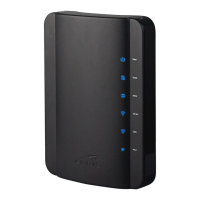
There are a number of factors to consider when choosing a location to install your Data
Gateway:
■
Is an AC outlet available nearby? For best results, the outlet should not be switched and
should be close enough to the Data Gateway that extension cords are not required.
■
Is a cable jack available? For best performance, keep the number of splitters between
the jack and cable drop to a minimum. Each splitter attenuates (reduces) the signal
available to the Data Gateway. A large number of splitters can slow down the Internet
connection and even affect your service.
■
If you are connecting devices to the Ethernet ports, can you easily run cables between
the Data Gateway’s location and those devices?
■
If you want to install the Data Gateway on a desktop, is there enough space on either
side to keep the vents clear? Blocking the vents may cause overheating.
■
How close are your wireless devices? The Data Gateway wireless connection range is
typically 100–200 feet (30m–65m). A number of factors can affect connection range, as
described below.
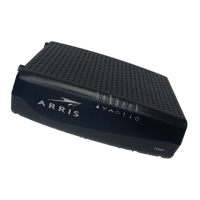
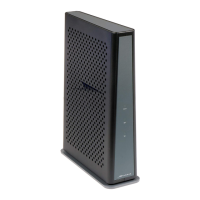
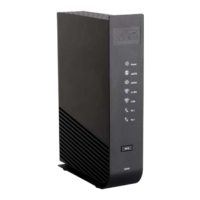
Desktop mounting instructions
Position the Data Gateway so that:
■
it stands vertically on its base (do not lay it flat on its side.)
■
air flows freely around it
■
the back faces the nearest wall
■
it will not fall to the floor if bumped or moved
■
the ventilation holes on the sides of the unit are not blocked
Factors that affect wireless range
A number of factors can affect the usable range for wireless connections.
Increases range
■
Adding a wireless extender to the network
Decreases range
■
Metal or concrete walls between the Data Gateway and other
devices
■
Large metal appliances, aquariums, or metal cabinets between the
Data Gateway and other devices
■
Interference and RF noise (2.4 GHz wireless phones, microwave
ovens, or other wireless networks)
Note: Set the transmit power level to High to increase the range. Set it to Medium or
Low to decrease the range proportionately.
Note: You may decide to decrease the range of your wireless network, as long as the
decreased range is sufficient for your needs. By limiting your network’s range, you
Touchstone DG3270 Data Gateway User Guide STANDARD Revision 1.1 17



 To Next Page