Chapter 3: Install and connect your Data Gateway
Configure your wireless connection
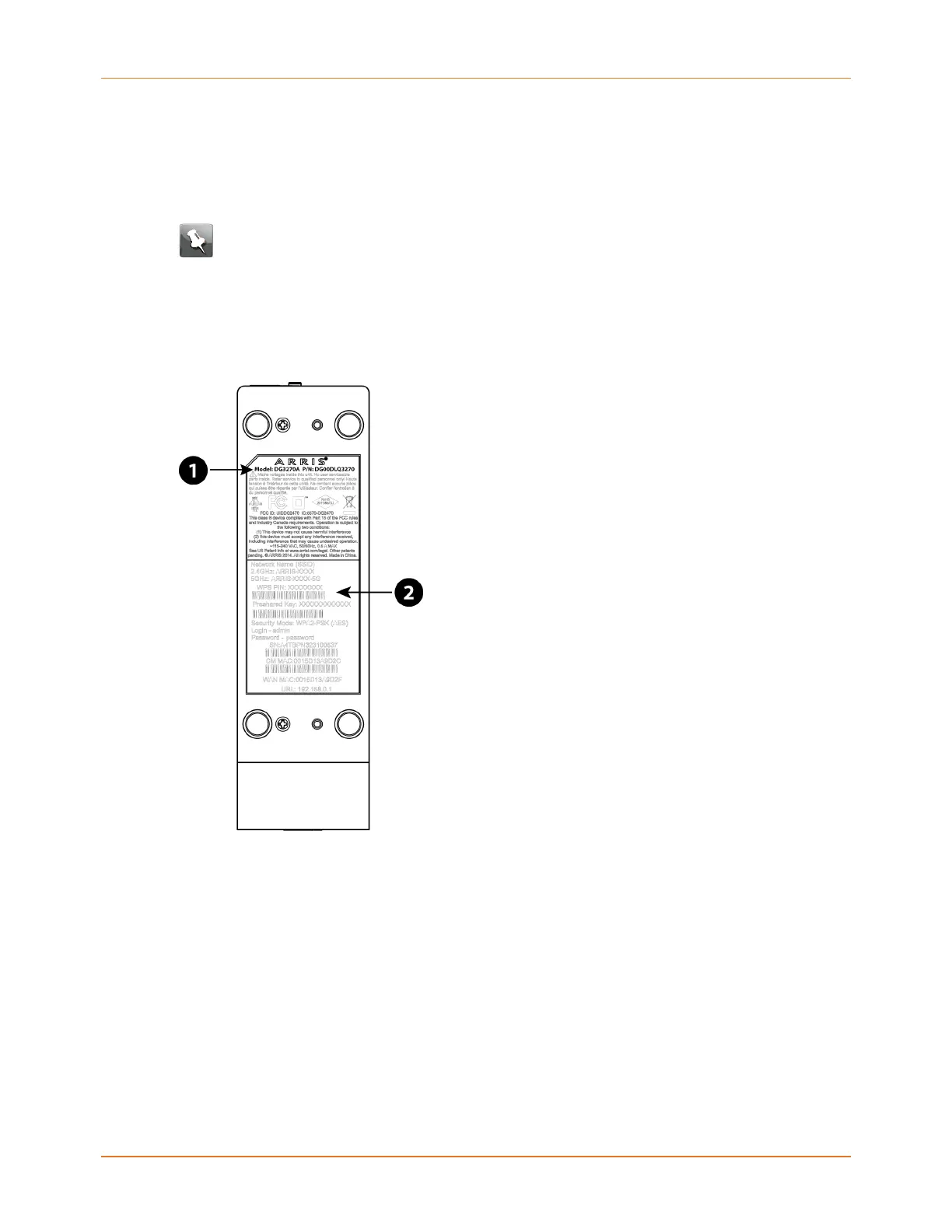
The DG3270 ships with wireless LAN security enabled by default. See the security label on
your product for the factory security settings.
Note: You must set up your computer and other client devices to work with the
security settings on the DG3270. Refer to the documentation for your client device
for instructions on setting security. On most computer systems you only need to
select the network name (SSID) device and enter the encryption key. If your computer
or client device supports Wi-Fi Alliance WPS (Wireless Protected Setup), activate WPS
on your computer or client device and the DG3270 simultaneously to easily set up
your system security.
1. Model number
2. Security label
If you need to modify the Data Gateway's default wireless security settings, or if you want to
configure any other wireless LAN settings, refer to the following instructions.
Access the configuration interface
1. If security has been properly set up on your computer to access the wireless LAN on the
DG3270, use the connection utility for your operating system to connect to the wireless
LAN using its network name (SSID), as shown on the security label.
2. If you cannot access the wireless LAN, you must first establish a wired Ethernet
connection between your computer and the DG3270.
Touchstone DG3270 Data Gateway User Guide STANDARD Revision 1.1 19



 To Next Page