16
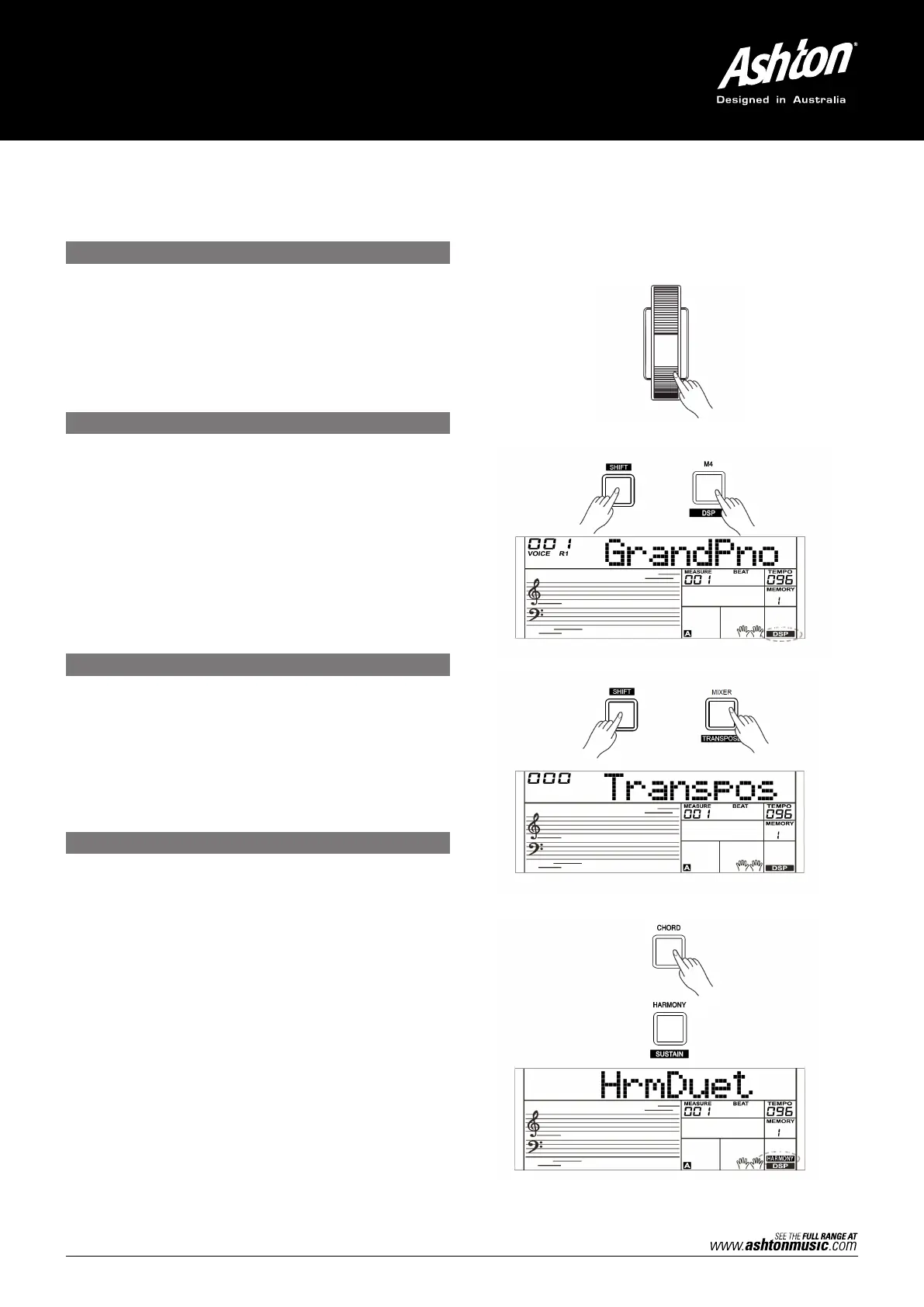
Use the Pitch Bend wheel to bend notes up (roll the wheel
away from you) or down (roll the wheel toward you) while
playing the keyboard. The Pitch Bend wheel is self–centering
and will automatically return to normal pitch when released.
You can use the Pitch Bend wheel to imitate guitar, violin,
saxophone, urheen, suona or other instruments.
The DSP simulates sounds in the real environment. With
the DSP effect, you can add ambiance and depth to your
performance in a variety of ways.
1. Press and hold the [SHIFT] button and then press the
[DSP] button to set the DSP effect on. The DSP indicator
will light up on LCD. The DSP effect is automatically
activated when turning on the AK280.
2. Press and hold the [SHIFT] button and then press the
[DSP] button again to turn DSP effect off.
1. Press and hold the [SHIFT] button and then press the
[TRANSPOSE] button to enter the transpose menu. The
LCD displays “xxx Transpos”.
2. Use [+/YES]/[–/NO] button or data dial to change
transpose value, adjustable range: –12 – +12, the
default value is: 0.
PITCH BEND
DSP
TRANSPOSE
HARMONY
The Harmony Function will automatically add a harmony
effect to the notes you play in the right–hand section.
1. Press the [CHORD] button to turn on the A.B.C. function.
2. Press the [HARMONY] button to turn the harmony
effect on.
3. Play a chord in the left hand section.
4. As soon as you play in the right hand section, it will
automatically add a harmony effect to the notes you play.
Note:
• Harmony cannot be turned on when the Full Range
fingering mode is selected.
• The harmony types of “1+5”, “Octave 1” or “Octave 2”
are always available. Other types of harmony will respond
only when the A.B.C. is ON.



 To Next Page