24
Software Drivers
Wireless LAN Utility Introduction
After installing the Wireless driver and utility, the utility will automatically start with Windows. If you need
to start it manually, you can launch the utility using the desktop icon or through Windows start. You will
need to make some wireless LAN settings before being able to use your wireless connection.
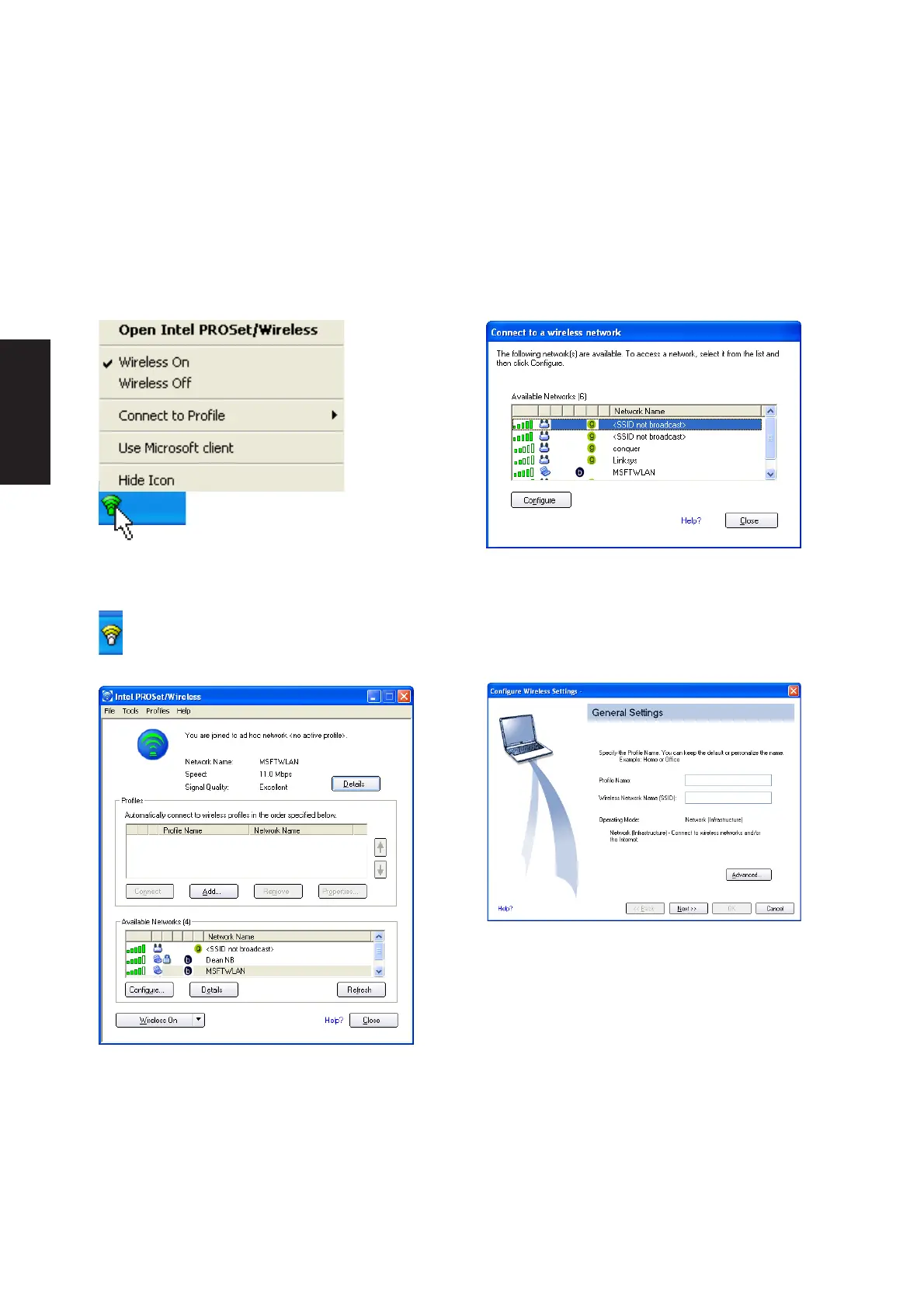
Double click the taskbar icon to bring up the
connection status window. Click Details to view
available access point information.
Configure - Make a new profile to save specific
settings for use in different WLAN networks.
After installation, you will have several options
available through the icon on the task bar.
Green icon indicates connected, yellow
indicates disconnected mode, and white
indicates that the WLAN is OFF.
The wireless LAN utility will automatically search
for available networks if not connected.




 To Next Page