83
Software Utilities
Using WINFLASH
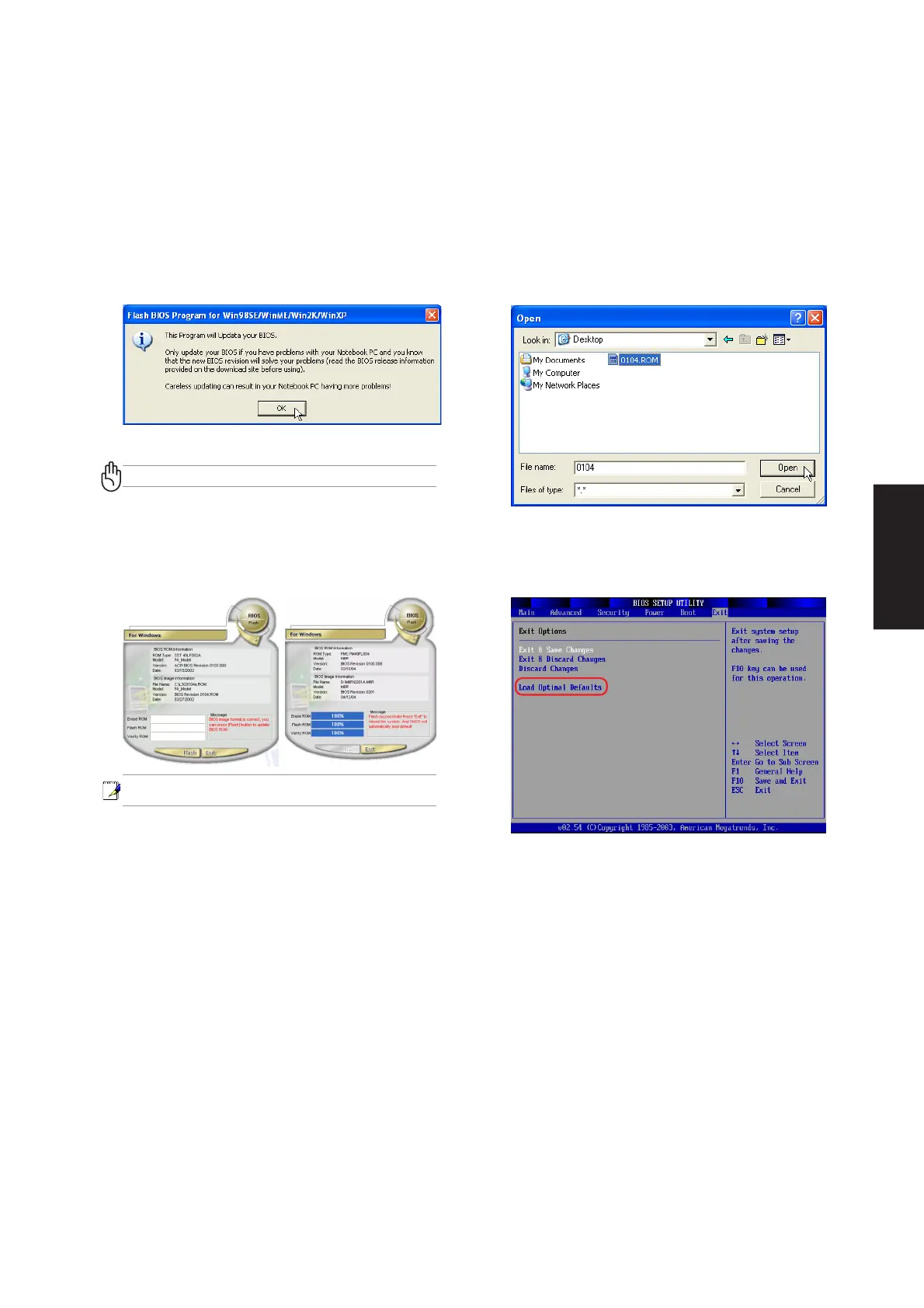
WINFLASH is a simple utility to update your Notebook PC’s BIOS. To run WINFLASH, access the All
Programs shortcut through the Start button.
When you enter WINFLASH, you will be
immediately asked for the BIOS image file.
Browse to the file and click Open.
Compare the BIOS ROM (your current BIOS)
to the BIOS image (the new BIOS). If this is
correct, click Flash to write the new BIOS to
your Notebook PC. You need to restart your
Notebook PC and “reset your BIOS”. See
instructions on the next page.
You may be instructed to “reset your BIOS”. It
entails pressing [F2] on bootup to enter BIOS
setup and selecting Load Setup Defaults, and
then Exit Saving Changes on the “Exit” menu.
Do not update your BIOS for no reason.
You will be warned that you should only update
your BIOS if you know it will solve a specific
problem. If you update your BIOS using the wrong
BIOS file, your Notebook PC may not boot up.
Text in these screens are examples only and will not reflect
your system.








 To Next Page