Conguring Client Settings
Conguring System Settings
38
NOTE
• Taking a snapshot will reset the startup behavior to the default (auto-login with the
default standard user account). For details, please refer to “About the Behavior of
System Startup” on page 8.
• The built-in administrator prole will be used as the default user prole while taking
a snapshot. Therefore, changes to the built-in administrator prole in desktop
settings, some Start menu options, etc, will apply to new user accounts.
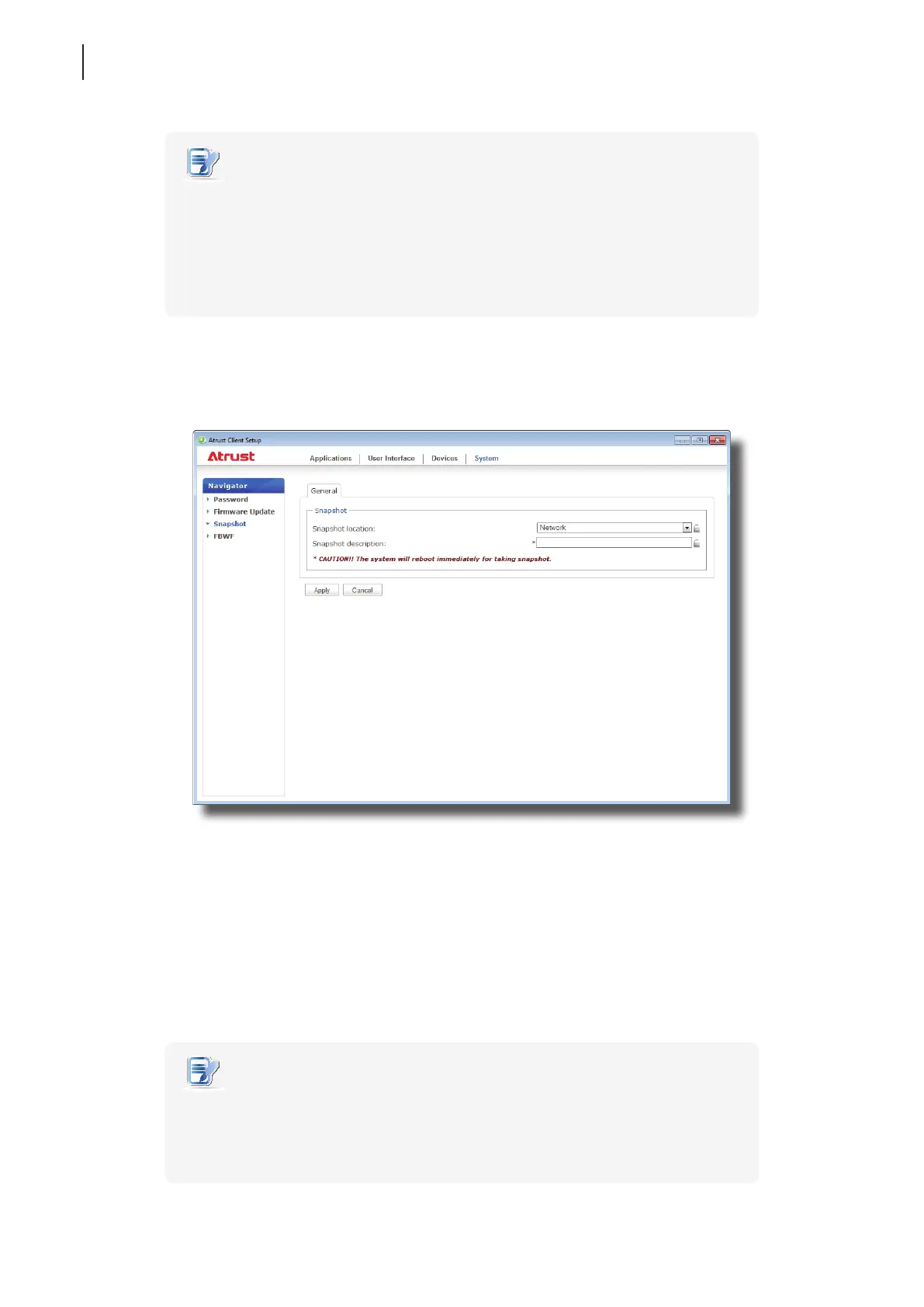
To take a snapshot from a client, please do the following:
1. On Atrust Client Setup, click System > Snapshot.
2. Under the Snapshot section, click the drop-down menu to select where to store the snapshot. Two options
are available: Network and USB.
• To store the snapshot le set on the remote computer, please select Network.
• To store the snapshot le set on the locally attached USB ash drive, please select USB.
3. Type in the desired description for the snapshot, and then click Apply.
4. A message appears prompting for conrmation. Click OK to conrm.
5. The system will restart to complete the process automatically.
NOTE
• Please wait for the process to complete automatically. Taking a snapshot needs
several minutes and requires system reboot more than one time. In addition,
the Sysprep process will not be shown on the desktop but only be performed
in the background.



 To Next Page