Conguring Client Settings
Conguring Service Access Settings
52
4.5.4 Accessing Remote Desktop Services
To access Remote Desktop services, please do the following:
1. Double click the created (customized) shortcuts on the desktop or Start menu.
NOTE
• You can also access Remote Desktop services through the standard desktop
shortcut Remote Desktop Connection. For detailed instructions on how to access
services via this standard shortcut, please refer to section “3.3 Accessing Microsoft
Remote Desktop Services” on page 22.
2. Follow the on-screen instructions and provide required credentials if needed.
3. The desired remote desktop will be displayed on the desktop in full screen (by default).
4.5.5 Conguring Advanced RDP Connection Settings
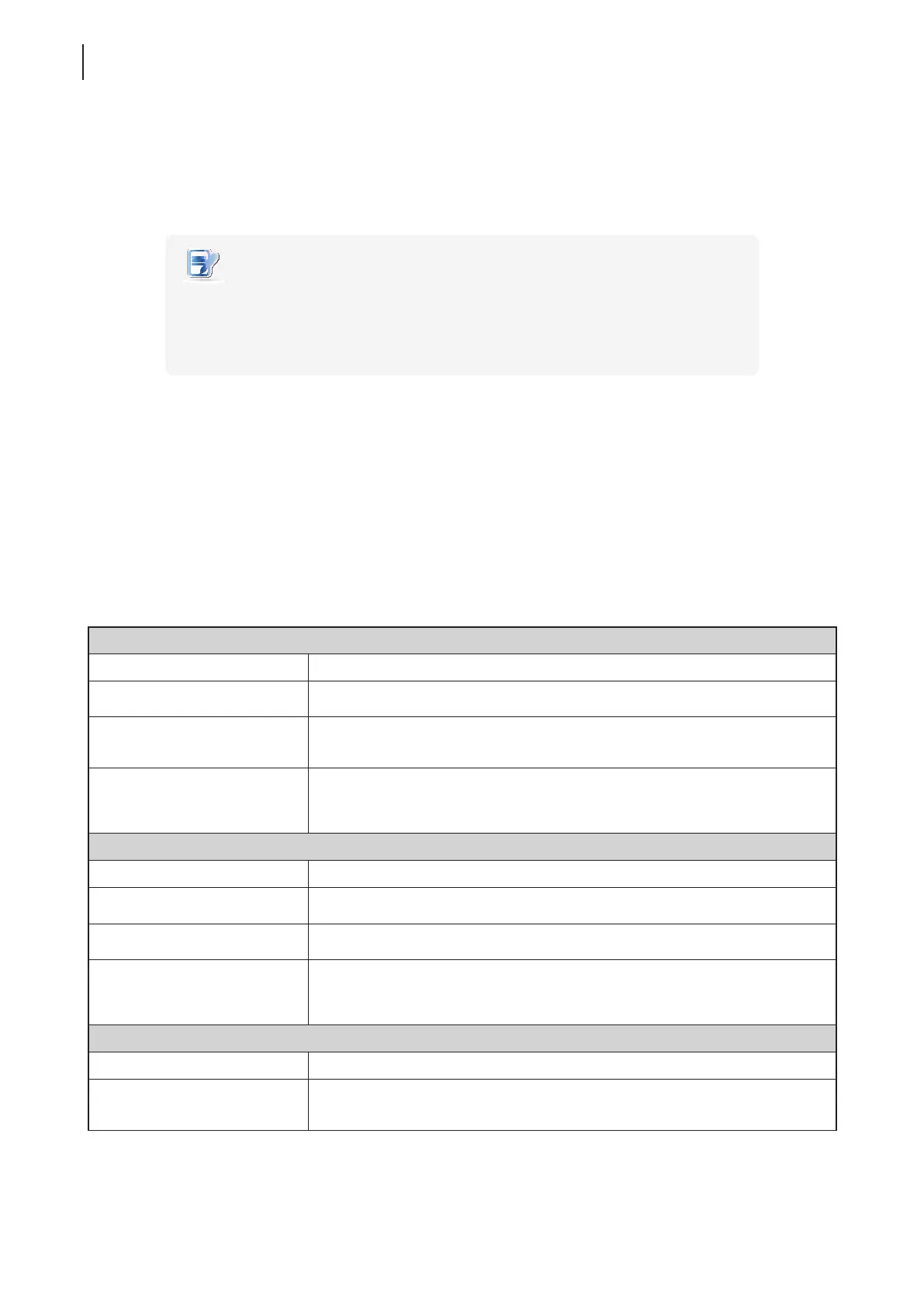
The table below provides a description of each setting item for RDP connections. Please refer to this table to
congure advanced settings and customize your t170 desktop shortcuts for service access.
General Sub-tab
Server Settings
Item Description
Session Name Type in the name for Remote Desktop sessions.
Sever Address
Type in the IP address of the server/virtual machine where to deliver a Remote
Desktop session.
Connection Quality
Select the setting that best describes the quality of your network connection.
Three options are available: Very Fast (LAN), Fast (Broadband), and
Slow (Modem).
Login Settings
Item Description
Username Type in the user/account name used for authentication.
Password Type in the password of the user account used for authentication.
Domain
Type in the domain of the server.
NOTE: Leave this eld blank if the server doesn’t belong to any domain.
Common Settings
Item Description
Autostart When Startup
Select whether to open a Remote Desktop session automatically or not when the
client is started up.



 To Next Page