Conguring Client Settings
Conguring Service Access Settings
85
4.5.11 Conguring Advanced View Connection Settings
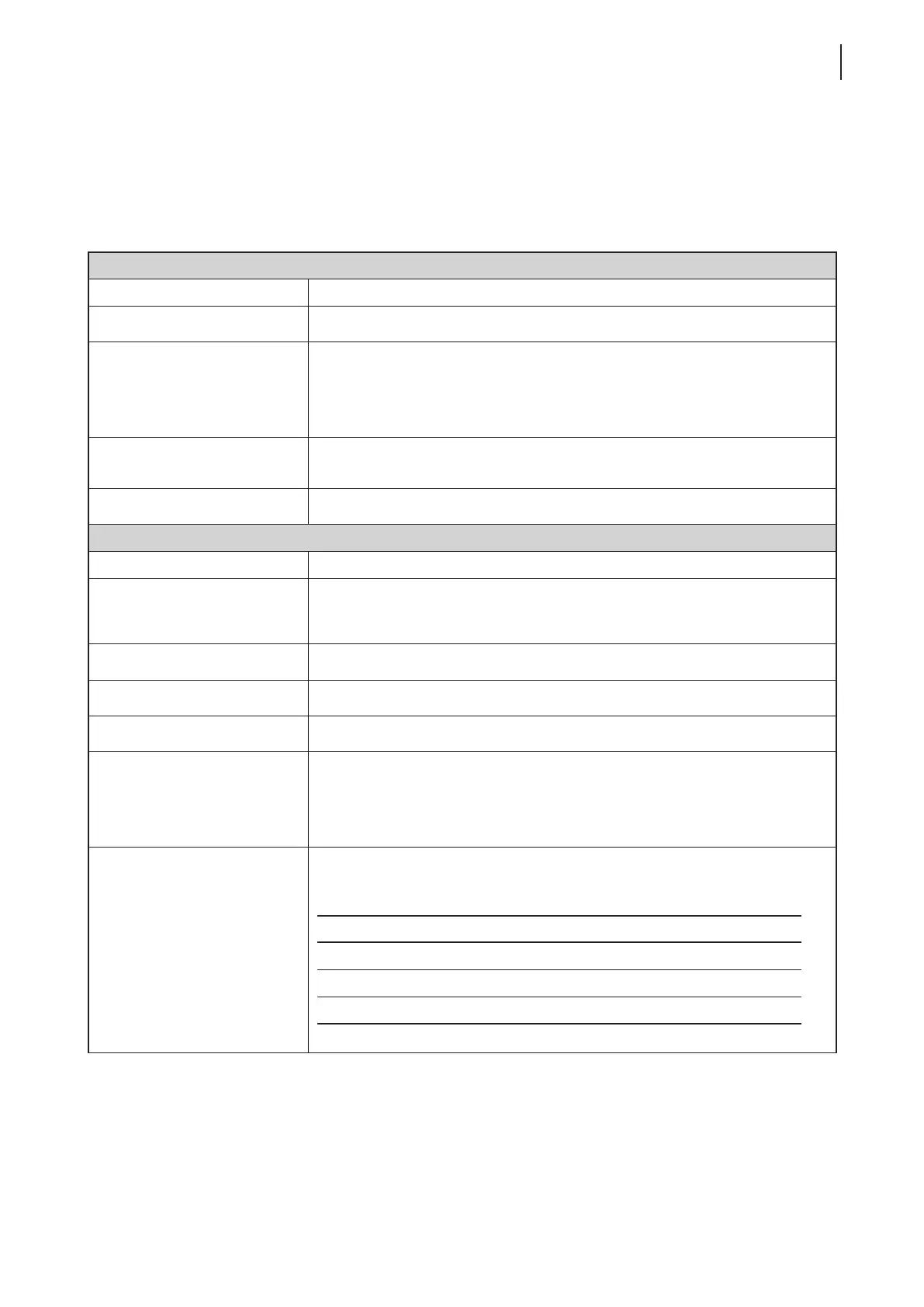
The table below provides a description of each setting item for View connections. Please refer to this table to
congure advanced settings and customize shortcuts on the desktop and Start menu for service access.
General Sub-tab
Server Settings
Item Description
Session Name Type in the name for VMware View or Horizon View sessions.
Connection Server
Type in the computer name or IP address of the View Connection Server.
NOTE: For more information on View Connection Sever, please visit VMware
website at www.vmware.com.
Port
Type in the port number used to communicate with the View Connection Server.
To use the default value, simply leave it blank.
Use secure connection (SSL) Check/Uncheck to enable/disable secure connection.
Login Settings
Item Description
Log in as current user
Check to log in to VMware View or Horizon View services with the current user
credentials. When checked, the User Name, Password, and Domain Name elds
will be grayed out.
User Name Type in the user name for authentication.
Password Type in the password for authentication.
Domain Name Type in the domain name of the View Connection Sever.
Desktop Name
Type in the desktop name. Or, leave it blank for users to select one.
NOTE: If Manual is selected for the Display Protocol eld below, this eld will be
grayed out.
Display Protocol
Click the drop-down menu to select the display protocol. Three options are
available: Manual, Microsoft RDP, and PCoIP.
Option Description
Manual Manually select the desired display protocol.
Microsoft RDP Use Microsoft RDP as the display protocol.
PCoIP Use VMware PCoIP as the display protocol.



 To Next Page